Settings
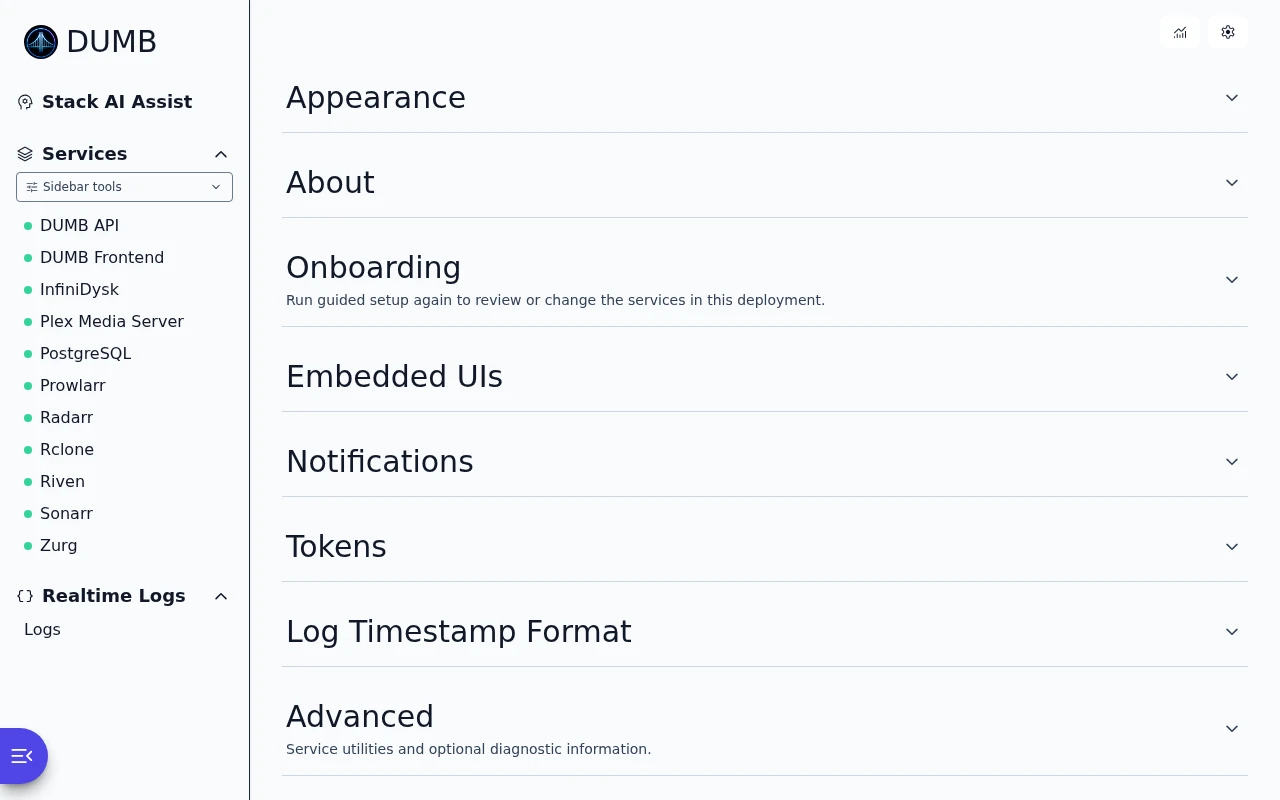
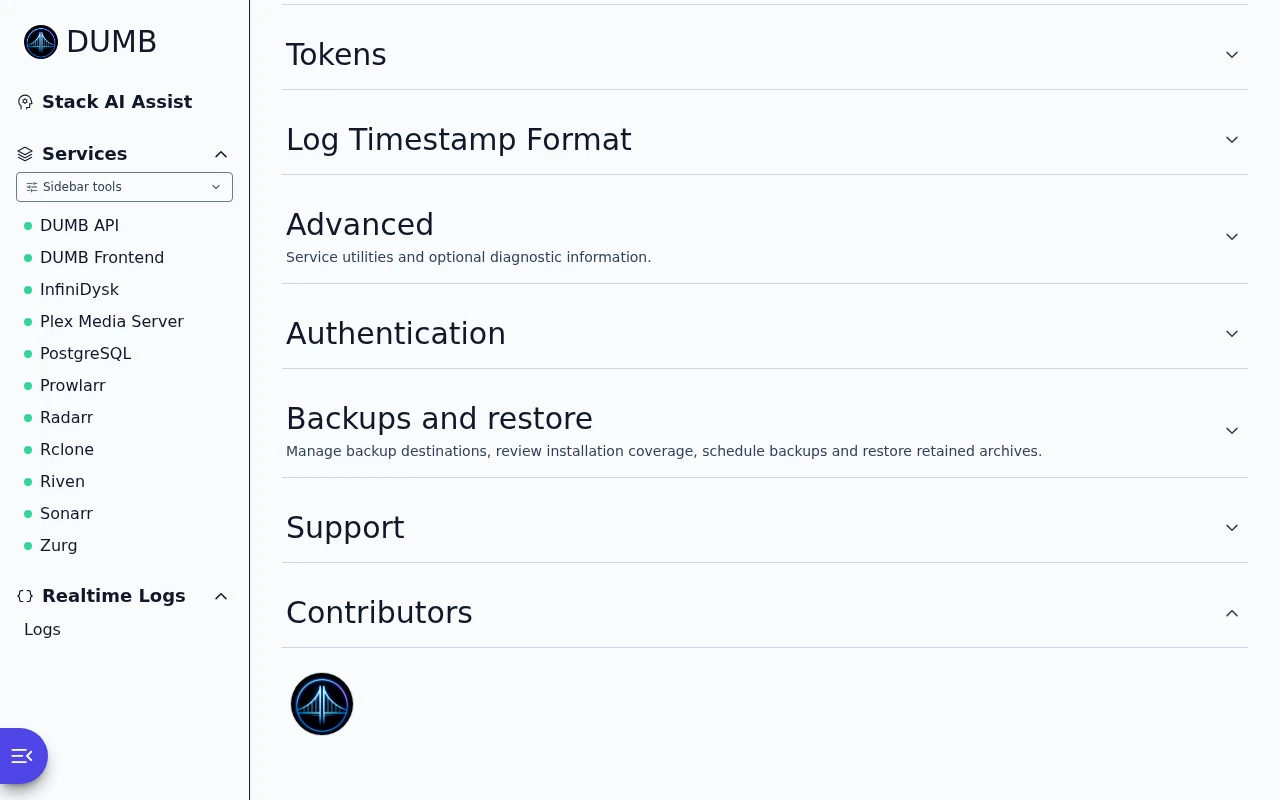
Open Settings from the sidebar. Expand a section to change its values. Closing a section changes only the layout; it does not disable the feature.
Development update · not in the released 2.23.0 docs
Sections start collapsed until you choose otherwise. Each browser remembers explicit open/closed choices. A direct section link opens it for that visit without replacing the saved choice.
Settings
Read the guideFind settings for appearance, connections, access and alerts.
Frontend 1.92.0 · DUMB 2.24.0 · Example data.
Find a setting
| Section | What to change |
|---|---|
| Appearance | System, light, or dark theme |
| About | Review installed API/frontend versions and retained update notices |
| Onboarding | Launch the setup wizard again |
| Embedded UIs | Enable proxied service interfaces |
| Notifications | Destinations, event routing, tests, and delivery history |
| Tokens | Plex and GitHub credentials |
| Log Timestamp Format | Date order, 12/24-hour clock, and zero padding |
| Advanced | Geek Mode |
| Authentication | Sign-in provider and enabled DUMB users |
| Support and Contributors | Project and maintainer links |
Development update · not in the released 2.23.0 docs
The Advanced section also includes service utilities. Backups and restore appears after Authentication when supported by the backend.
Appearance
Choose System Default to follow your operating system, or select a light/dark palette. This preference is stored in the browser and does not change backend configuration.
About section
Version information
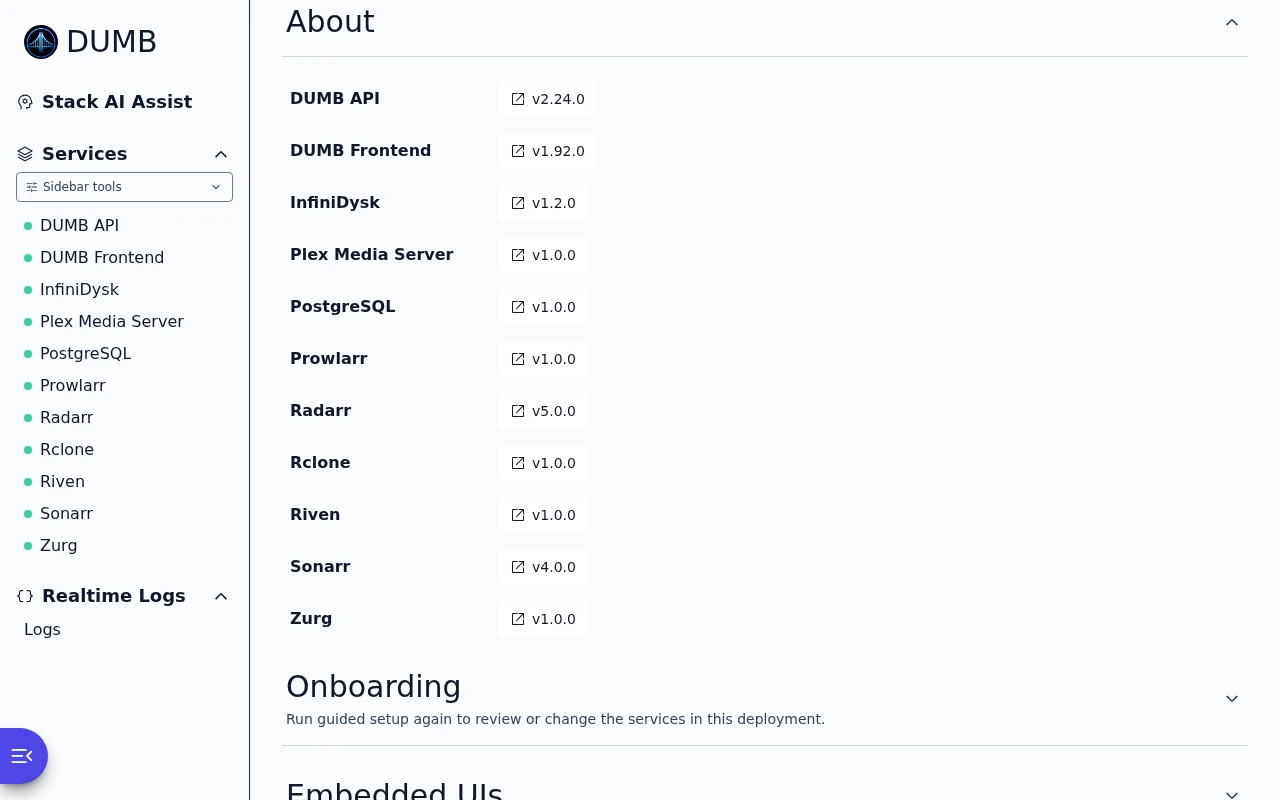
The About section shows the installed API, frontend, and service versions. Select an Update available badge to open the DUMB Updates dialog. Where GitHub history includes the installed release, it also shows how many releases the component is behind. Moving development builds show Dev build instead of an invented release count.
Dismissing a banner hides it only in that browser. The About section retains the backend's update result and can show the banner again.
Development update · not in the released 2.23.0 docs
Ordinary stable notices are suppressed when the installed version is equal to or newer than that release. Explicit branch, commit, and release selections remain available for review.
Application versions
Read the guideCheck the installed DUMB, frontend and service versions.
Frontend 1.92.0 · DUMB 2.24.0 · Example data.
Launch Onboarding
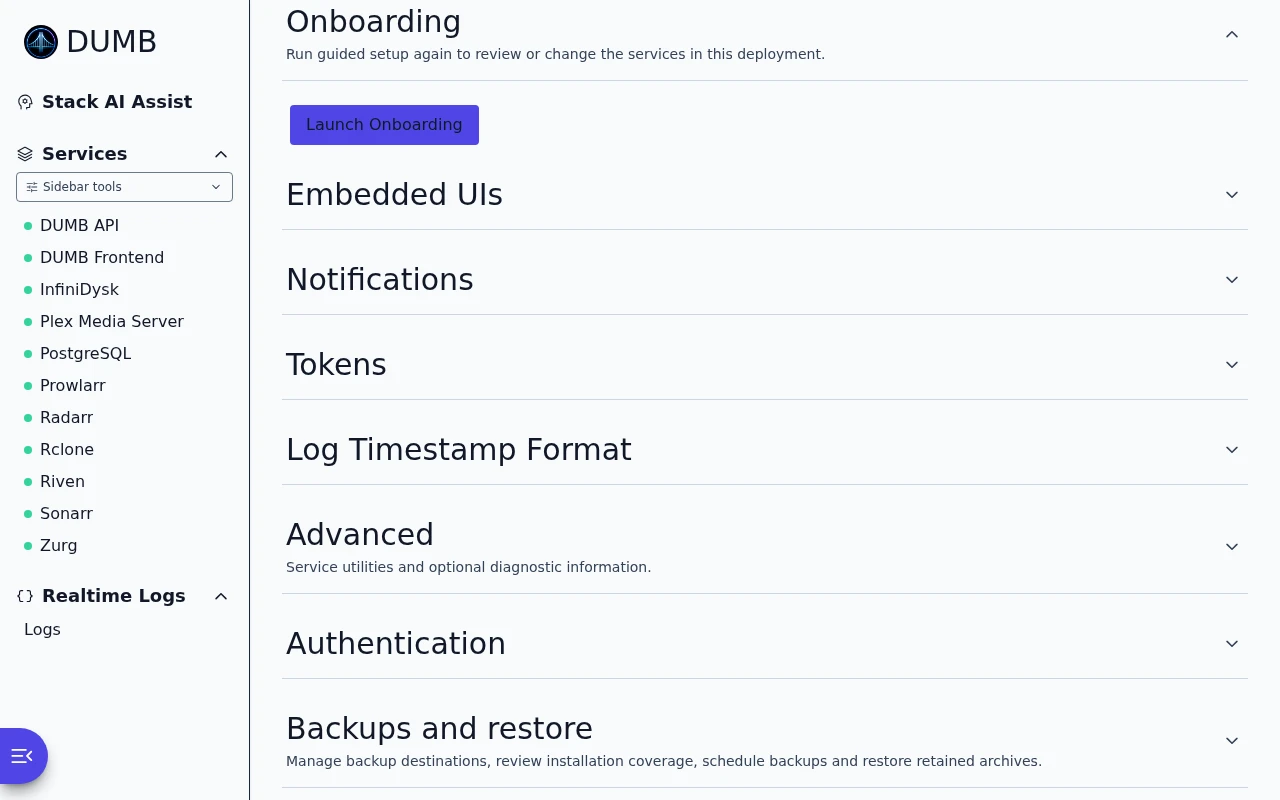
Choose Launch Onboarding and confirm to review services again. If onboarding has already completed, you can go directly to optional services.
Existing application data is retained, but the wizard can apply new settings over the current configuration. Already enabled non-instance services are not offered as new selections; use their service pages for ordinary configuration changes.
Run guided setup again
Read the guideOpen guided setup again to review or change your service choices.
Frontend 1.92.0 · DUMB 2.24.0 · Example data.
Embedded service UIs
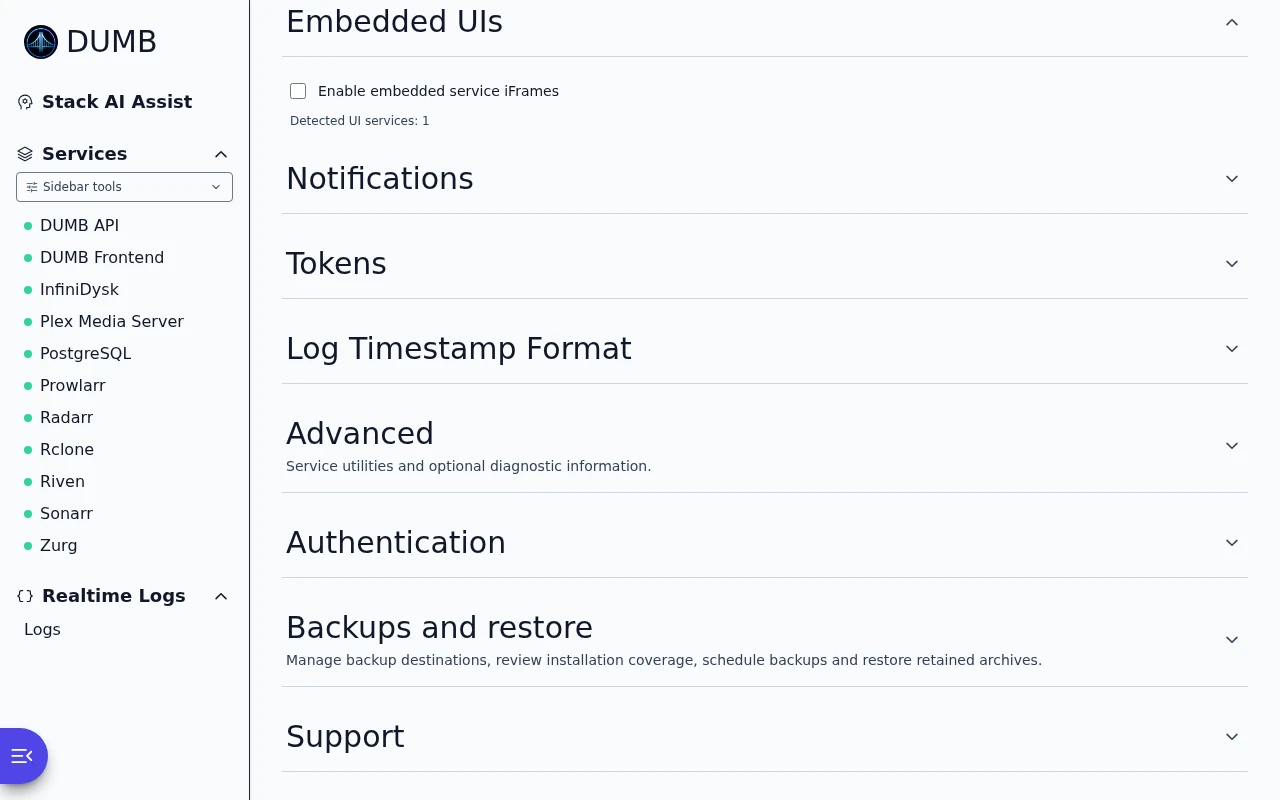
Select Enable embedded service iFrames to add embedded application tabs, direct links, and full-window controls to supported service pages. Disabling it removes dashboard access through those routes; native-port access still depends on your deployment's port mappings.
Embedded UI settings
Read the guideChoose whether supported apps open inside DUMB.
Frontend 1.92.0 · DUMB 2.24.0 · Example data.
See Embedded service UIs for routing, application logins, and Authelia/TPA SSO exceptions.
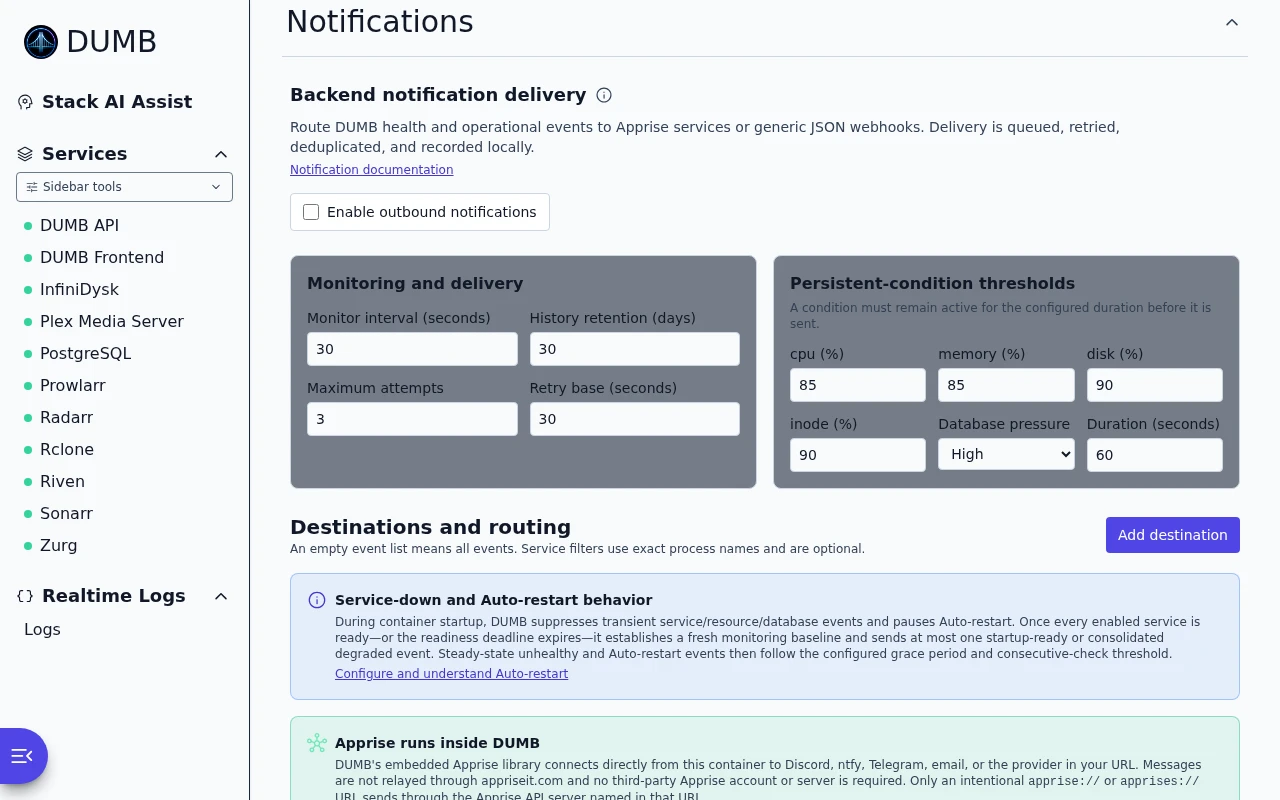
Notifications
This section requires the backend's notifications capability. It configures outbound delivery that continues without an open browser.
- Enable notifications and add an Apprise or generic webhook destination.
- Choose minimum severity, event types, and intended enabled services.
- Save and test the destination.
- Review delivery history if a normal event does not arrive.
The default Warning minimum excludes normal Success events, including successful auto-restarts. Save & test bypasses enable switches and routing filters for that test; it does not prove a normal event matches your rules.
Saved destination URLs and headers stay on the server. A blank secret field preserves its existing value. Apprise normally delivers directly from DUMB to the provider; apprise:// and apprises:// explicitly use an Apprise API server.
Notifications documents events, startup baselining, retries, thresholds, and delivery limitations. Browser-local Metrics banners use separate settings on the Metrics page.
Notifications
Read the guideChoose where alerts go and which events you want to receive.
Frontend 1.92.0 · DUMB 2.24.0 · Example data.
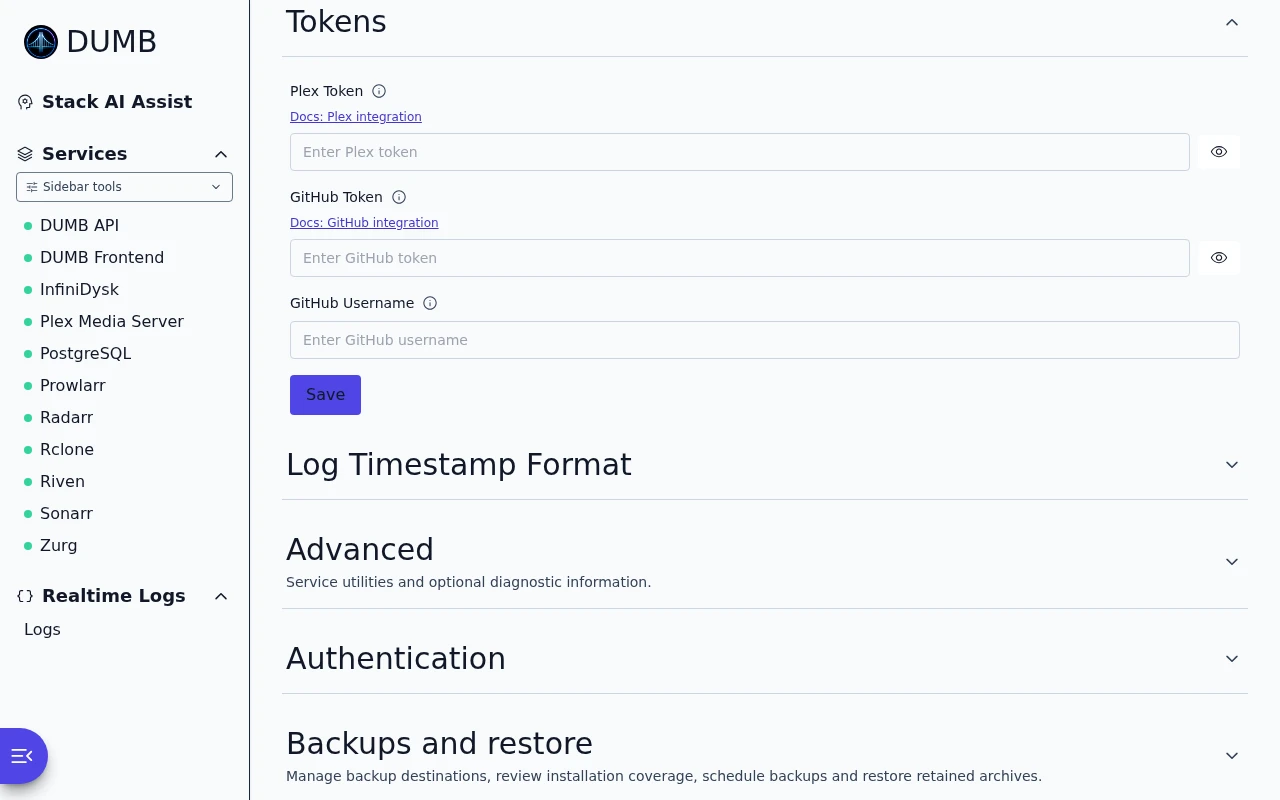
Token settings
| Token | Used for |
|---|---|
| Plex | Plex API access and selected integrations, such as Riven watchlists/scans |
| GitHub | Higher API limits and authorized private/sponsored release downloads |
A GitHub token should grant only the read access required by the selected source. Public release checks normally need no token. Enter the required token here, select Save, and wait for Saved. Retry the connection or update check that needed it. Technical deployments can also use a supported configuration override.
Integration tokens
Read the guideAdd the Plex and GitHub credentials used by your installation.
Frontend 1.92.0 · DUMB 2.24.0 · Example data.
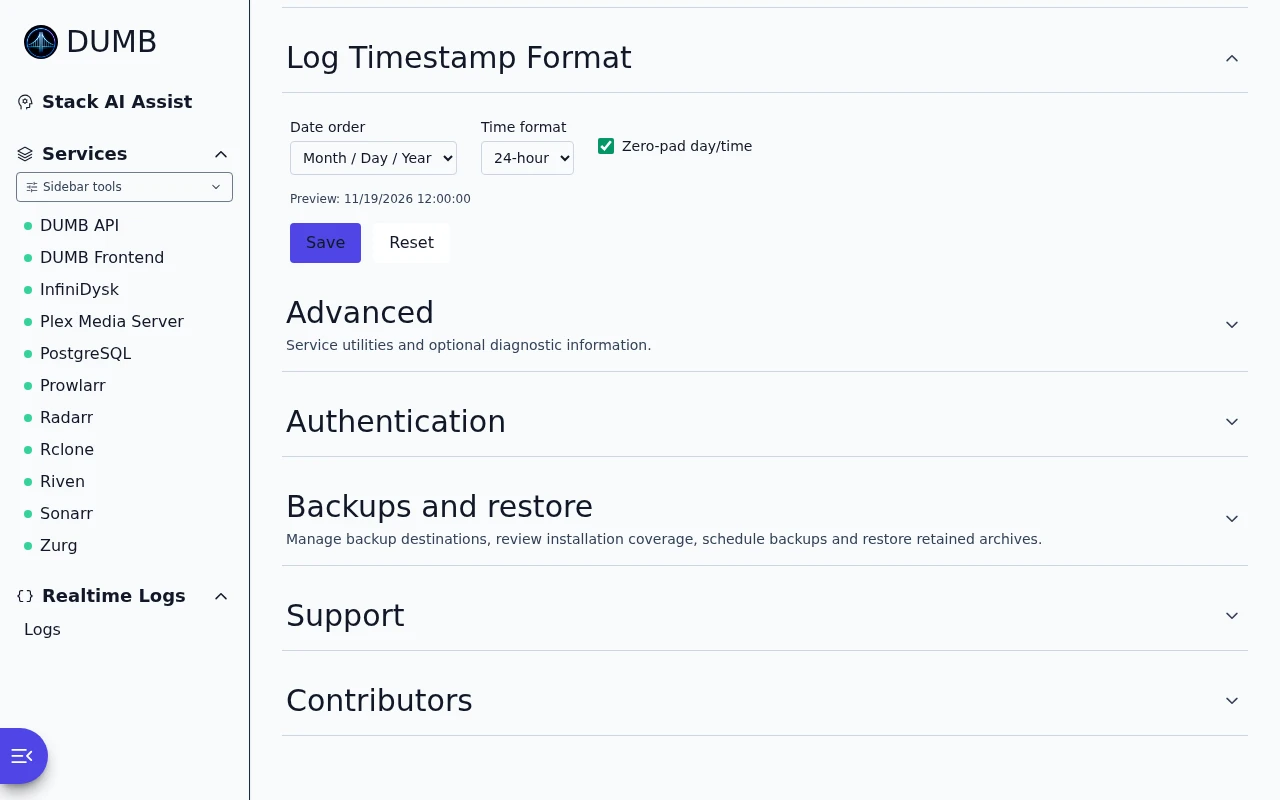
UI preferences
Log Timestamp Format controls MDY/DMY date order, 12/24-hour time, and leading zeros. It changes log presentation, not the backend's timezone or original log timestamps.
Log timestamp format
Read the guideChoose the date and time format used in logs.
Frontend 1.92.0 · DUMB 2.24.0 · Example data.
Advanced
Development update · not in the released 2.23.0 docs
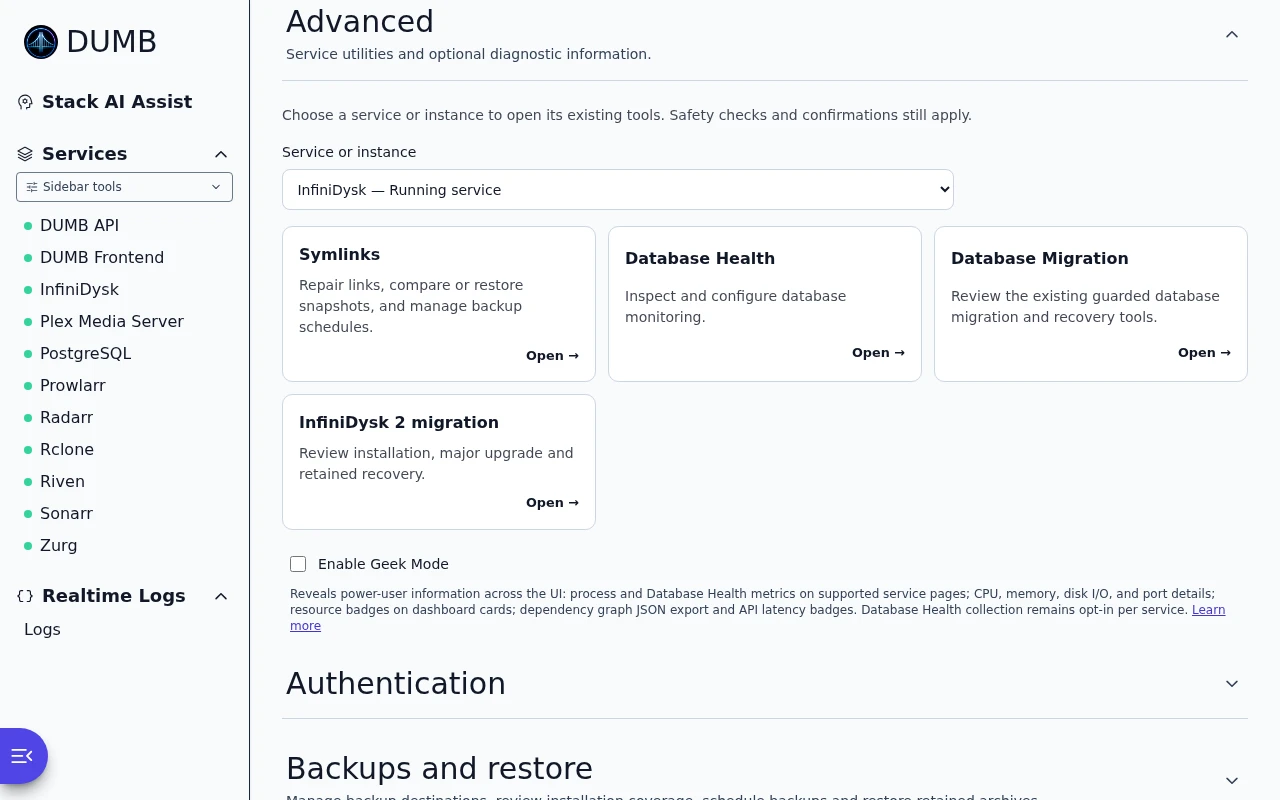
Service utilities
Choose Service or instance, then a tool for that exact target. The selector includes enabled/running services and instances with saved utility state, and omits unconfigured disabled templates.
Available shortcuts include Media Protection, Symlinks, Database Health/Migration, InfiniDysk 2 migration, Rclone Optimizer, Seerr Sync, and Plex Status. They depend on backend and service capabilities. Opening a tool does not run it or accept its confirmations. Viewing Database Health does not enable collection.
Geek Mode
This is a preference in the DUMB dashboard, separate from the Geek mode switch in this documentation site's header. The dashboard preference adds diagnostic controls to the application; the docs switch reveals explanations and alternative methods in these guides.
Open Settings → Advanced → Geek Mode and enable it for extra diagnostic details. Return to a service page to see the additional controls:
| Location | Additional information |
|---|---|
| Service header | Internal config key and process name |
| Dependencies | API latency, Copy JSON, and Mermaid source in Flow |
| Process Metrics | PID, uptime, CPU/RSS, I/O, listening ports, paths, and restart history |
| Dashboard cards | CPU/RSS badges, refreshed every five seconds |
| Supported database services | Summary of explicitly enabled Database Health collection |
Database Health stays opt-in per service. Geek Mode does not run repair, integrity checks, or migrations.
The dependency-panel example shows its ordinary views. Geek Mode adds the diagnostic controls listed above.
Advanced settings
Read the guideEnable Geek Mode to show additional service information and diagnostics.
Frontend 1.92.0 · DUMB 2.24.0 · Example data.
Authentication settings
Authentication provider
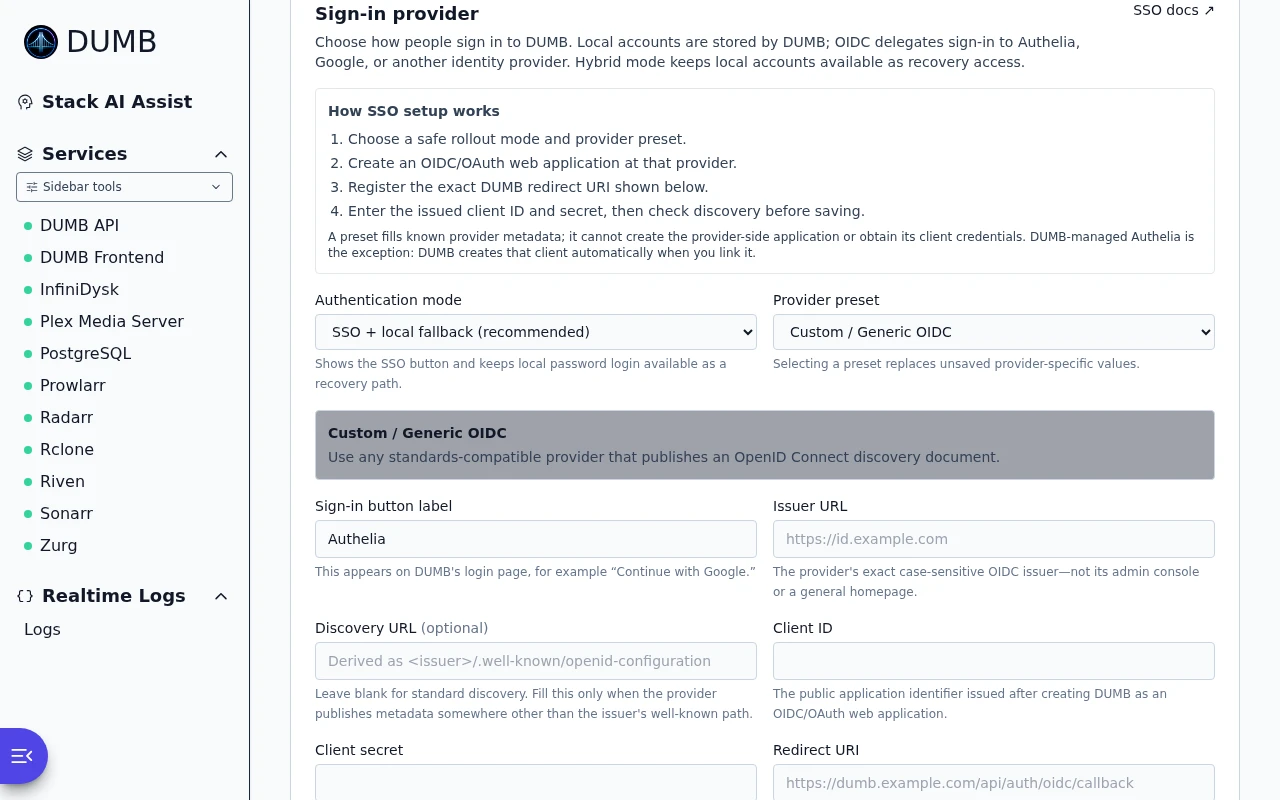
Choose Local, Hybrid, or OIDC only when supported by the connected API. Hybrid retains local login for recovery. OIDC-only requires an explicit lockout-risk confirmation.
The provider editor supports managed/external Authelia and provider presets including Google, Authentik, Keycloak, Entra ID, Auth0, Okta, ZITADEL, Dex, and generic OIDC. Each external provider needs a web application, client ID/secret, and the exact browser-facing HTTPS callback:
Opening Settings through localhost or an IP address leaves the callback blank. Enter the real HTTPS FQDN and register the exact value at the provider. Select Check discovery, correct any reported error, then select Save provider. Keep Hybrid mode while testing provider sign-in in a separate private browser window.
For bootstrapped DUMB-managed Authelia, Link managed Authelia creates/reuses a dedicated client and transfers its secret without displaying it. Use the Authelia wizard for bootstrap and route setup.
Provider TLS verification stays enabled by default. Allow private endpoint IPs and Allow HTTP are explicit outbound connection exceptions for a trusted provider; changing presets resets them. The full authentication guide covers claim mapping and provider restrictions.
Sign-in provider
Read the guideChoose local sign-in, an identity provider, or both.
Frontend 1.92.0 · DUMB 2.24.0 · Example data.
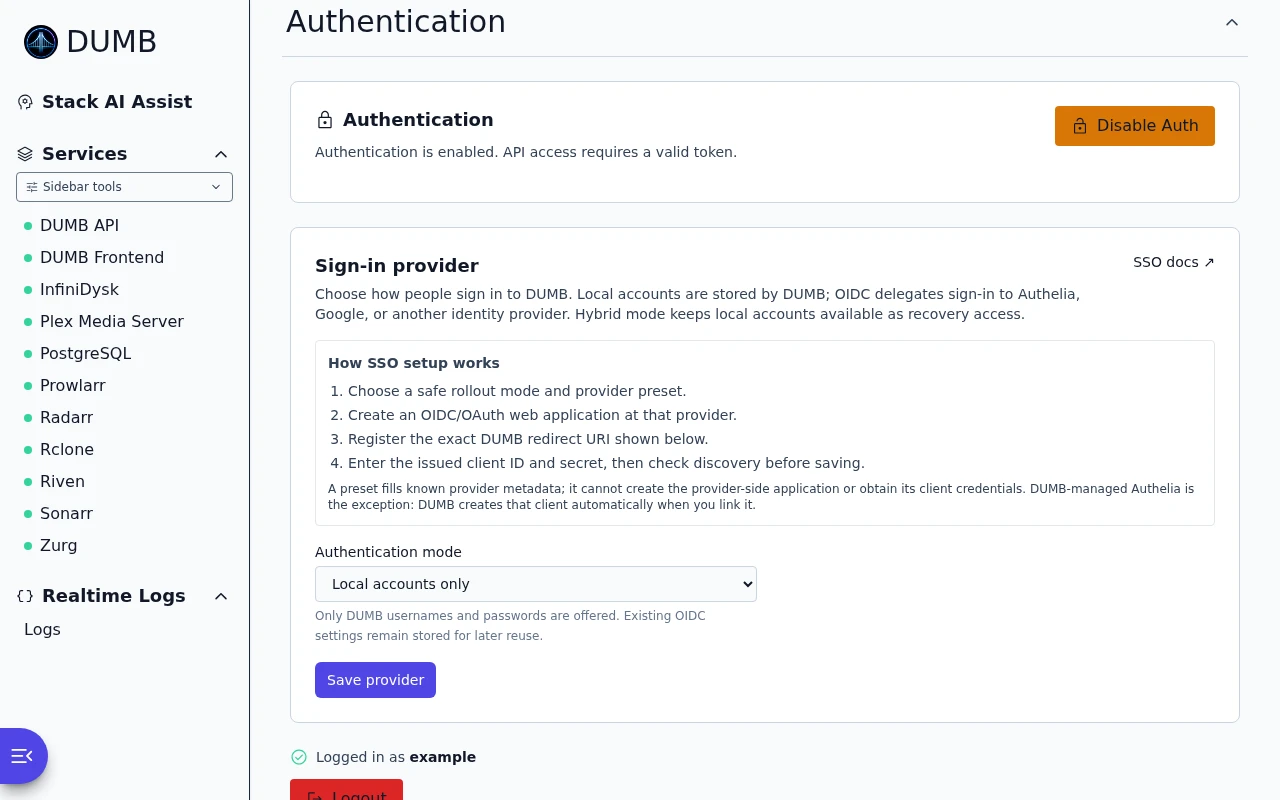
Enable/disable authentication
Enable authentication before allowing untrusted network access. Disabling it exposes DUMB controls to anyone who can reach the API.
User management
Add, disable, enable, or delete local users under Authentication. DUMB protects the last active user from disable/delete. All enabled users have the same operator privileges; groups do not create viewer or administrator roles.
Follow the sign-in and access-check diagram when testing an authentication change.
Authentication and local accounts
Read the guideManage sign-in and local accounts for your installation.
Frontend 1.92.0 · DUMB 2.24.0 · Example data.
Development update · not in the released 2.23.0 docs
Backups and restore
Backups and restore
Read the guideReview your backup and restore options.
Frontend 1.92.0 · DUMB 2.24.0 · Example data.
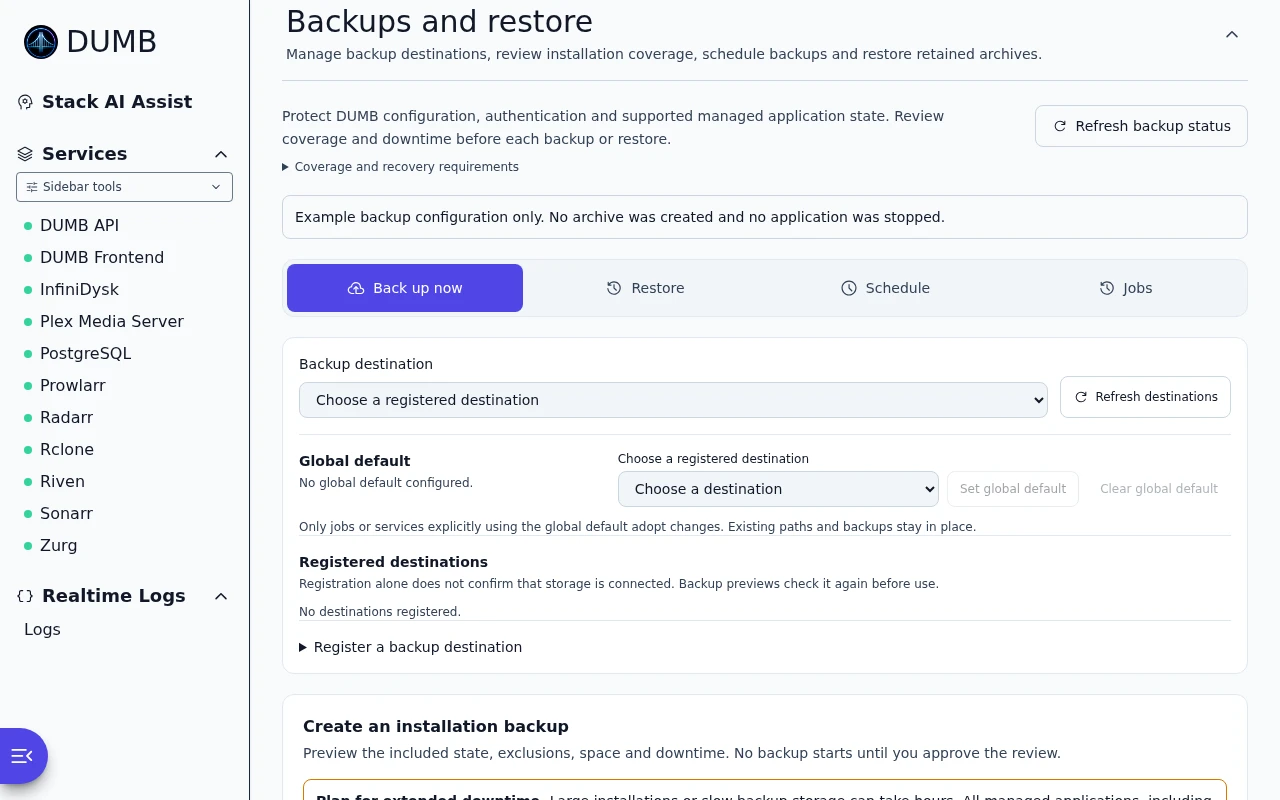
- Register an already-mounted destination.
- Choose
.taror.tar.zst, then run Preview backup. - Review coverage, capacity, exclusions, and downtime before confirming archive creation.
- Follow the application-wide progress notice until completion.
The preview scans while applications remain running. Cancel preview waits for its cleanup; closing the page does not cancel backend work. Manual compression and schedule compression are separate choices, and compression does not encrypt an archive.
A fresh installation can reach restore before application onboarding after normal authentication setup/login. Recovery required retains instructions and may block service/setup actions until recovery completes. Reconnect after a lost connection to establish the actual terminal state. Do not stop DUMB or the host during a running backup or restore.
Use Installation backup and restore for the complete procedure and Backup storage for destination identity and mount checks.
Support and contributors
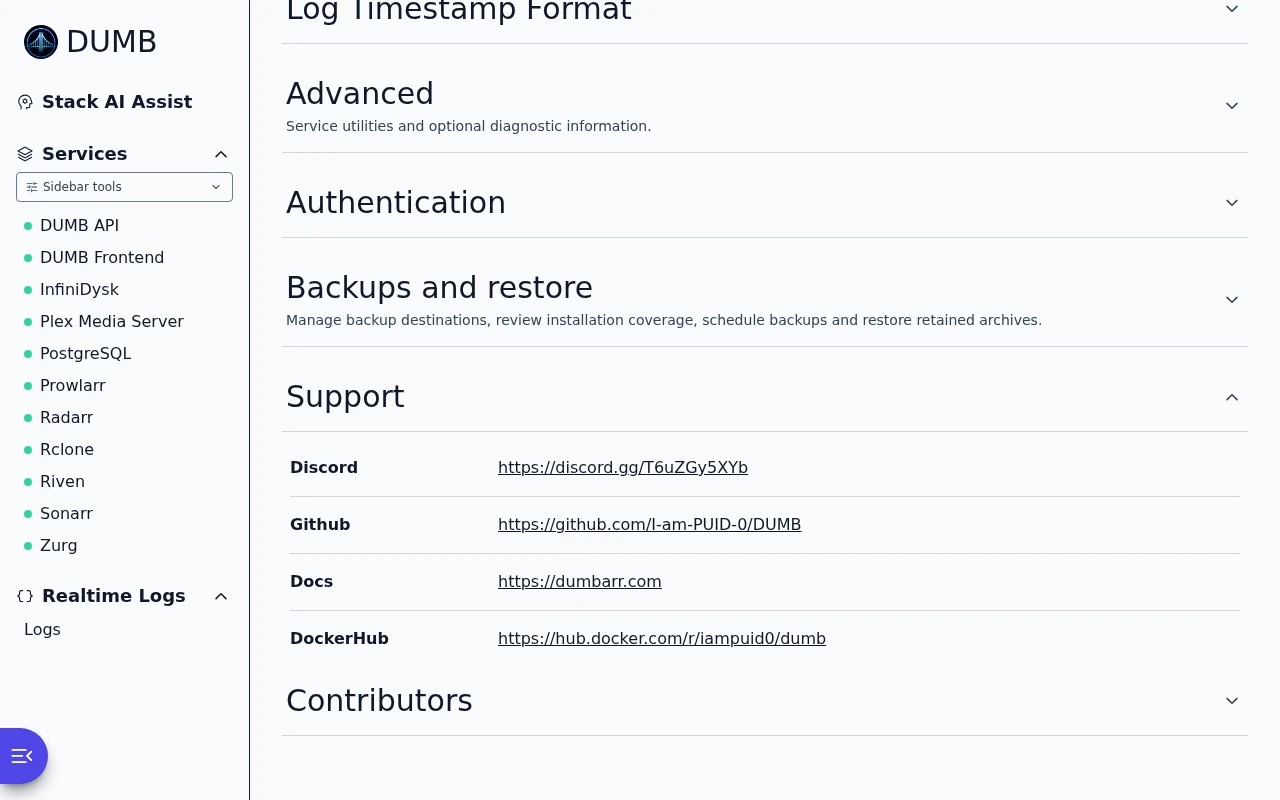
Open Settings → Support and Contributors for project links and the people maintaining DUMB and its frontend. You can use these links without enabling Geek Mode.
Support the projects
Read the guideFind help, project links and ways to support the maintainers.
Frontend 1.92.0 · DUMB 2.24.0 · Example data.
Project contributors
Read the guideMeet the people who contribute to DUMB and its frontend.
Frontend 1.92.0 · DUMB 2.24.0 · Example data.
Related pages
- Dashboard for service cards and updates.
- Service pages for per-service controls and configuration editors.
- Metrics for browser-local alert thresholds.