Deploy with Portainer
Use a Portainer stack to manage DUMB's Compose configuration. You need a running Docker environment in Portainer and permission to deploy a stack to it.
If Portainer is not installed, follow its official Docker installation guide. For Docker installation, use Docker Engine's supported packages. Avoid the Snap build for DUMB's FUSE workflows.
1. Prepare paths on the Docker host
Create persistent directories on the machine running Docker, not merely on the machine where your browser or Portainer server runs:
Use the absolute path and nonzero IDs from the account that should own application data. Portainer stack files do not reliably expand ~.
2. Prepare the Compose file
Copy the maintained DUMB Compose file, or download it:
curl --fail --show-error --location \
  https://raw.githubusercontent.com/I-am-PUID-0/DUMB/master/docker-compose.yml \
  --output docker-compose.yml
Before deploying, edit:
- The four host paths: replace
/home/username/docker/DUMBwith your absolute directory. PUIDandPGID: use nonzero IDs with access to those directories.TZ: use your time zone, for exampleEtc/UTC.- Device mappings: keep
/dev/fuseand its required capability/security options for FUSE workflows. Remove/dev/driif the Docker host has no such device. - Image: use the stable
latestimage or the intended development image. Keep the docs channel aligned.
The standard file publishes 3005 for dashboard, API, WebSockets, and embedded UI access. A normal private /mnt/debrid bind works for consumers inside DUMB. See mount planning before enabling propagation for external consumers.
3. Deploy the stack
- Open Portainer and select the intended Docker environment.
- Choose Stacks → Add stack.
- Enter
dumbas the stack name. - Choose Web editor and paste the reviewed Compose file.
- Select Deploy the stack.
Portainer screens
Labels may differ by Portainer version.
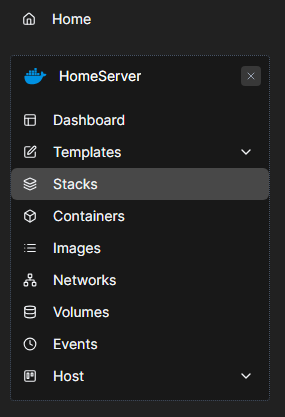

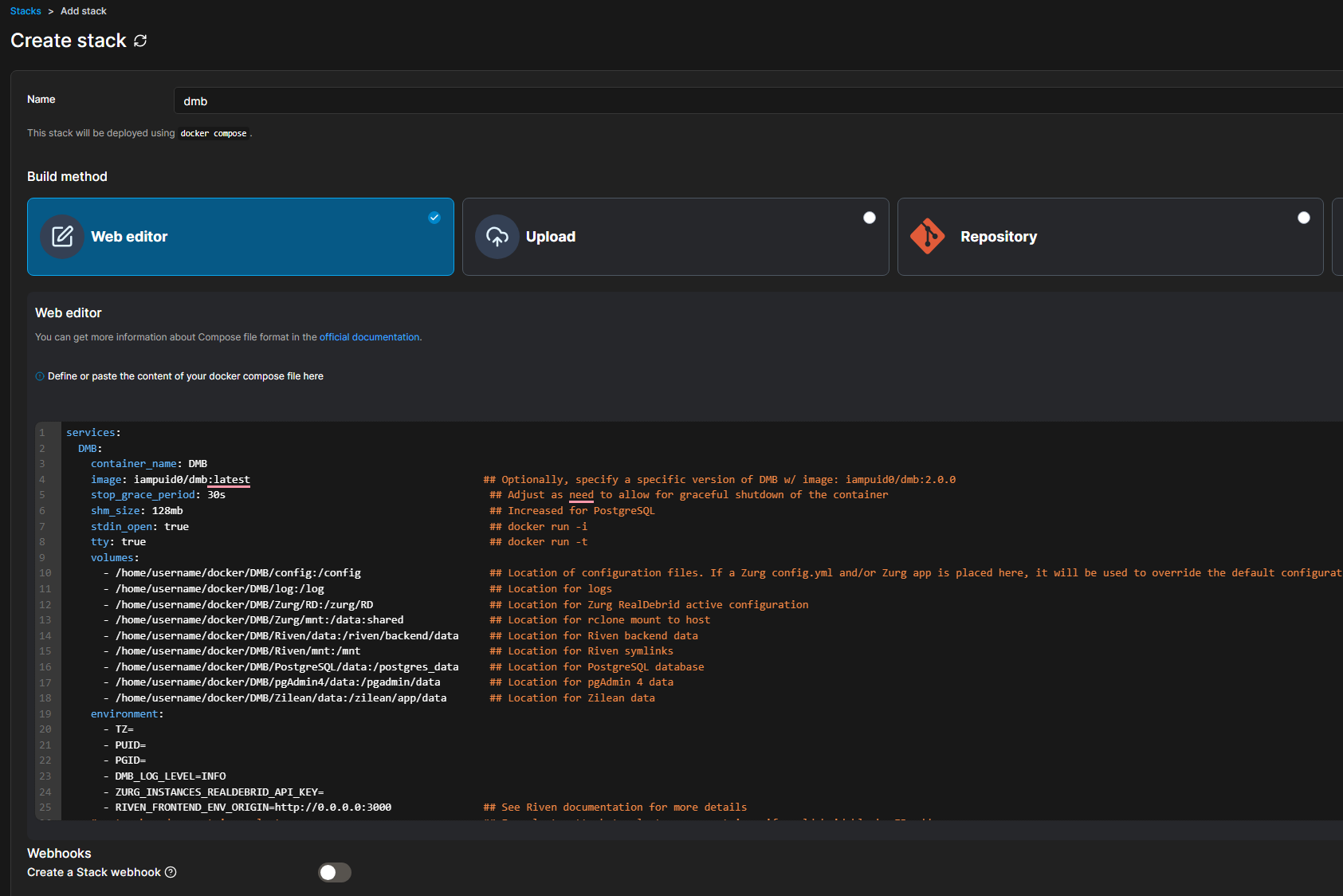
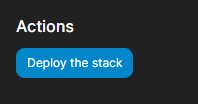
4. Verify startup
Open Containers, select DUMB, then open Logs. Follow startup and check any reported installation or permissions error.
Open http://<docker-host>:3005 and complete onboarding. Check that the host address belongs to the selected Docker environment; a remote agent's containers do not run on the Portainer server by default.
For a diagnostic shell, use the container's Console action and select /bin/bash or /bin/sh. This is separate from attaching to the container's existing main process.
Direct application ports
Add mappings only when another client needs direct access, for example:
Update the stack after changing mappings. See Service ports and Networking.
The DUMB backend on 8000 is loopback-only by default. Prefer the gateway at :3005/api/...; a Portainer port mapping alone does not expose the backend listener.
Update the DUMB image
- Open Stacks →
dumb→ Editor. - Review Compose changes against your existing paths and settings. Preserve your values rather than replacing the file blindly.
- Select Update the stack and choose the option to re-pull the image when offered.
- Check the container logs and dashboard after replacement.
Application auto-updates inside DUMB do not update the DUMB image itself. Keep /config, /data, /log, and library mounts across replacement, and keep a separate backup before upgrades.