Service pages
Select a service card to open its status, configuration, logs, and application interface. Frequent controls stay in the command bar; less frequent tools are grouped under Tools, beside the tab strip. The tools shown depend on the service and connected backend.
Choose a task
| Task | Control |
|---|---|
| Start, stop, or restart | Command bar |
| Change DUMB-managed settings | DUMB Config |
| Edit the application's configuration | Service Config, when available |
| Read or download logs | Service Logs, when available; otherwise sidebar Realtime Logs |
| Open the application's own UI | Embedded UI |
| Check/install an update | Tools → Updates |
| Inspect a missing dependency | Tools → Dependencies |
| Diagnose with selected evidence | AI Assist |
| Change the page's default tab | Tools → Preferences |
Development update · not in the released 2.23.0 docs
Setup checklist
Retained setup tasks are scoped to the current service and instance. Expand Configure this step to supply missing inputs, then apply, retry, or recheck the intended action. Manual completion records your confirmation separately from a passed connection test. See Setup checklist.
Status and controls
The header shows process status, application health, and restart information. Hover a health badge for the backend's probe reason. Starting and Degraded are distinct from a restart-relevant Unhealthy result.
Service controls
Read the guideCheck a service's status and find its start, stop and restart controls.
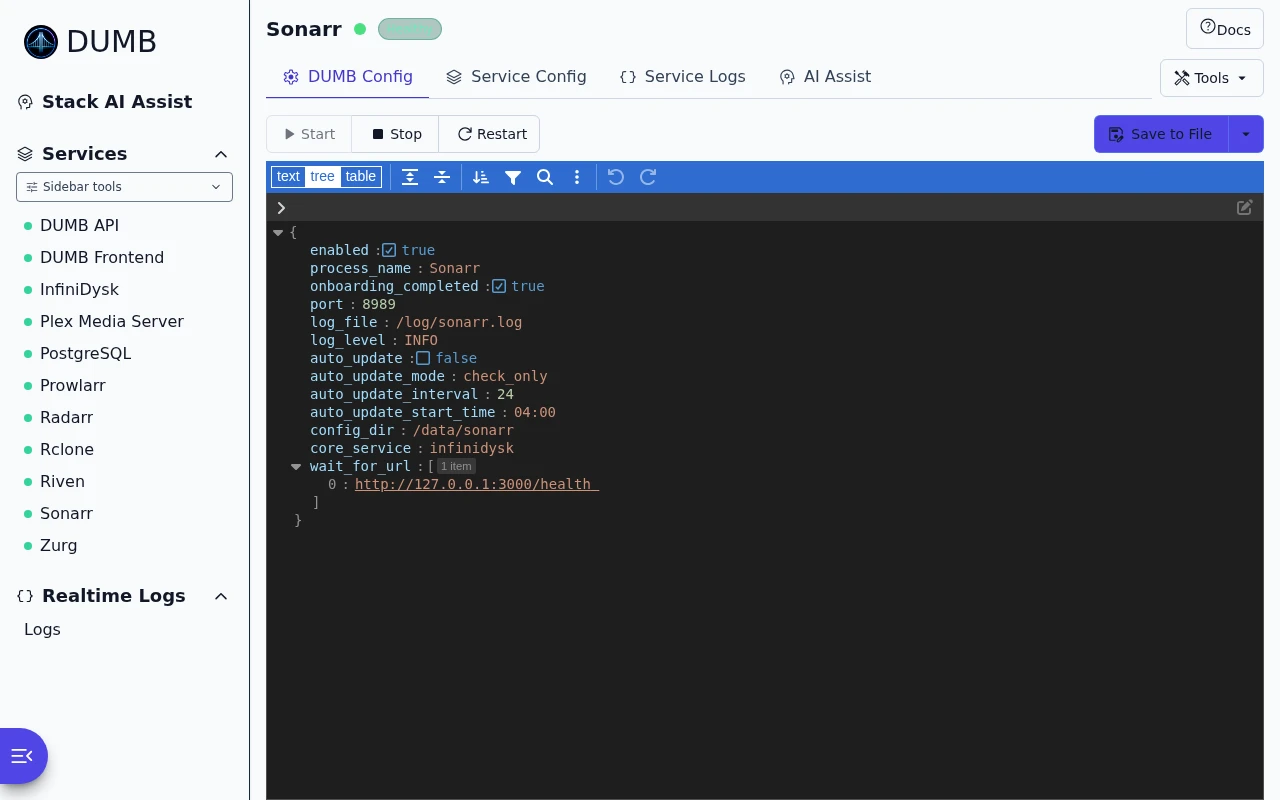
Frontend 1.92.0 · DUMB 2.24.0 · Example data.
Use Start, Stop, or Restart for the current service. The DUMB API page has no start/stop/restart buttons. A storage operation affecting a protected media server prompts for playback and scan handling before it runs. Dashboard bulk updates use safe mode; use the individual service page to review an override.
Save to File persists a configuration. Its DUMB Config split-button also offers Apply in Memory for a temporary controller change. Saving configuration does not necessarily restart or reconfigure the application.
InfiniDysk namespace migration
An eligible legacy NzbDAV installation shows its retained migration notice. Choose compatibility-only branding or run the complete namespace preflight. A fresh canonical InfiniDysk installation does not receive this action.
The full cutover requires a current preflight and downtime acknowledgements. It shows a persistent background job with Open progress; navigation or browser refresh reattaches to that job. Restarting DUMB interrupts the job rather than resuming it automatically.
| Result | Next action |
|---|---|
| Completed | Perform the post-migration checks, including paths, scans, and sample playback |
| Failed and rolled back | Verify the legacy stack before retrying |
| Interrupted / rollback attention required | Preserve the named backup and follow the reported targeted recovery; do not toggle providers or move paths manually |
Review cleanup, where offered after success, is an irreversible purge of migration recovery/history data. Keep independent backups and complete validation before using it. See the namespace migration procedure and cleanup instructions.
Reset / Remove
Reset DUMB configuration disables the target and restores its DUMB defaults. Remove service files additionally removes the exact managed paths listed in its preview. The dialog identifies retained/shared paths and requires the exact process name.
Neither operation is a database reset or media-library cleanup. Read Service reset and removal, especially for database-backed services and dependencies.
Rclone Optimizer tab
Eligible InfiniDysk-backed rclone instances show file selection, safety limits, background progress, candidate results, and apply/rollback controls. The production mount supplies discovery metadata; test reads use isolated shadow mounts and can consume provider traffic.
Set limits for your own hardware, connection budget, and provider. A winning profile is a combined result, not proof that each flag is independently optimal. Missing matched provider evidence is shown as unavailable. Apply/rollback interrupts rclone and verifies mount replacement. Use Rclone Streaming Optimizer before starting a test.
mediastorm first-login credential
On supported backends, a masked credential notice appears while mediastorm's bootstrap credential file exists. Reveal/copy it only as needed. Current builds require a replacement password during first login; pinned older builds may require changing it immediately after sign-in. The notice disappears when the bootstrap file is removed. See mediastorm setup.
Database Migration panel
Supported services expose Database Migration through backend capability metadata. The panel separates preflight, rehearsal, guarded cutover, and rollback. A successful rehearsal is required before the frontend enables cutover.
Closing the panel does not cancel the backend job. Reopen it to follow progress. InfiniDysk failures, interruption, or rollback problems retain a recovery banner after navigation and reload; use the reported guarded rollback rather than manual provider/file changes.
The SQLite-to-PostgreSQL guide lists supported applications, schema checks, backup requirements, and the limits of rollback.
Development update · not in the released 2.23.0 docs
For InfiniDysk 2, the frontend selects the separate native conversion tool for the active generation.
Dependency graph view
Open Tools → Dependencies to inspect startup order, missing prerequisites, and relationship signals. Available Fix now actions start the identified dependency; review the target before using them.
| View | Shows |
|---|---|
| Runtime scope | Hard runtime and explicitly configured dependencies |
| All scope | Runtime edges plus soft/optional application links |
| Details | Dependency reasons and current states |
| Flow | Mermaid graph and parallel prerequisite groups |
Instance links are scoped to the current workflow. An unrelated rclone or Zurg instance is not treated as a valid dependency when the intended mapping is missing. Conditional startup dependencies apply only when the relevant services are enabled. Signals distinguish runtime waits, configured core_service links, and optional integrations.
With Geek Mode, the panel also exposes API latency, Copy JSON, and raw Mermaid source. Use Details if the browser cannot render Flow.
Process Metrics panel
Geek Mode adds a Process Metrics panel with PID, uptime, CPU/RSS, I/O, ports, connection count, configured paths, container resources, and restart history. It fetches on page entry; Refresh requests a new sample.
Database Health panel
Supported services expose Database Health independently of Geek Mode. Choose Standard / passive or Enhanced / read-only probes explicitly for the intended service. Opening the panel does not enable collection.
Expanded results include provider/store information, pressure reasons, database/WAL size, filesystem capacity and inodes, network/read-only state, log signals, and bounded probe results where supported. Plex while running, Decypharr append logs, Phalanx Hyperbee, and Zurg state remain passive-only.
Ignore network storage score excludes only intentional network placement; low space, inodes, read-only storage, and other signals still count. The panel does not run maintenance, repairs, integrity checks, or migration. See Database Health for interpretation and limits.
Auto-restart policy
Use Tools → Auto-restart to select the current service and set its policy. Global defaults and per-service overrides control the interval, failure threshold, restart window, explicit backoff delays, and grace period.
Monitoring pauses during stack startup. A restart is counted as successful only after the service passes its health check. Starting and Degraded states remain visible without incrementing the unhealthy threshold. See Auto-restart before changing limits.
Use the auto-restart controls walkthrough to locate the policy before changing and saving it.
Auto-update settings
| Action | Use it to |
|---|---|
| Check for updates | Refresh available version/source information without installing |
| Install update | Apply the reported available update |
| Install configured release/branch/commit | Install the saved source target without overriding it |
| Override + latest | Bypass saved source/version selectors for one install |
The automatic schedule has an enable switch, start time in HH:MM, interval in hours, and—on supported backends—Show on dashboard or Install automatically. Saving reschedules the updater; fixed source selections can disable scheduling.
Checks and installs keep progress when you close their panel or navigate within the app. A background banner reopens the active result. DUMB Frontend updates build a candidate while the current frontend remains running, then briefly disconnect during activation. The page reconnects, reads the backend's retained result, and reloads after confirmed success. An unconfirmed reconnect asks you to review stored status.
Where update_timing_metrics is supported, Install measures the full operation and Downtime measures from stopping the old managed process to verified application readiness. The DUMB API's release notice never replaces the Docker container automatically.
Auto-update explains source strategies and protection prompts. Install cache covers the dashboard's capability-gated cache usage and cleanup tools.
Seerr Sync panel
On Seerr pages, Tools → Seerr Sync configures the primary/subordinate role, polling, external instances, request options, connection tests, and failed-request status. API keys are masked by default. See Seerr Sync for the one-way workflow.
Configuration editors
Edit DUMB Config
- Open DUMB Config for the selected service or instance.
- Change the intended fields in the editor. Keep the existing structure and correct any validation errors.
- Review the added, changed, and removed settings. Acknowledge highlighted sensitive changes only when intended.
- Select Save to File to keep the change after DUMB restarts. Apply in Memory, when offered, is temporary.
- Reopen the tab to confirm the saved value. Follow the service guide for any required restart/setup action, then check its health and logs.
Invalid JSON or validation errors block saves. Command, path, credential, and networking changes can require acknowledgement.
On the DUMB API page, DUMB API Logging can temporarily enable DEBUG without a restart when supported. It shows configured/effective levels and clears the override on container restart. It does not change application log levels. If DEBUG is configured persistently, edit the saved configuration to disable it.
Edit Service Config
- Open Service Config when the application provides this tab.
- Change the intended application setting and select Save Service Config.
- Reopen the editor to confirm the saved value. Follow the application's restart/setup instructions and verify the result in its own interface.
Application settings and DUMB-managed settings are separate. Use the service guide to find the correct editor and restart requirements.
Compare the two tabs in the configuration-editor walkthrough before choosing which setting to change.
AI Assist
- Choose a diagnostic preset and time/comparison window.
- Select Preview bundle to inspect redacted evidence without a provider call.
- Select Analyze when ready to send that evidence.
- Review coverage and confidence before acting on the response.
Saved provider profiles are shared with Stack AI Assist. Keys stay server-side. Editing a profile's details marks it unsaved; selecting a different provider does not silently overwrite the saved profile. Deep scans inspect retained backend logs within the configured MiB budget, rather than only the visible log rows.
The AI Assistant guide covers supported models, provider setup, redaction, and evidence limitations.
Logs
- Open Service Logs for the app you want to check.
- Choose a log level or enter search text to focus on the relevant lines.
- Select Refresh now for a new sample, or choose an interval such as Every 5s for repeated checks. Choose Off to pause those checks.
- Keep Follow tail checked to scroll to the newest lines. Download a snapshot when you need to keep it.
You can also change the line limit. Service-aware parsing retains application timestamps/severity and groups multiline errors where supported. Traefik offers access logs; Plex offers DBRepair logs when enabled.
DUMB applies its sensitive-data redactor to logs viewed or downloaded here. Review a download before sharing it; arbitrary application output can contain values the redactor does not recognize.
Embedded UI
Enable service UIs in Settings, then open the service's Embedded UI tab. Choose its supported base path, use split/full-window view, or open the direct link. A matching enabled TPA HTTPS route can supply a public link; otherwise use the local/private link.
DUMB login does not replace the application's own login. Root-relative APIs, assets, and WebSockets use the frontend's service context. Authelia login and TPA admin SSO open at their public HTTPS origins in a top-level tab.
Development update · not in the released 2.23.0 docs
InfiniDysk 2 currently opens at its own root URL. Use the direct local/public address until a validated embedded adapter is advertised; do not substitute a subpath URL into signed playback links.
Sonarr inside DUMB
Read the guideUse Sonarr inside DUMB without changing browser tabs.
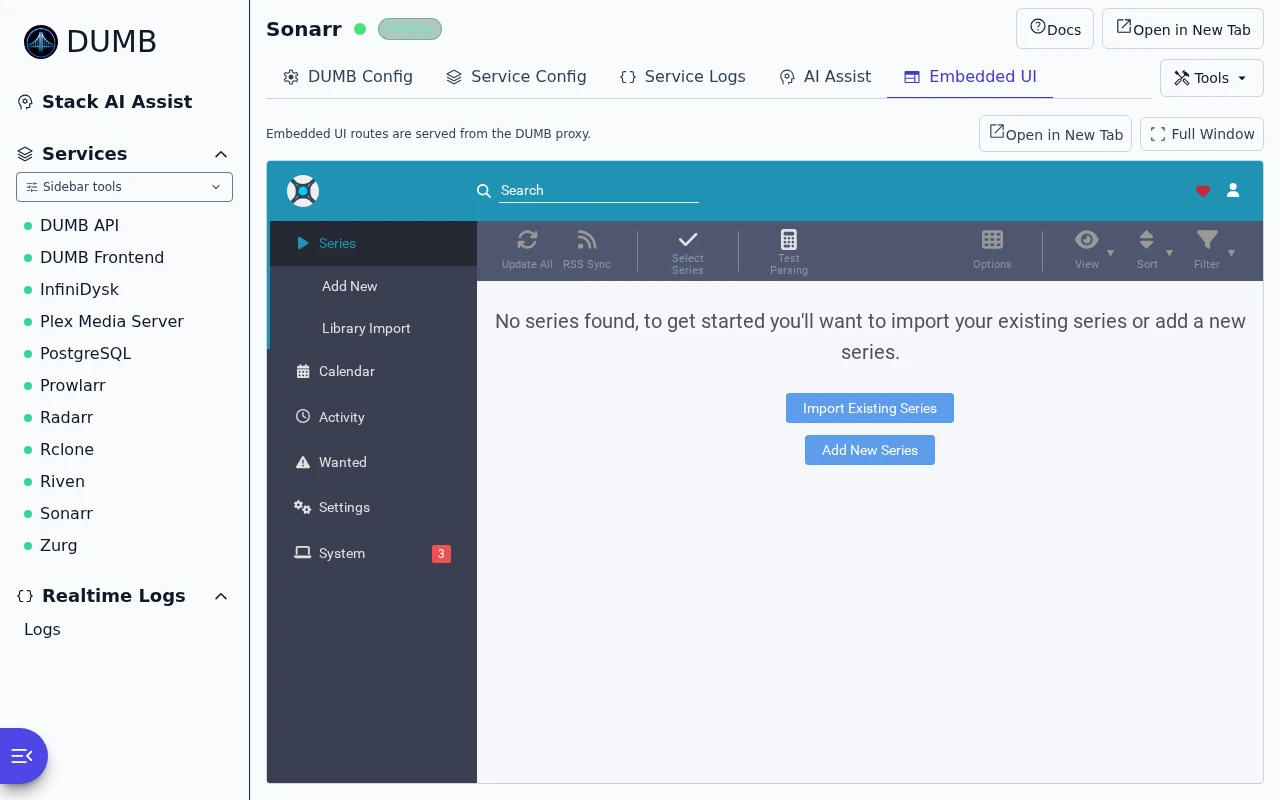
Frontend 1.92.0 · DUMB 2.24.0 · Example data.
Service workers and browser notifications
Embedded workers are scoped to the owning service to preserve background updates and destination routing. This routing does not isolate the applications' cookies, CacheStorage, or other storage on the shared frontend origin. Native OS notification delivery also depends on browser and system permissions. A dedicated application origin keeps its own native worker behavior.
Jellyfin and Emby libraries
Sign in within Embedded UI using an application account allowed to access the libraries. A login at the direct server address may not carry over to the frontend origin. If the same account sees libraries directly but not embedded, update the frontend and reopen the tab; older proxies could incorrectly route library requests under the web client's asset path.
See Embedded service UIs for routing and troubleshooting.
Default tab selection
Use Tools → Preferences to choose the default tab, or make the current tab the default. On narrow screens, swipe the tab bar horizontally; edge chevrons indicate hidden tabs.
Sidebar operator QoL
Use quick status filters, service/config-key search, saved views, compact mode, or Ctrl/Cmd + K to find a service. The command palette also supports capturing an assigned service shortcut. Auto-hide on navigation is enabled by default and can be disabled for a persistent desktop sidebar.
Sidebar preferences are saved under dumb.ui.sidebar. Dashboard drag-and-drop writes service_order, which both the dashboard and sidebar use.