Use DUMB
The dashboard is where you set up and manage DUMB. Open http://<host>:3005 in your browser, replacing <host> with the machine running DUMB. Sign in if authentication is enabled.
You can follow the tasks below without editing files or running API commands.
Browse the actual interface or choose a task below.
Choose a task
| I want to… | Open this guide |
|---|---|
| Set up services for the first time | Onboarding |
| Start, stop, or check an app | Dashboard and service controls |
| Change a DUMB setting or an app's own setting | Configuration |
| Check for updates or install an update | Auto-update |
| Restart an app automatically after a failure | Auto-restart |
| Sign in or manage DUMB accounts | Authentication |
| Read an error or download a log | Service logs |
| Open Plex, Jellyfin, InfiniDysk, or another app | Embedded UI |
| Back up or repair library links | Symlink operations |
| Dev Back up or restore the whole installation | Installation backups |
| Investigate resource use | Metrics |
| Change appearance or dashboard preferences | Settings |
Each task guide explains the controls to use, what to save, and how to check the result. Service-specific account and library setup is covered in the service guides.
Watch a task
The guides below include short recordings with time to read the menus and controls. Choose Play when you are ready; these task videos do not start automatically. Each caption identifies the reviewed frontend version and example data. Your installed version and enabled services can change which tools appear.
| See how to… | Open the illustrated guide |
|---|---|
| Review the right configuration editor | Configuration |
| Filter logs and pause their refresh | Service logs |
| Open Tools, check an update and review its version | Check one service for updates |
| Inspect a service's dependencies | Dependency graph |
| Review an automatic restart policy | Auto-restart |
| Choose a dashboard appearance | Settings |
| Find CPU, memory and disk information | Metrics |
Inside DUMB
Explore the interface
Find the screen for your task. Images match the site's light or dark theme. Open any image for a closer look.
Frontend 1.92.0 · DUMB 2.24.0 · Example data, including setup status
The development interface may differ from the guides. Match the available controls to the DUMB and frontend versions shown here.
The dashboard
Find your services and inspect the installation at a glance.
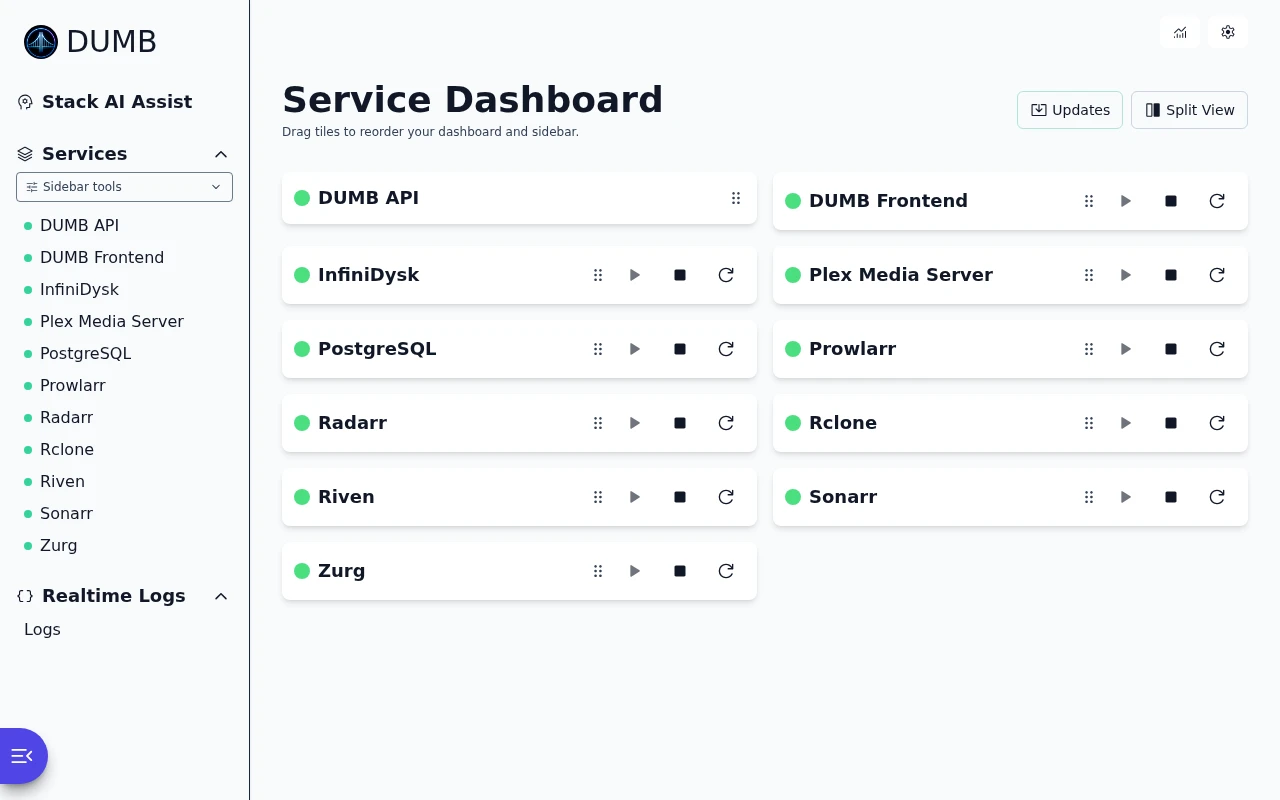
Service Dashboard
Read the guideSee which services are running and open the app you need.
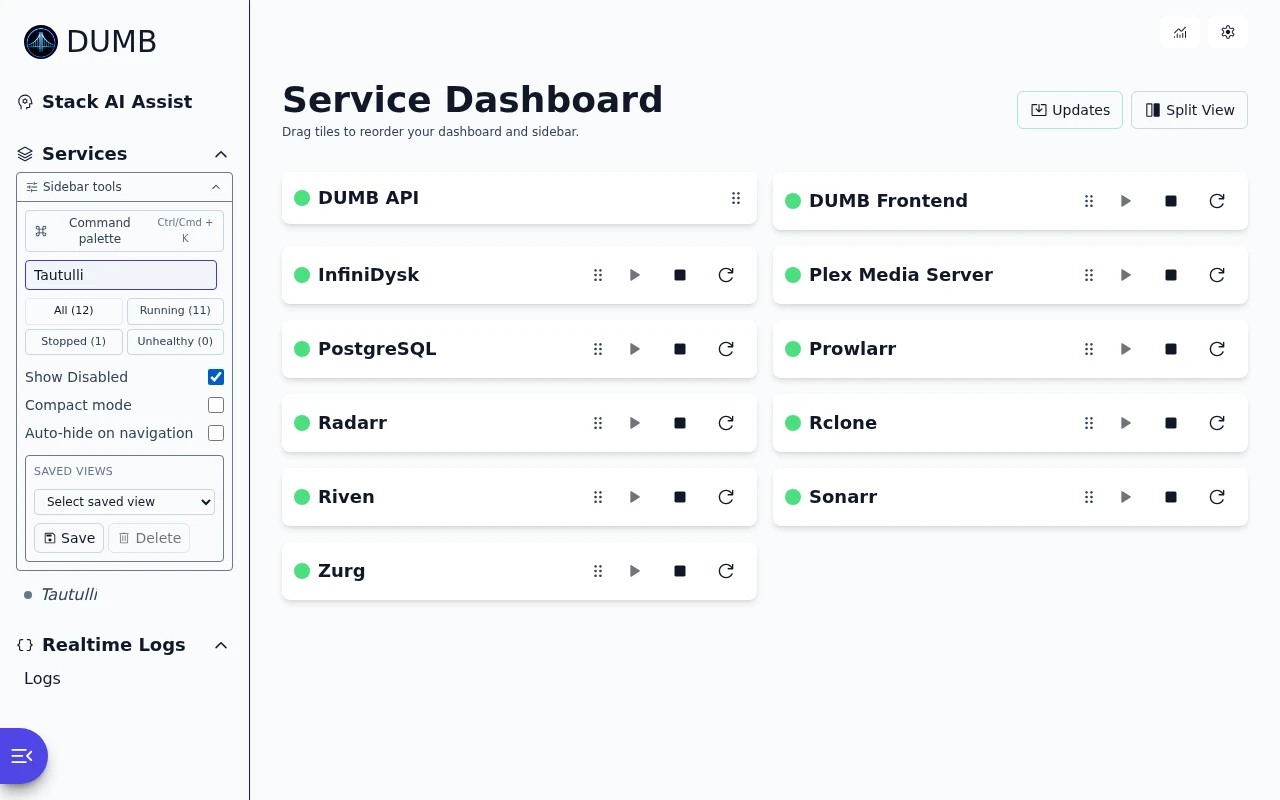
Find disabled services
Read the guideUse the sidebar filters to find services that are turned off.
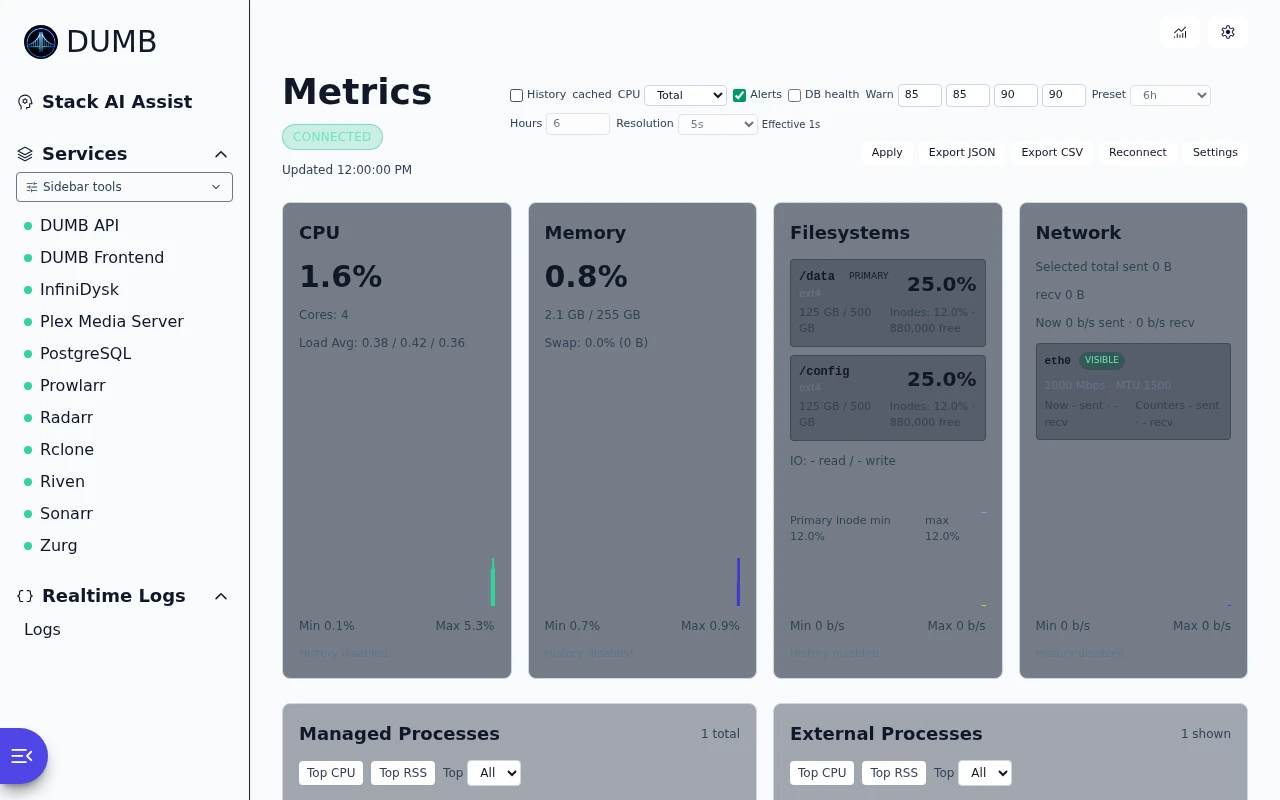
Container metrics
Read the guideSee CPU, memory, storage and network activity.
Inside a service
Work with the selected app's controls, settings and connections.
Service controls
Read the guideCheck a service's status and find its start, stop and restart controls.
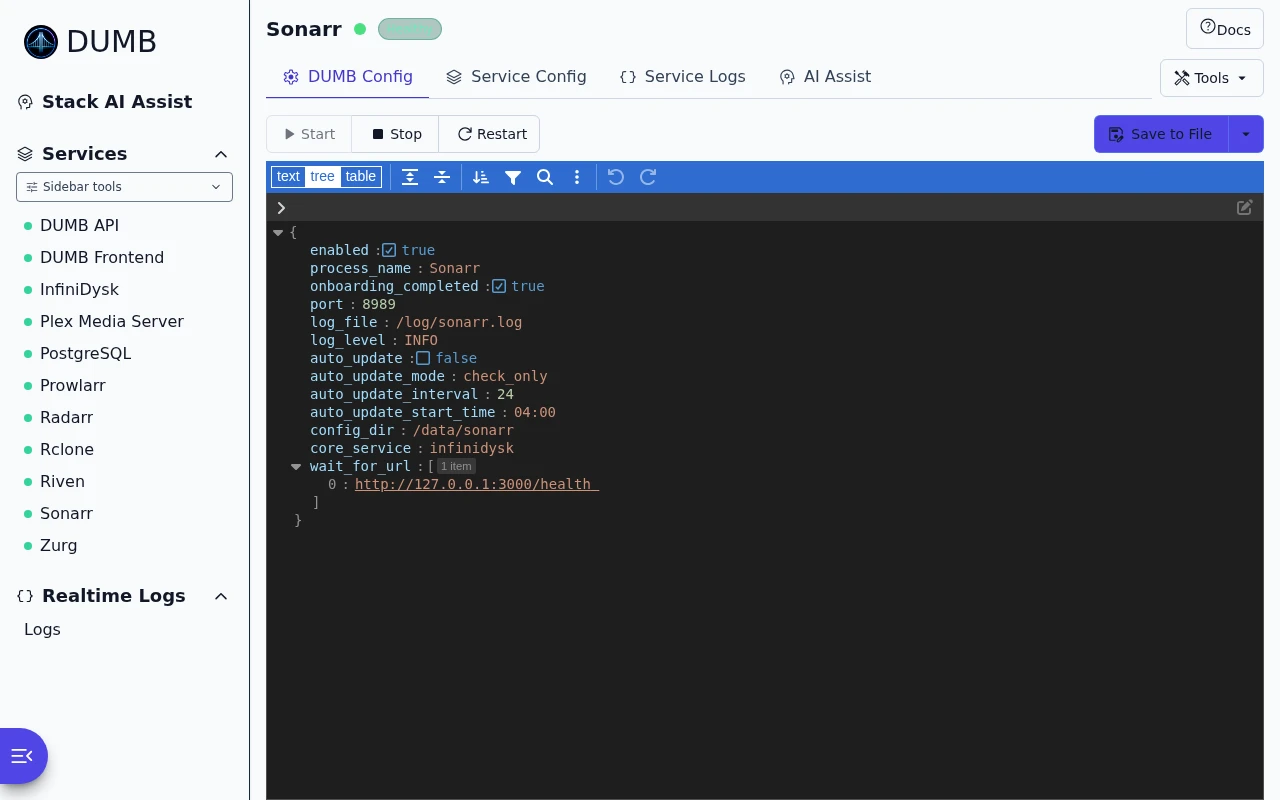
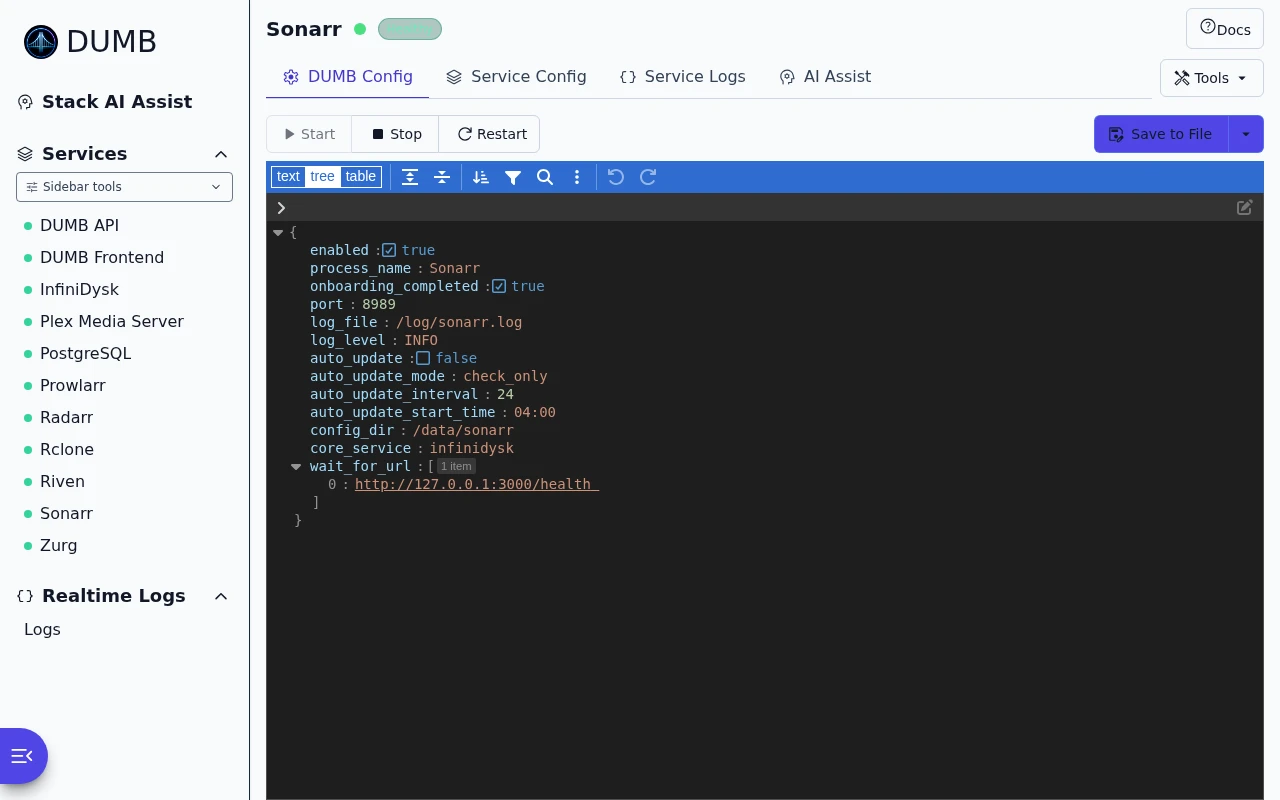
DUMB and application configuration
Read the guideFind the settings managed by DUMB and the app's own configuration.
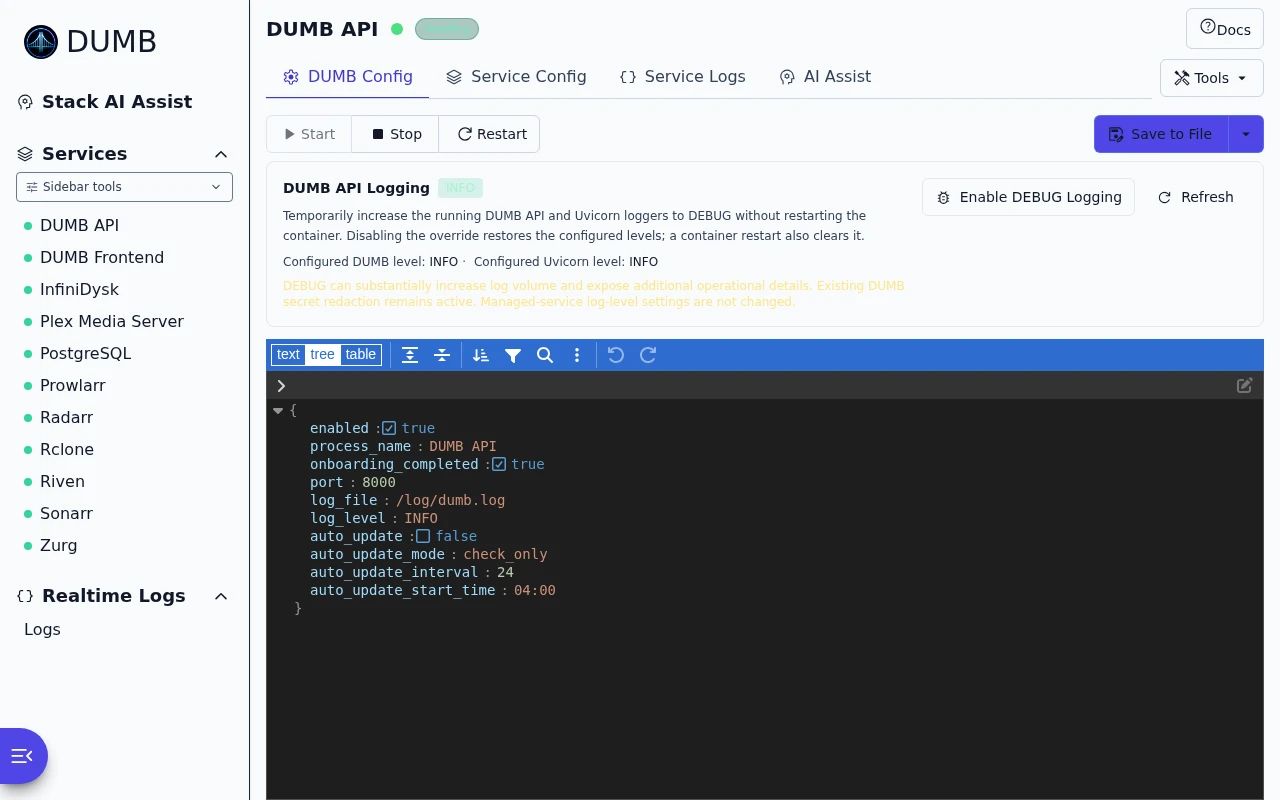
DUMB API configuration
Read the guideReview the DUMB API's settings and find its temporary debug logging controls.
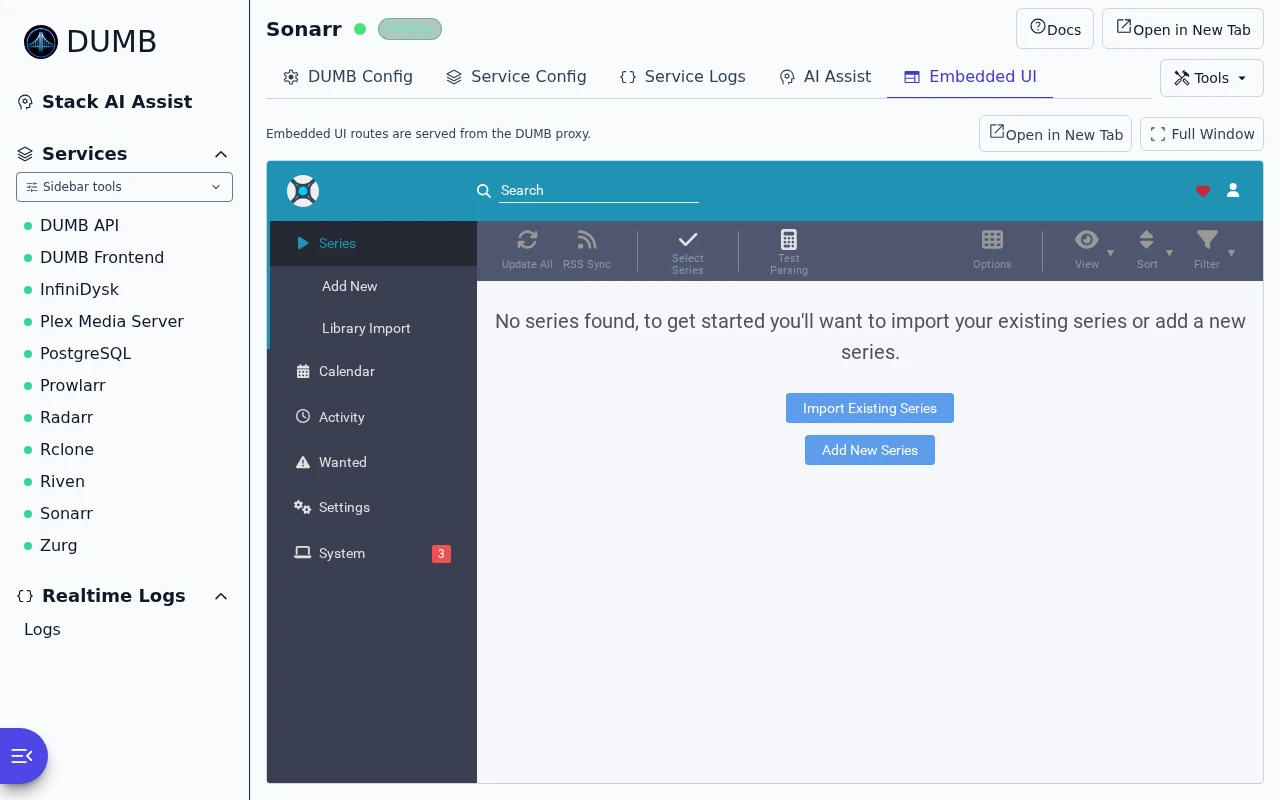
Sonarr inside DUMB
Read the guideUse Sonarr inside DUMB without changing browser tabs.
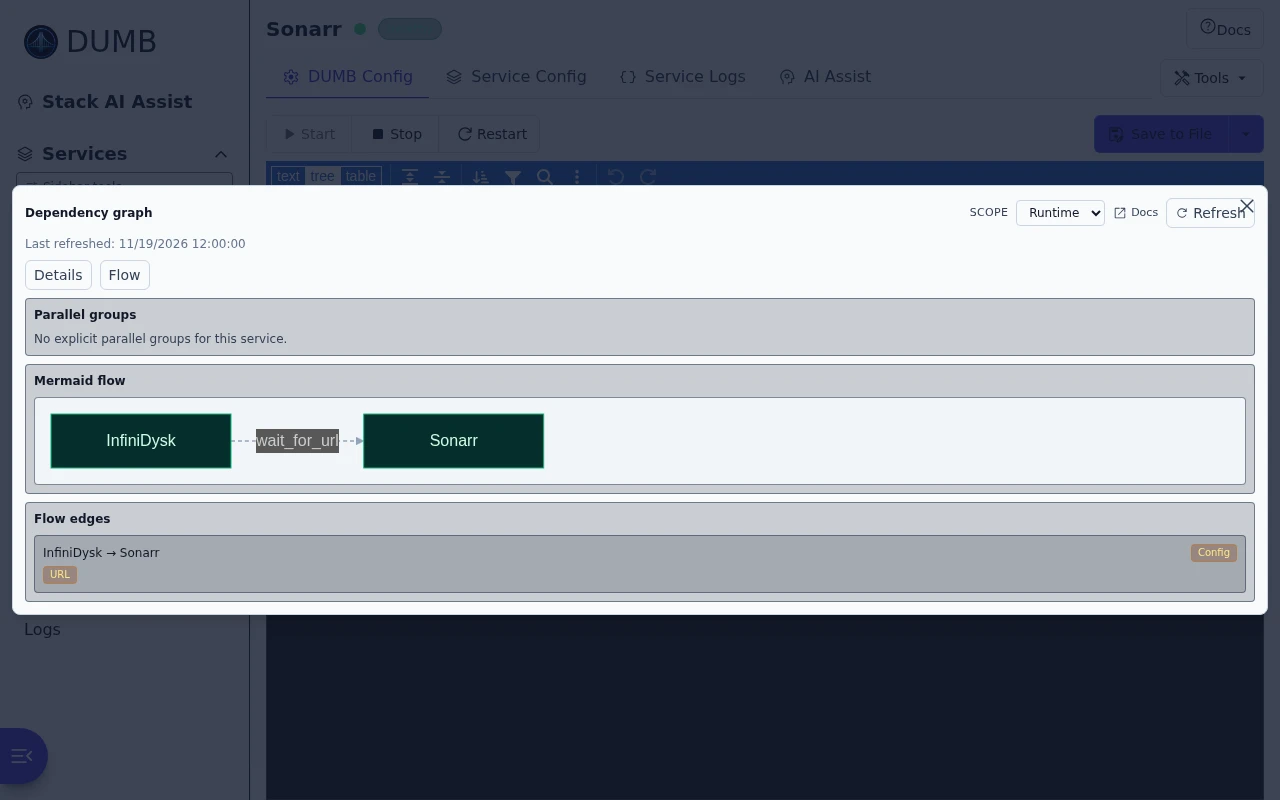
Review service dependencies
Read the guideSee which services an app needs before it can start.
Automatic recovery settings
Read the guideChoose when DUMB should try to recover a service that stops responding.
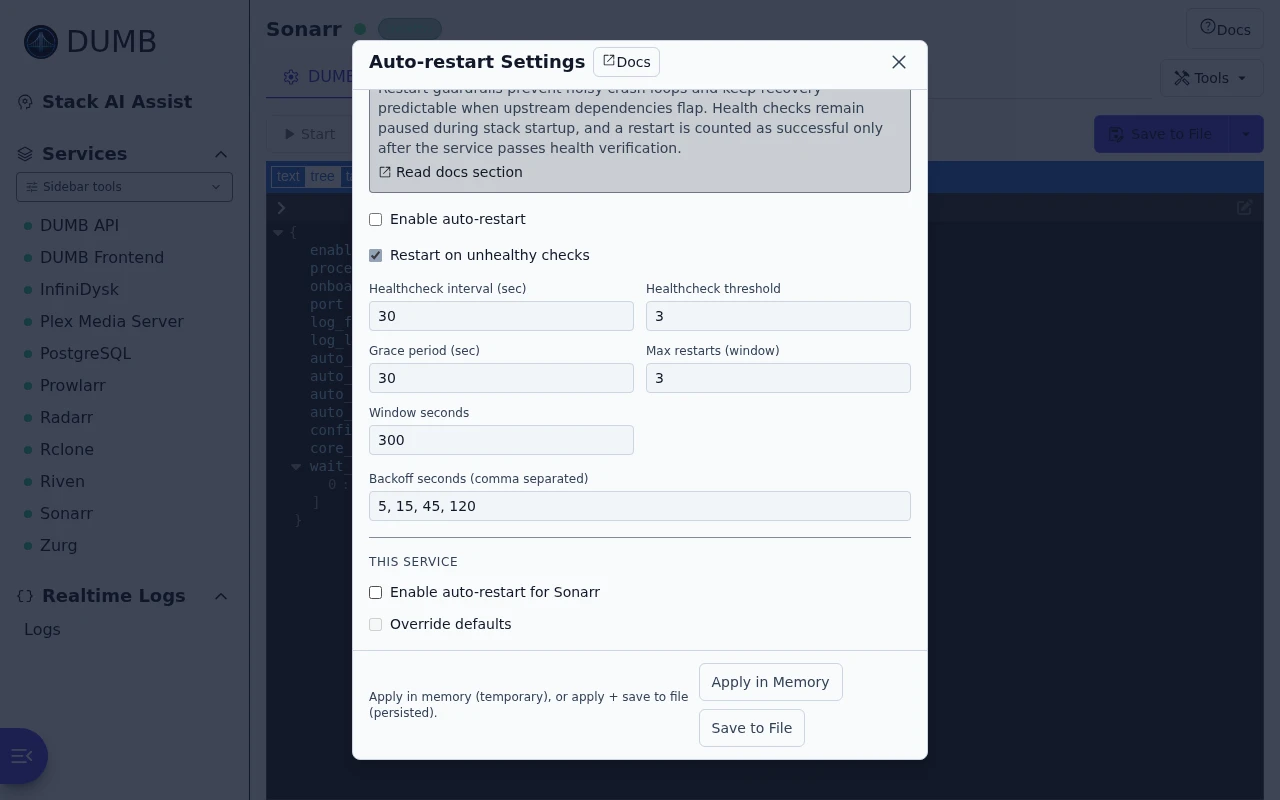
Logs and updates
Find the relevant messages and review a version before making a change.
Filter and pause service logs
Read the guideFilter a service's messages and pause refresh to read them at your own pace.
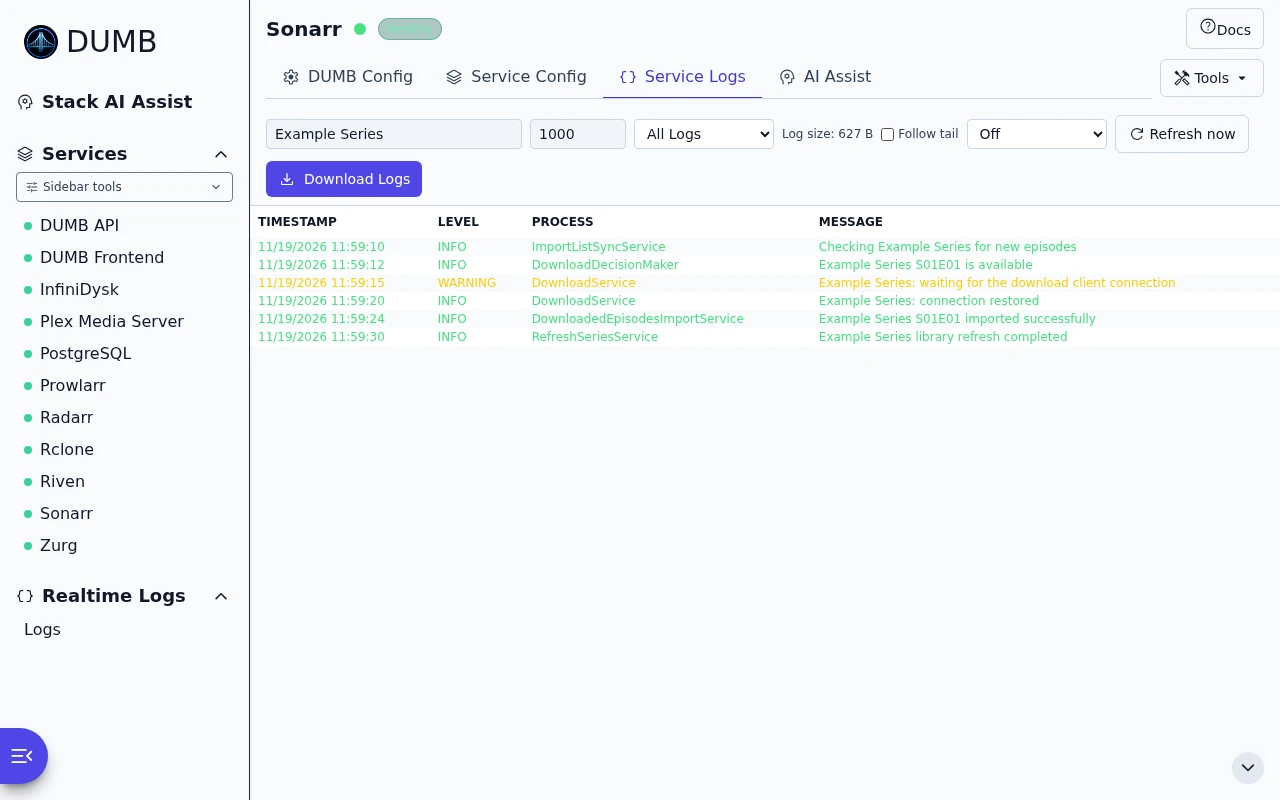
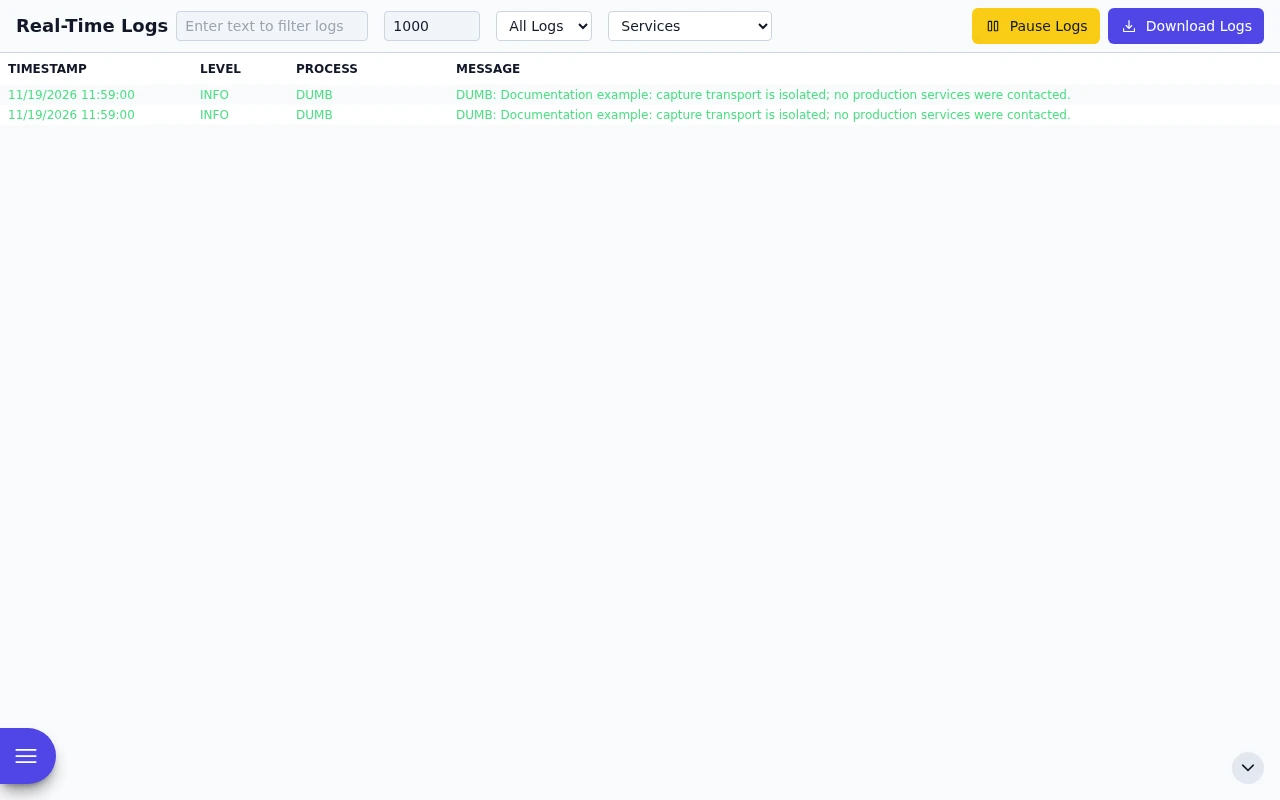
Real-Time Logs
Read the guideFollow messages from across your DUMB installation in one place.
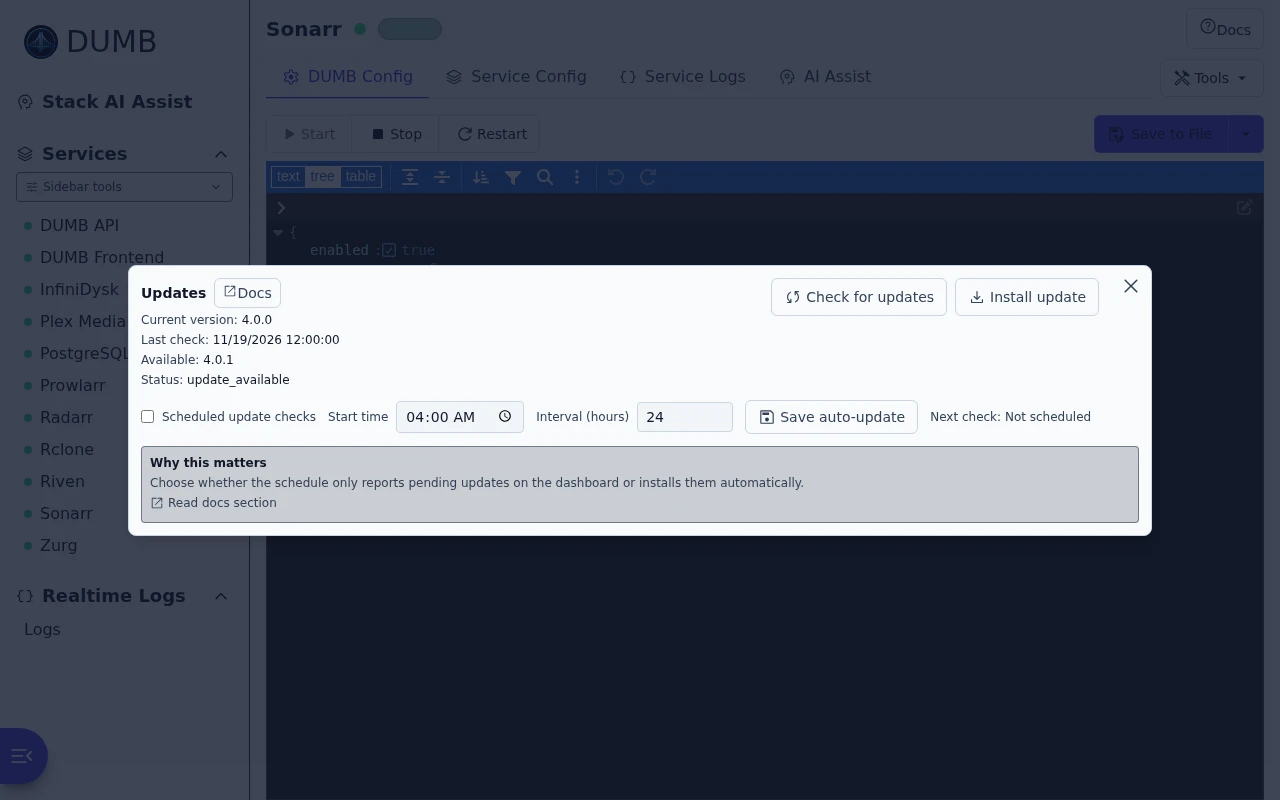
Check for updates
Read the guideSee installed versions and check which updates are available.
Library and database tools
Inspect the available controls, then follow the guide for the change you intend to make.
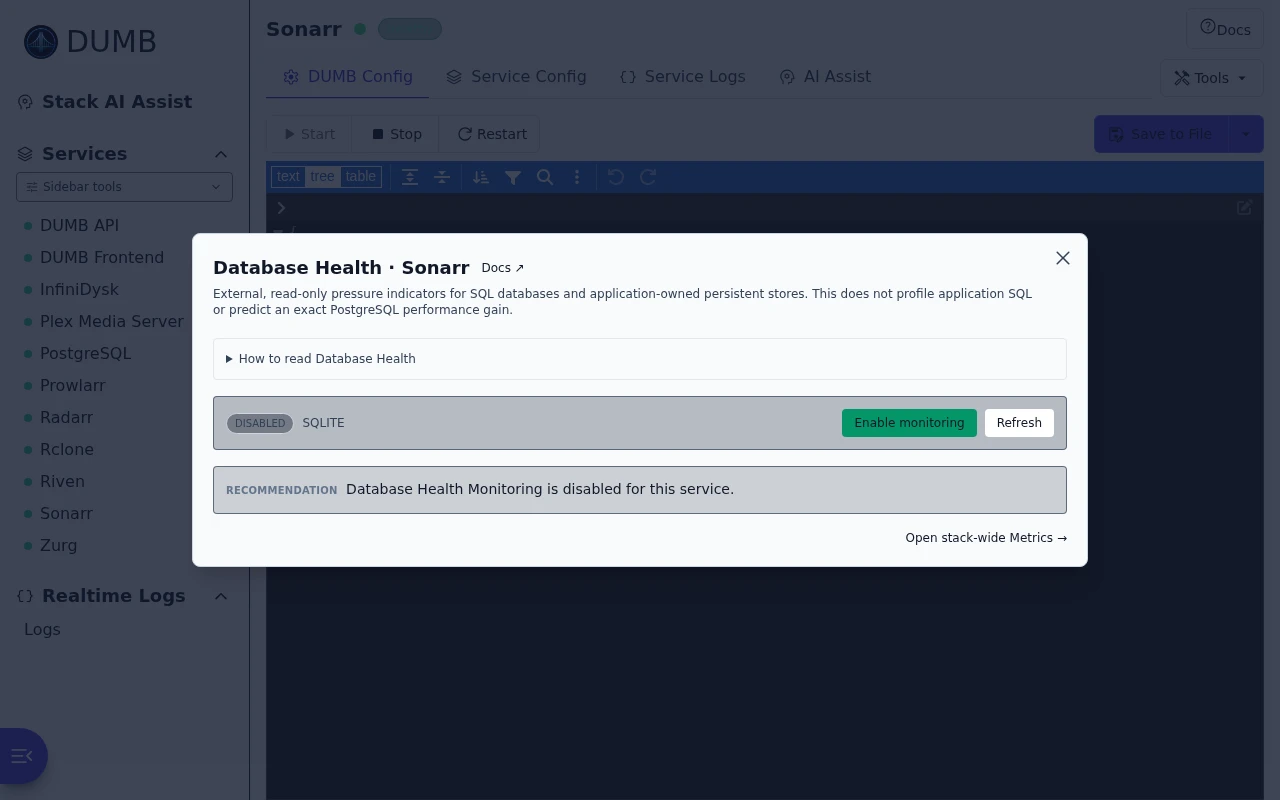
Database health
Read the guideFind monitoring options for a service's database.
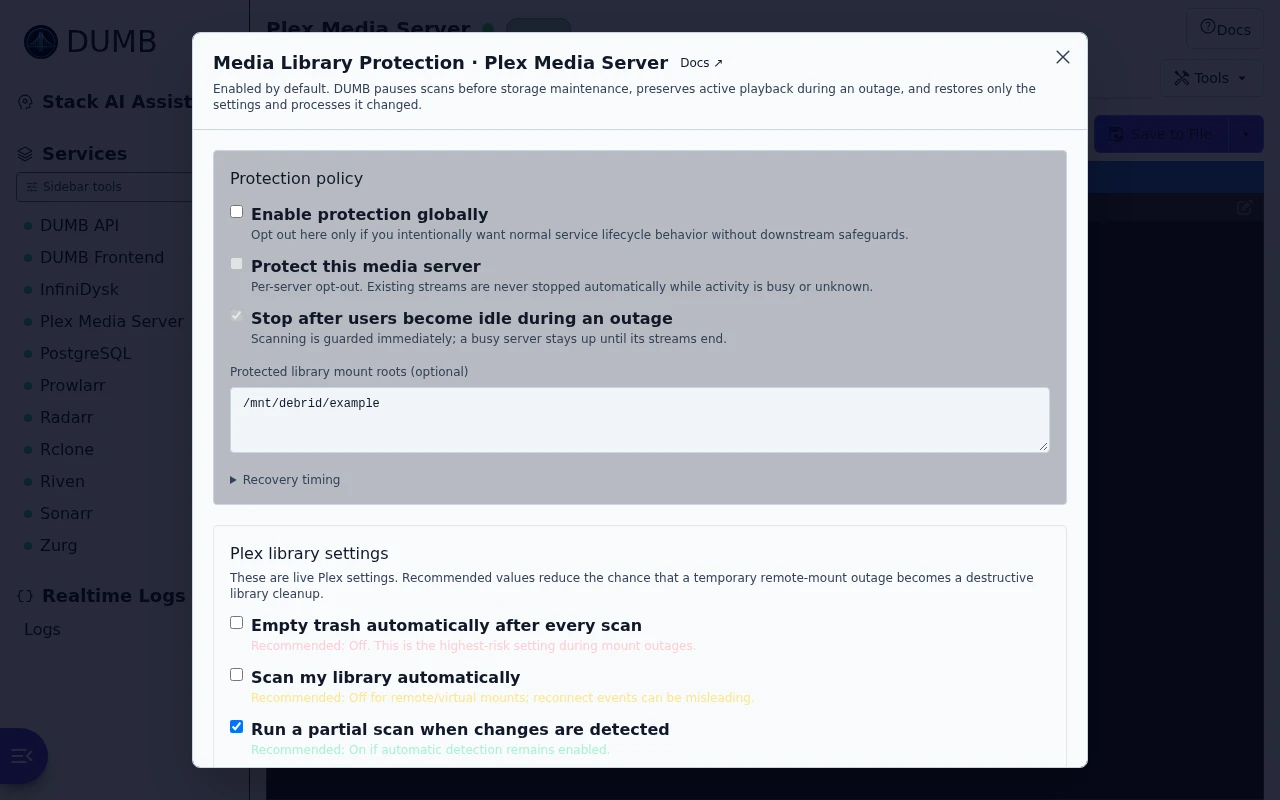
Media library protection
Read the guideChoose how DUMB protects your Plex library during storage outages.
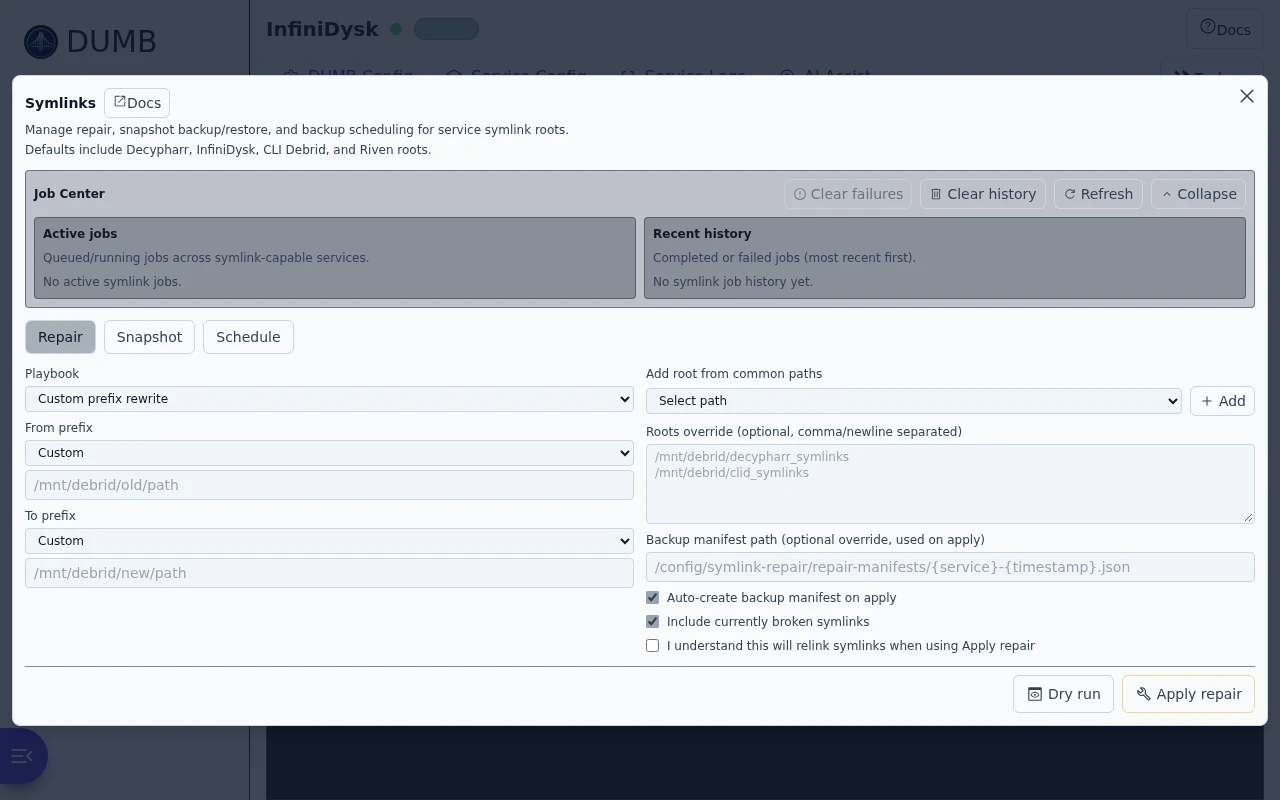
Symlink repair and snapshots
Read the guideRepair library links, take snapshots and set backup schedules.
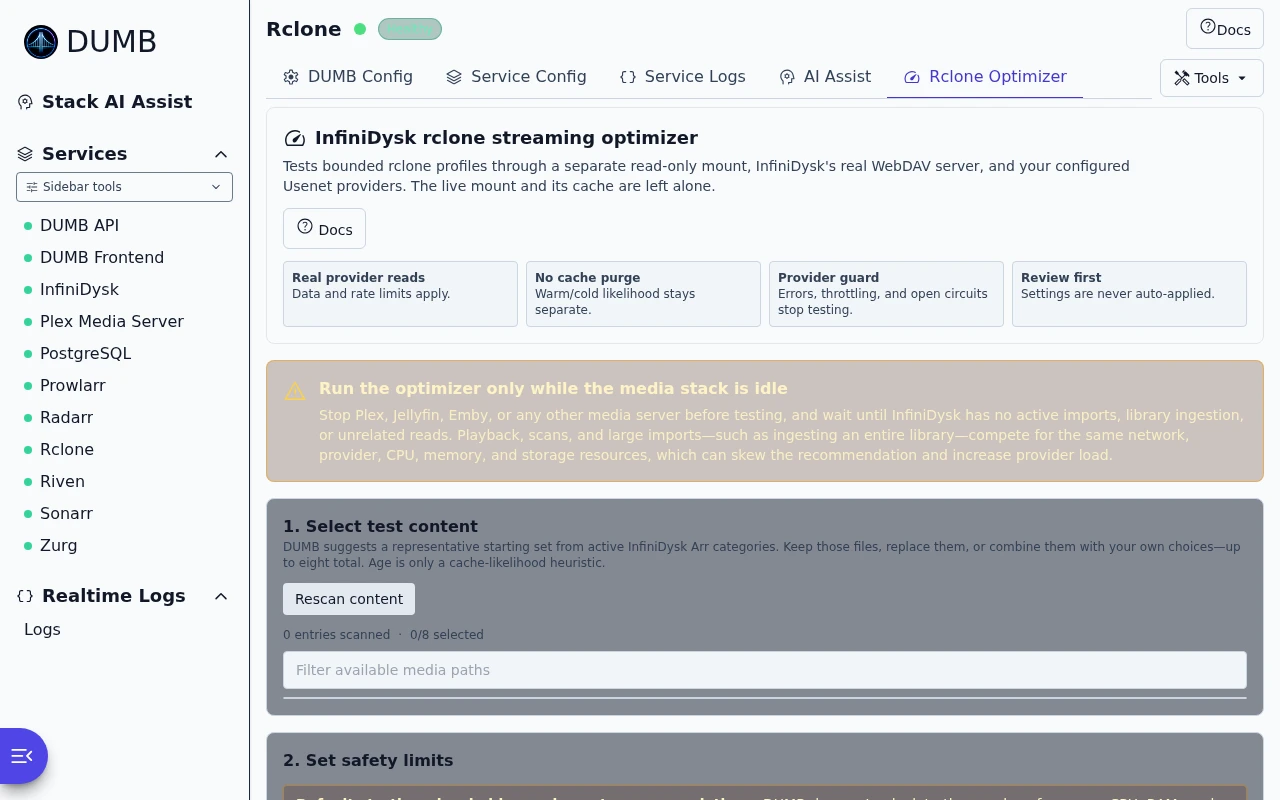
Rclone streaming optimizer
Read the guideReview safety limits and test settings for InfiniDysk streaming.
Install InfiniDysk 2
Read the guideChoose the mount and backup options for a new InfiniDysk 2 installation.
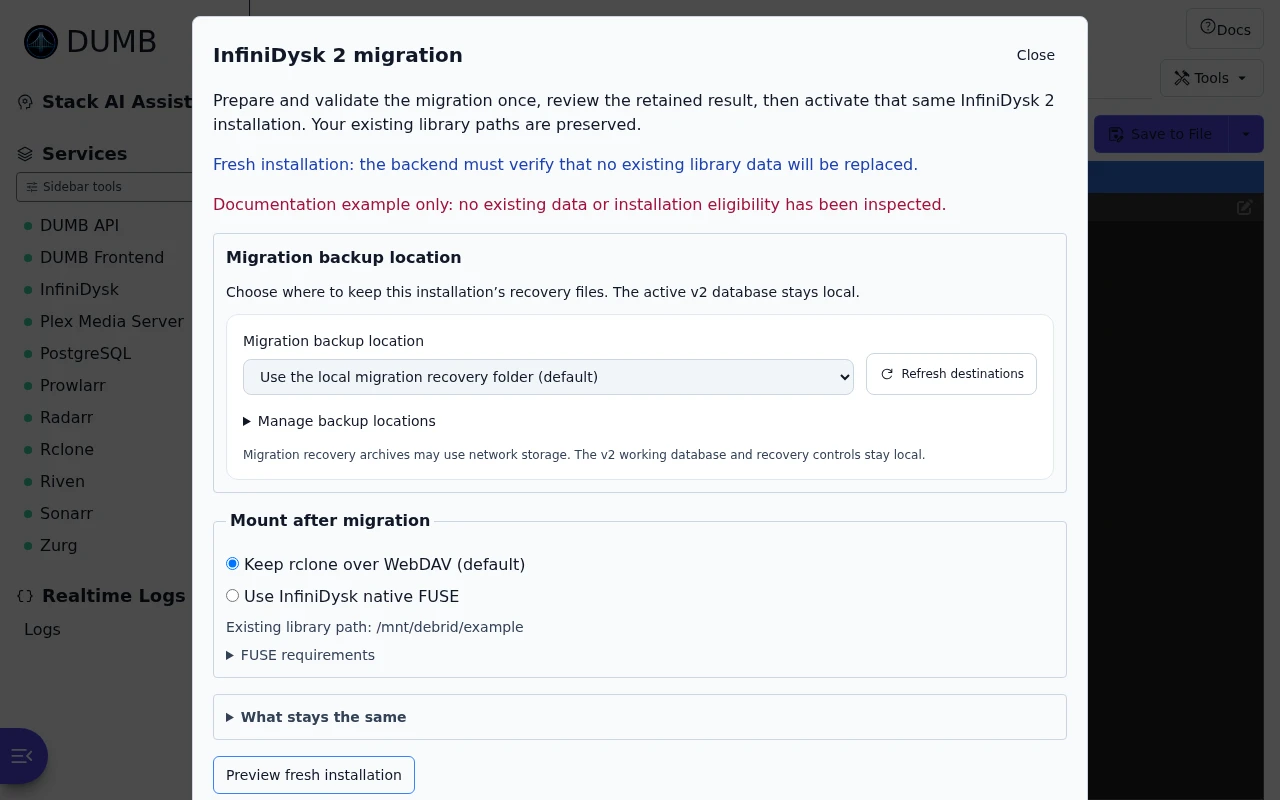
Move from NzbDAV to InfiniDysk
Read the guideReview the choices for moving an older NzbDAV setup to InfiniDysk.
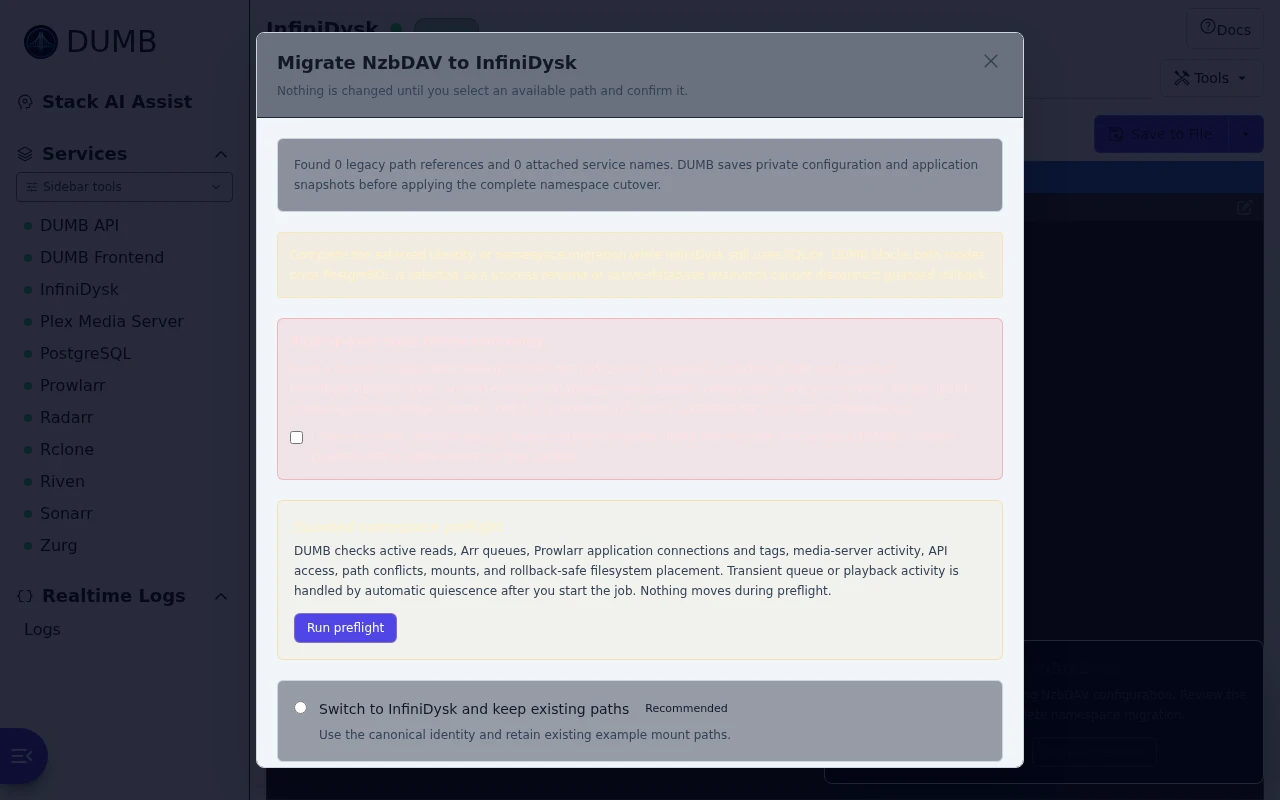
Move from SQLite to PostgreSQL
Read the guideReview the checks, backup requirements and migration choices for PostgreSQL.
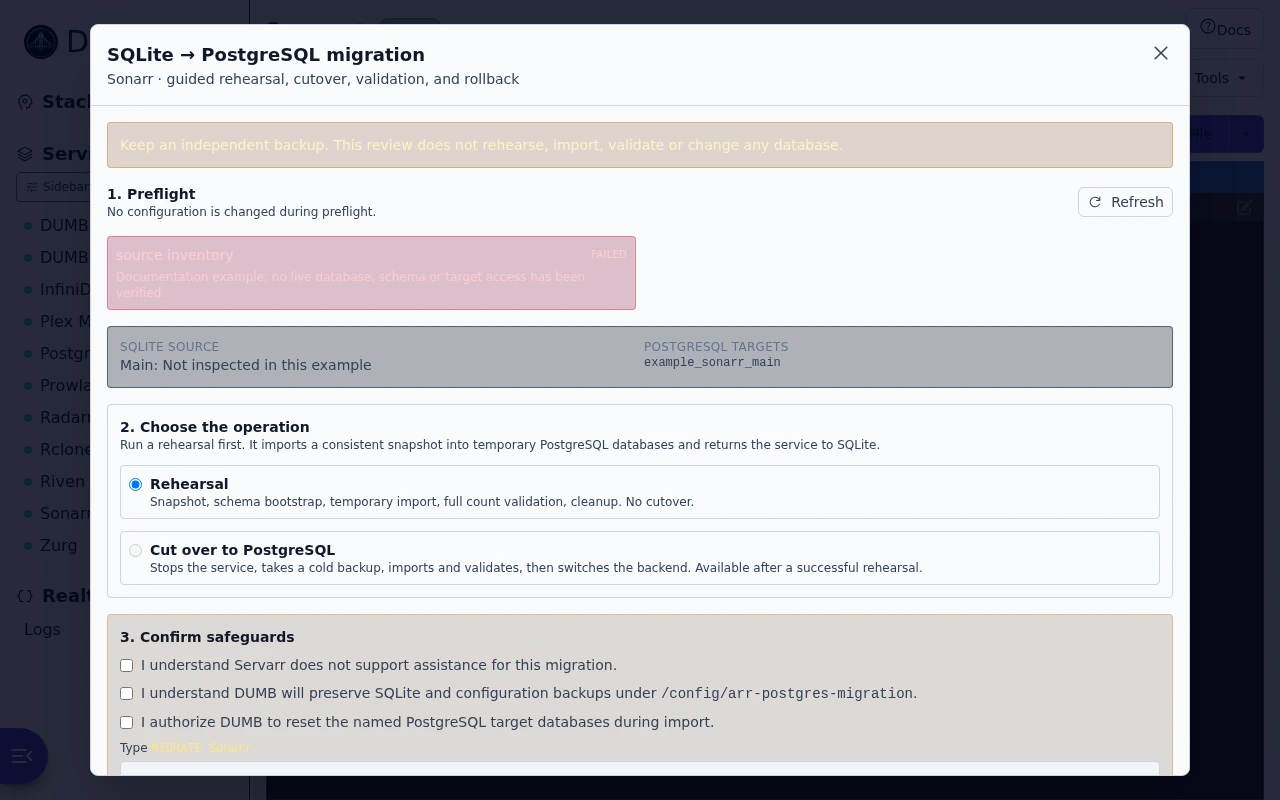
Your dashboard view
Choose how information and application pages are displayed.
Settings
Read the guideFind settings for appearance, connections, access and alerts.
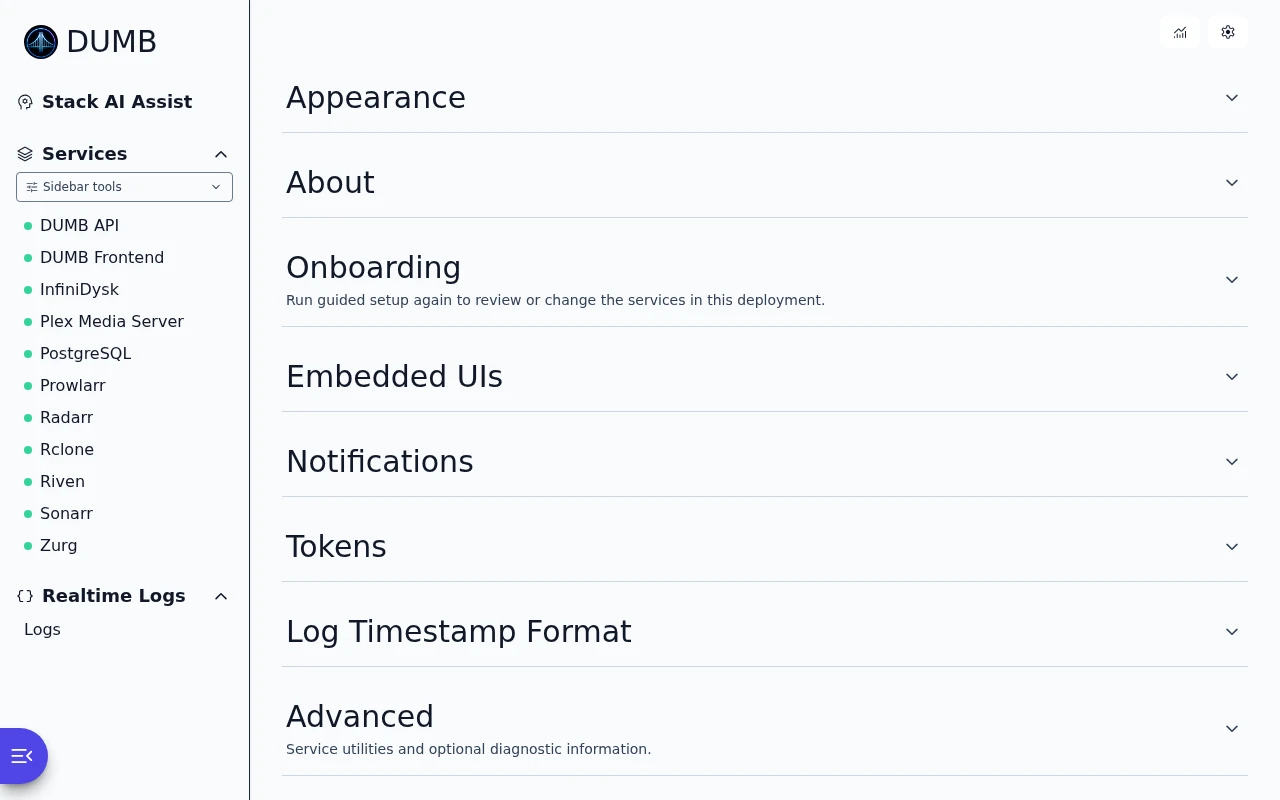
Appearance
Read the guideChoose a light or dark theme, or follow your device's appearance.
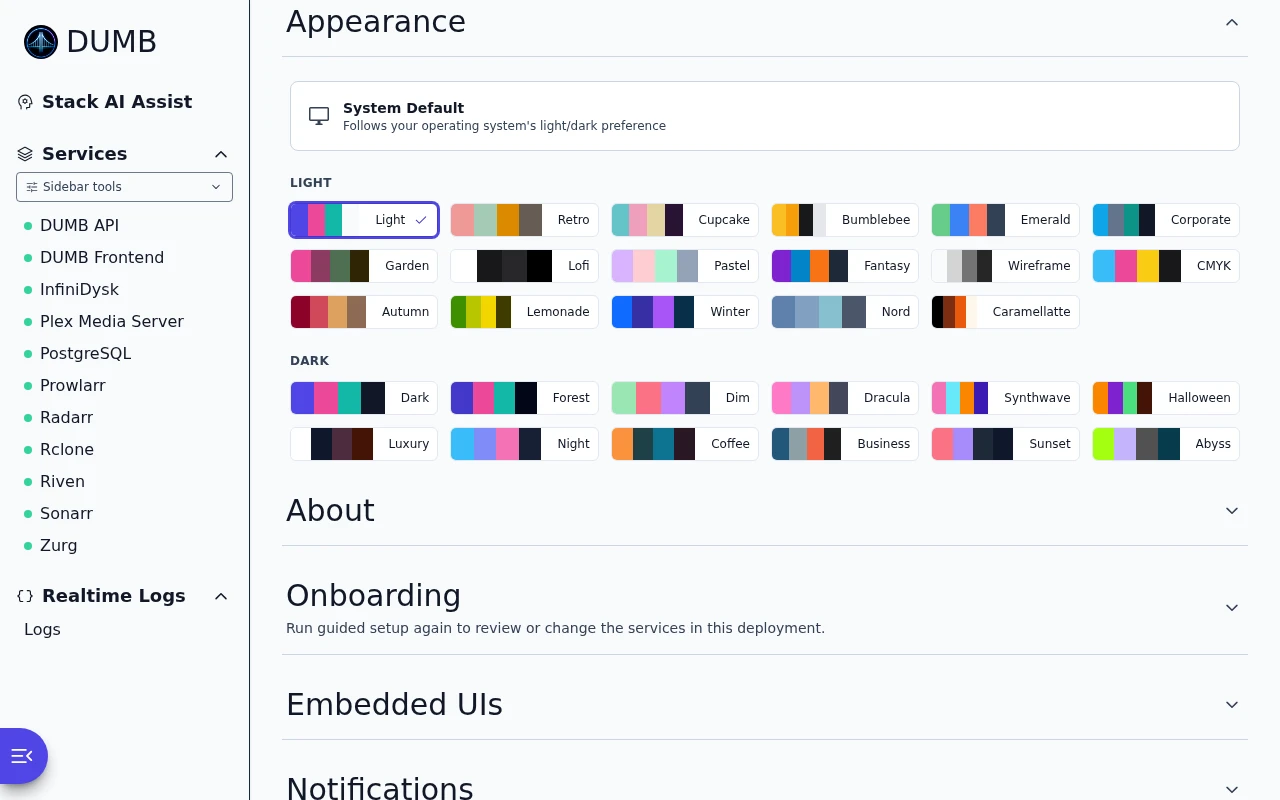
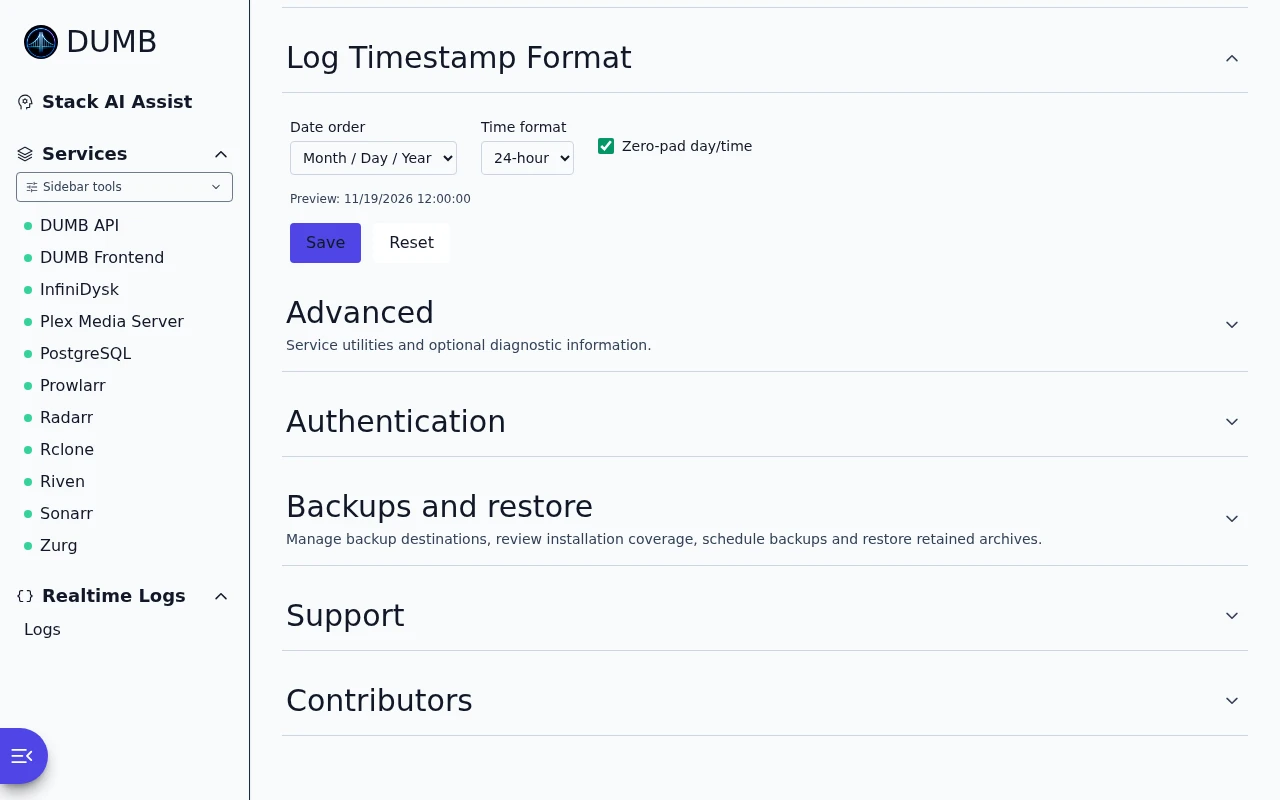
Log timestamp format
Read the guideChoose the date and time format used in logs.
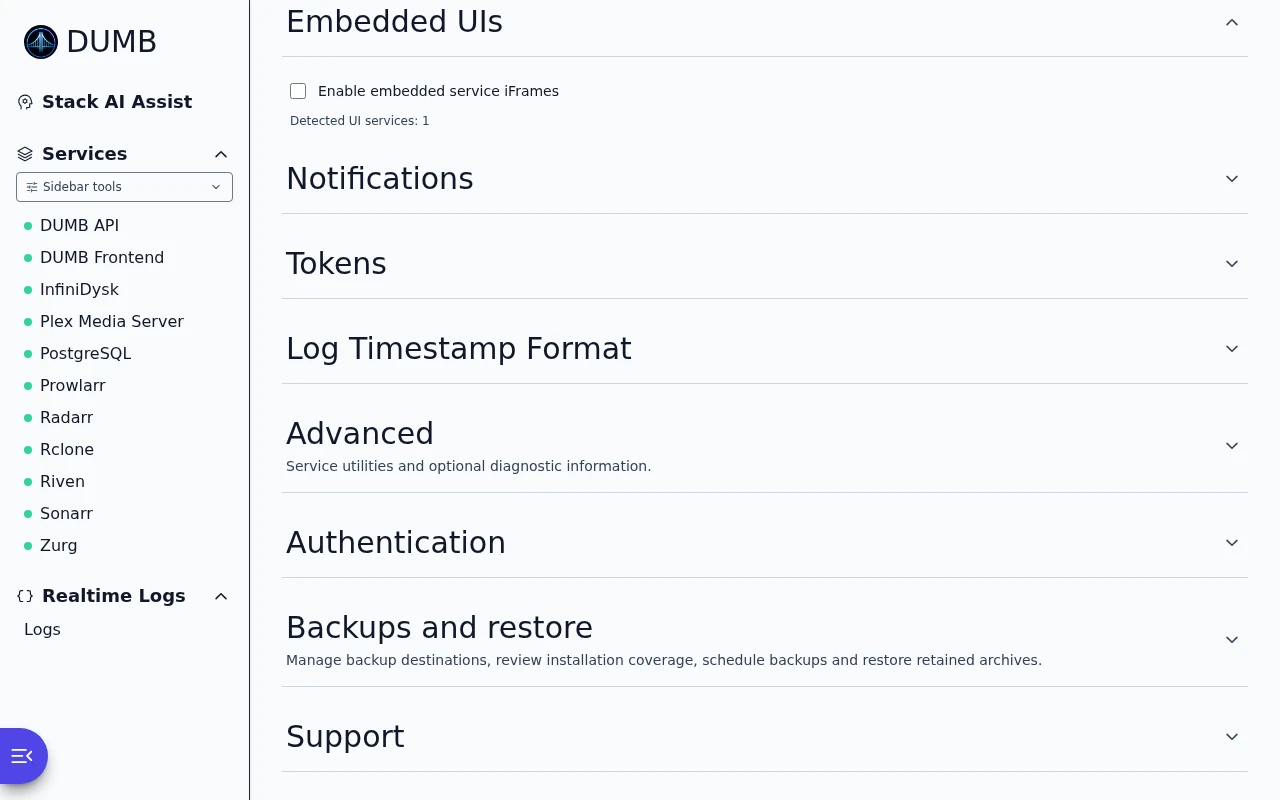
Embedded UI settings
Read the guideChoose whether supported apps open inside DUMB.
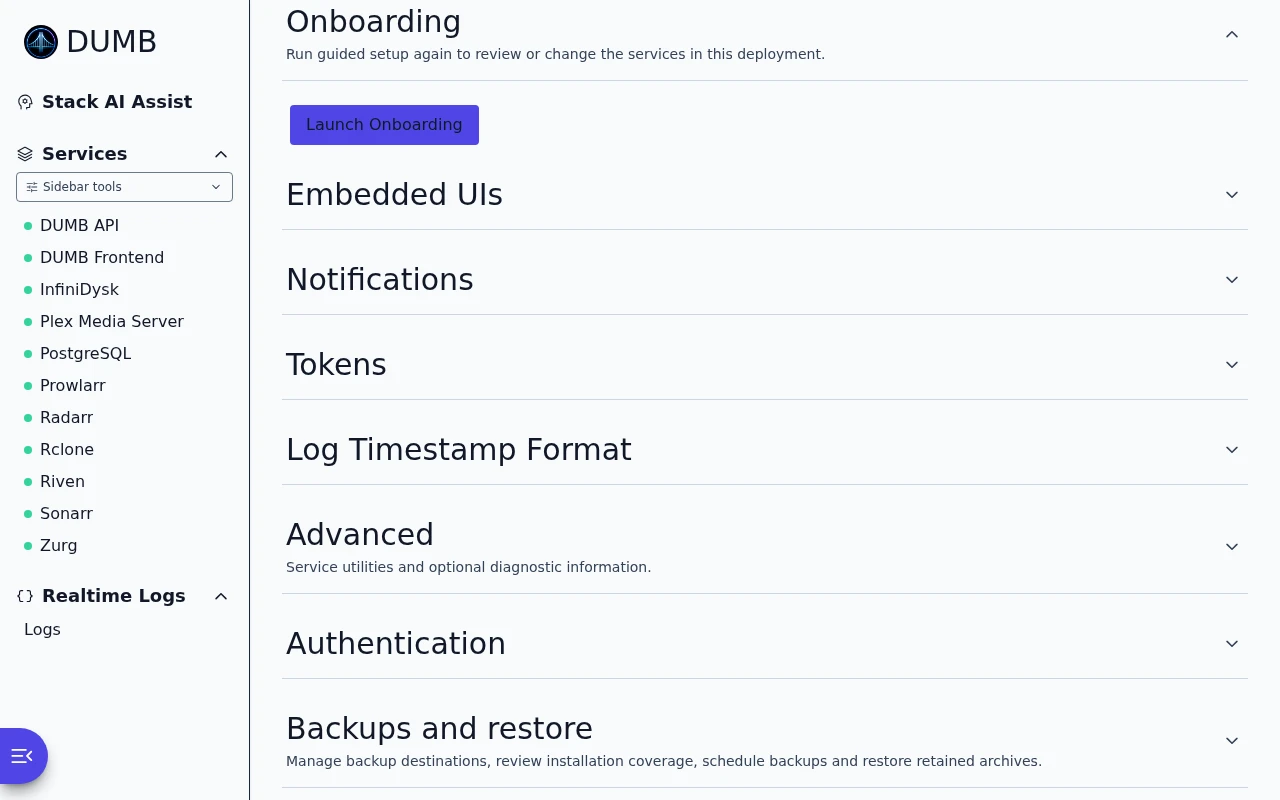
Run guided setup again
Read the guideOpen guided setup again to review or change your service choices.
Advanced settings
Read the guideEnable Geek Mode to show additional service information and diagnostics.
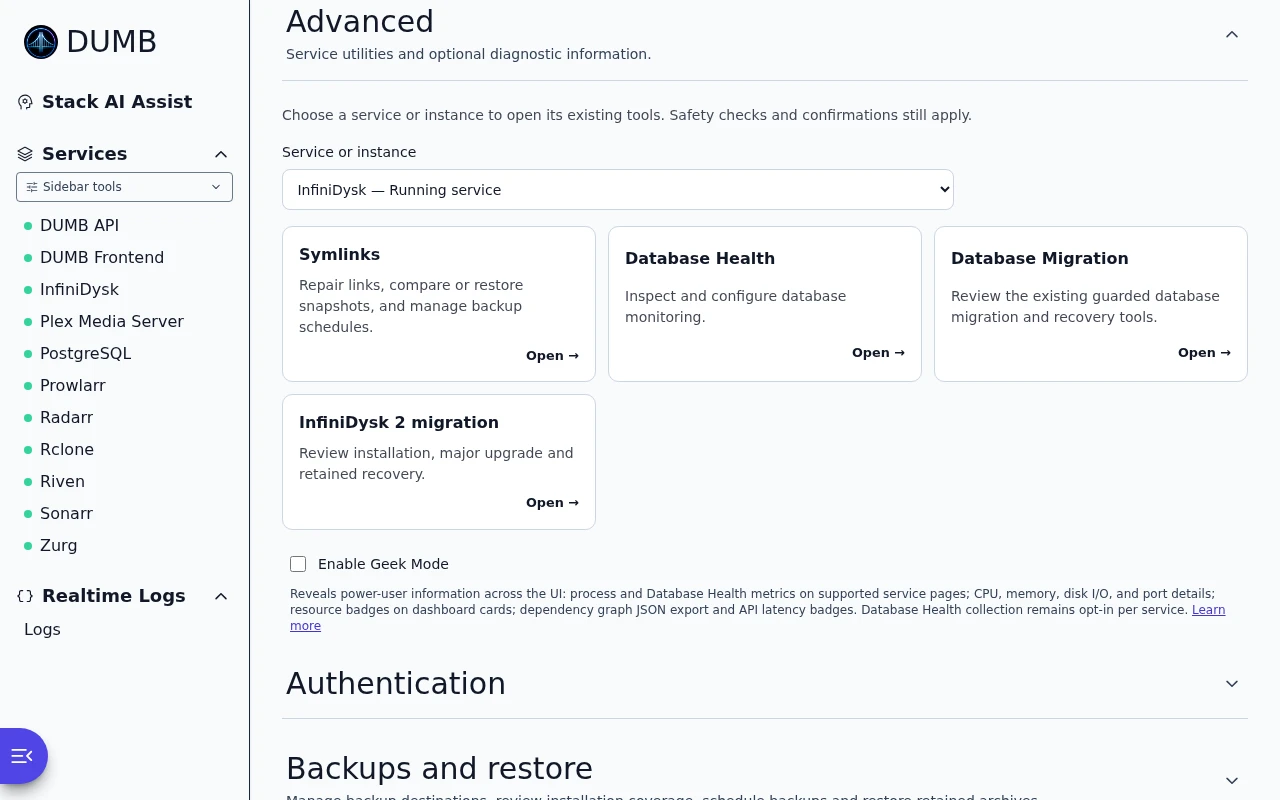
Application versions
Read the guideCheck the installed DUMB, frontend and service versions.
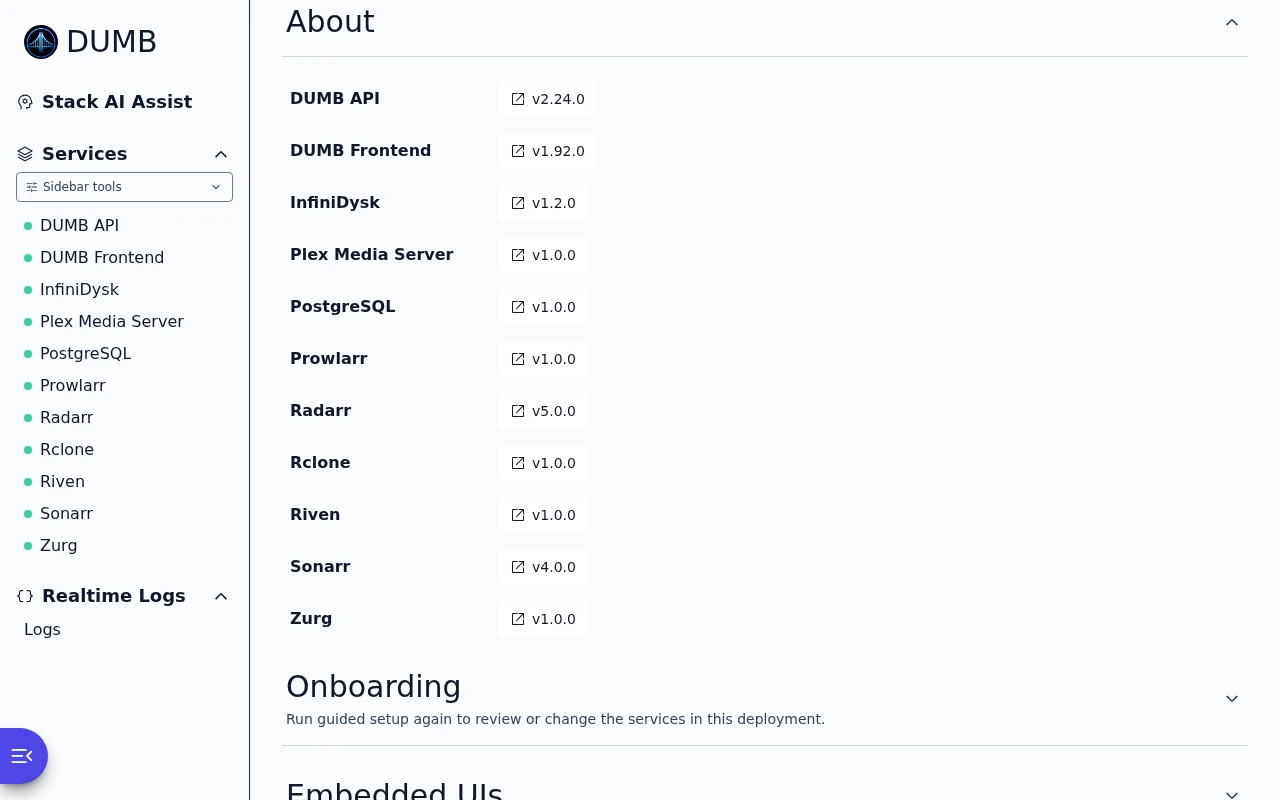
Support the projects
Read the guideFind help, project links and ways to support the maintainers.
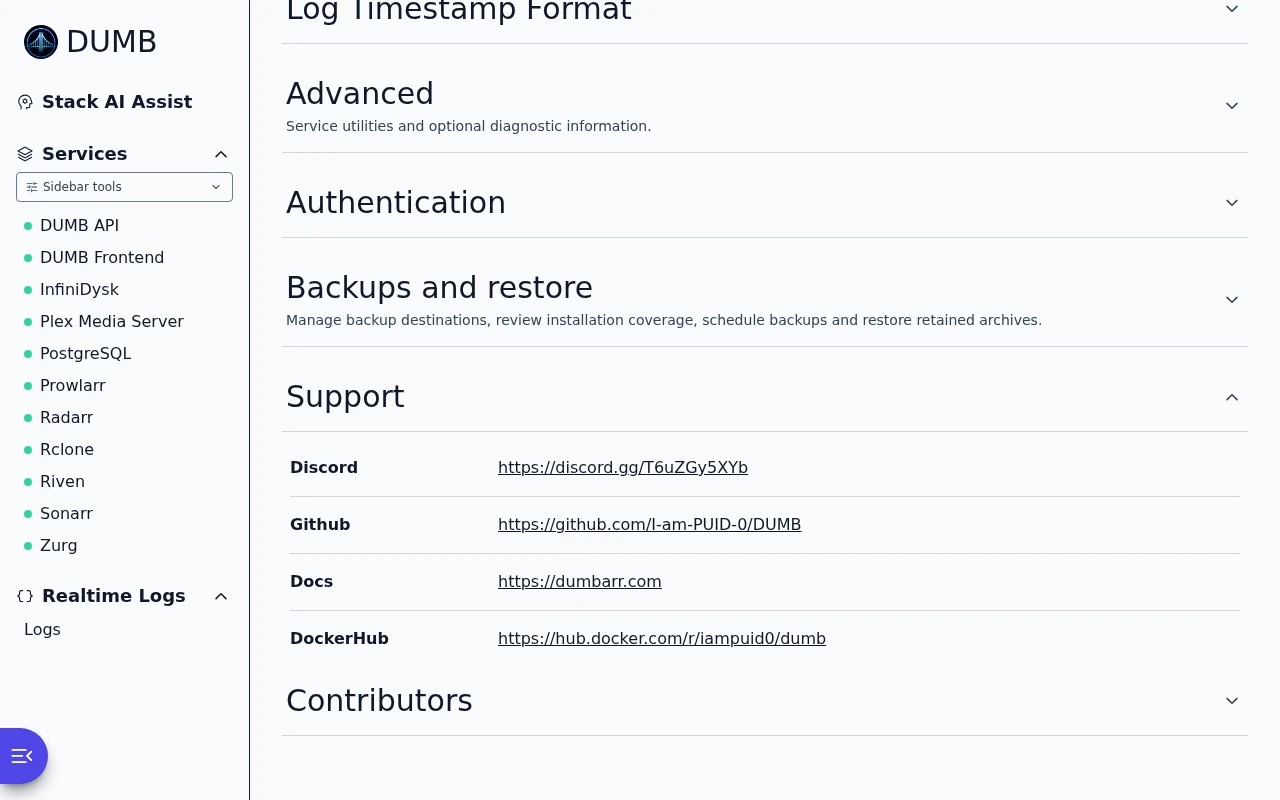
Project contributors
Read the guideMeet the people who contribute to DUMB and its frontend.
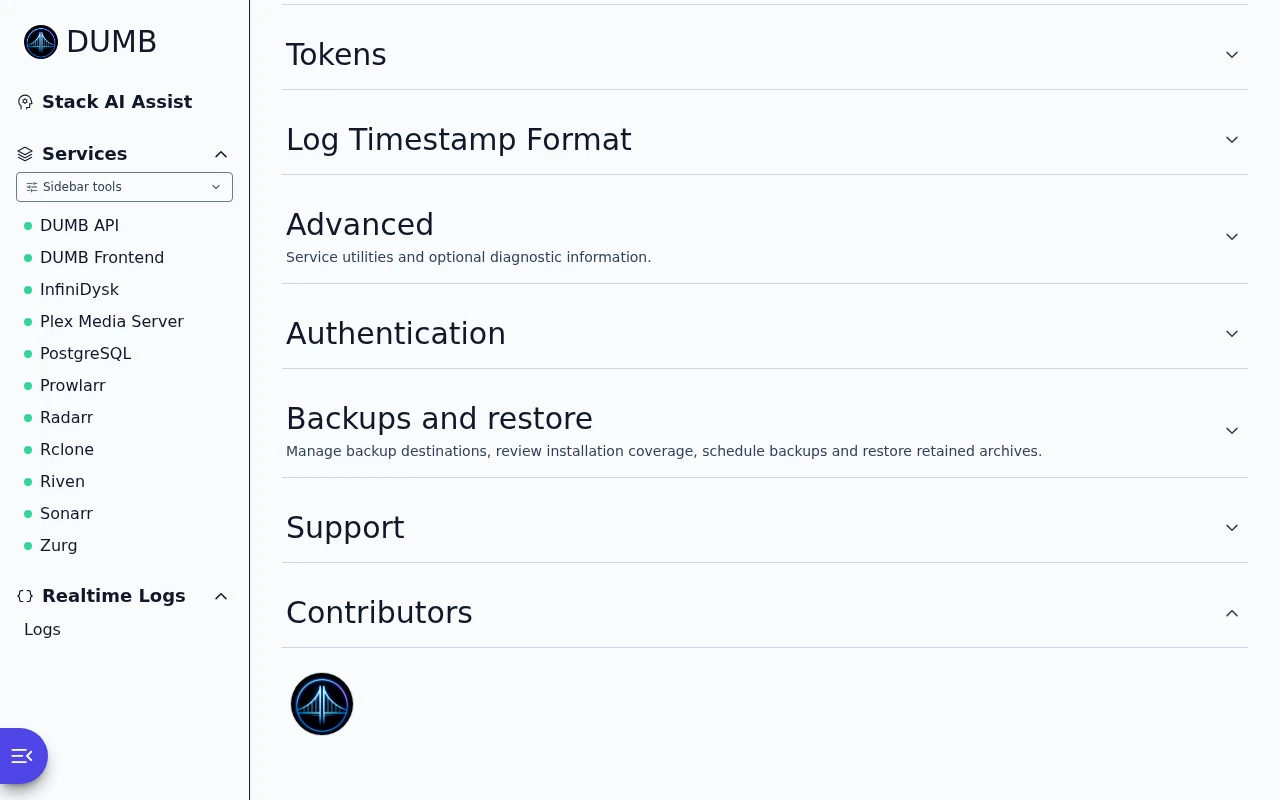
Accounts, integrations and alerts
Review the connections and access used by your installation.
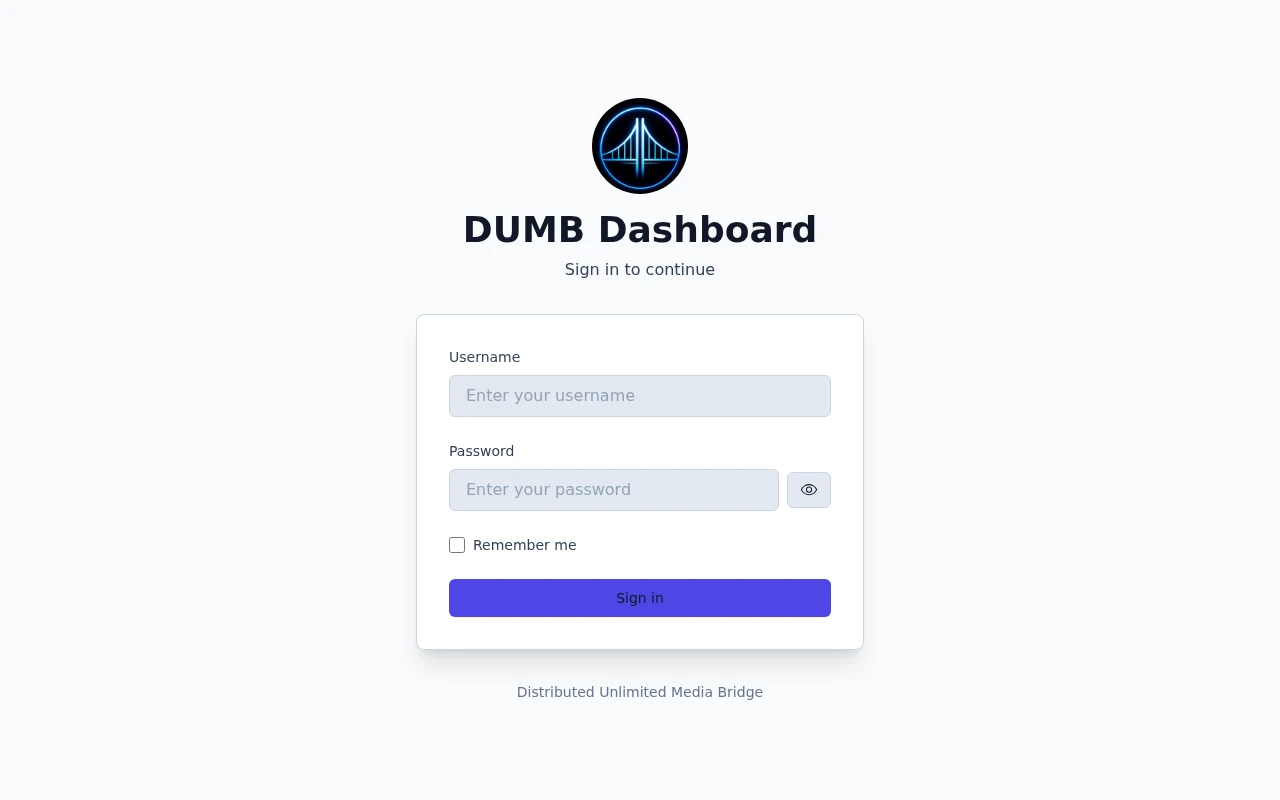
Sign in to DUMB
Read the guideSign in with your DUMB account.
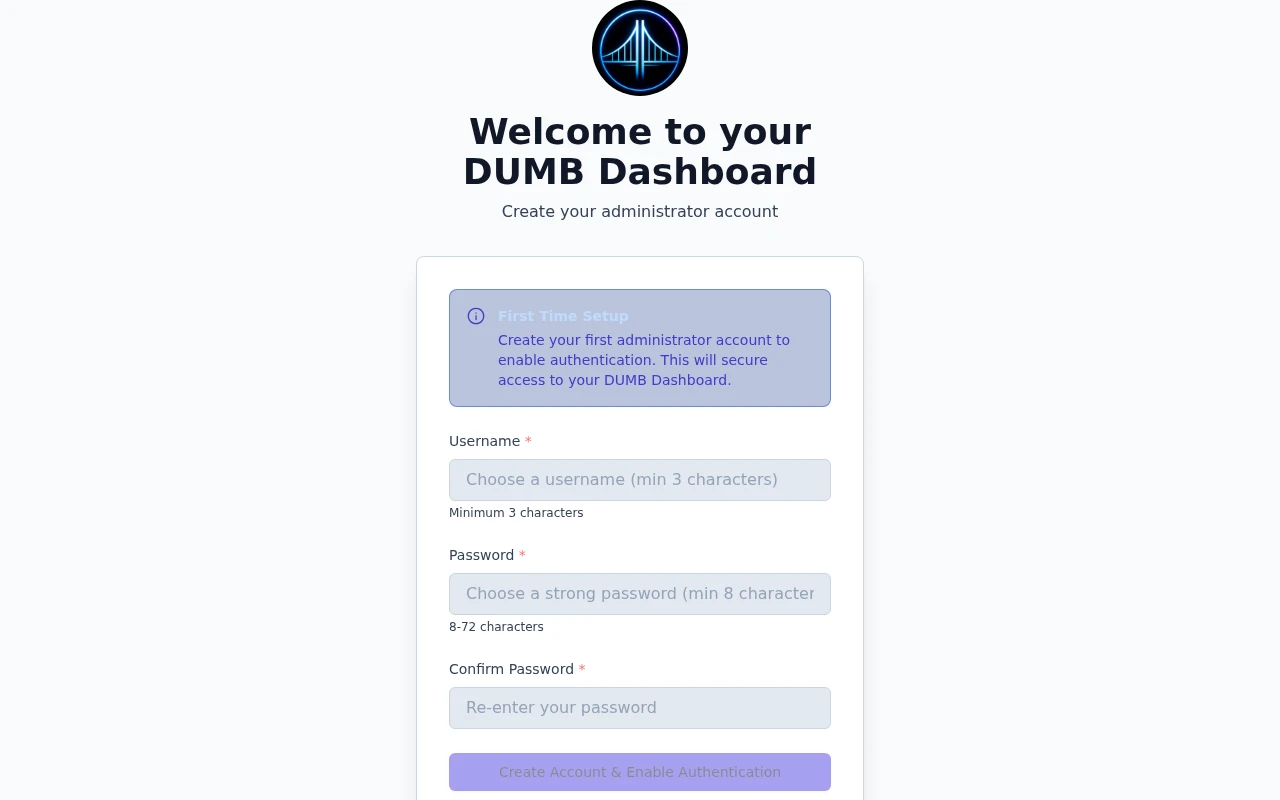
Create your first account
Read the guideCreate the first account for your DUMB installation.
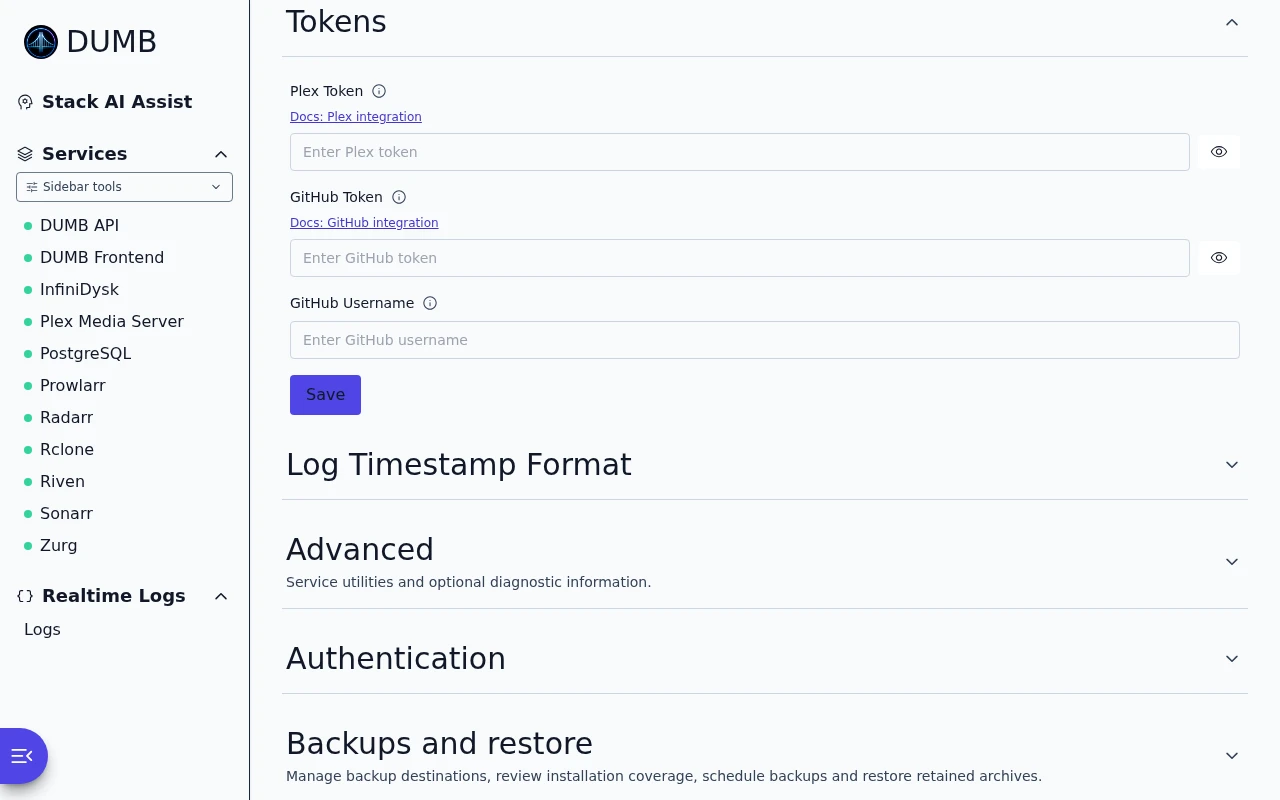
Integration tokens
Read the guideAdd the Plex and GitHub credentials used by your installation.
Authentication and local accounts
Read the guideManage sign-in and local accounts for your installation.
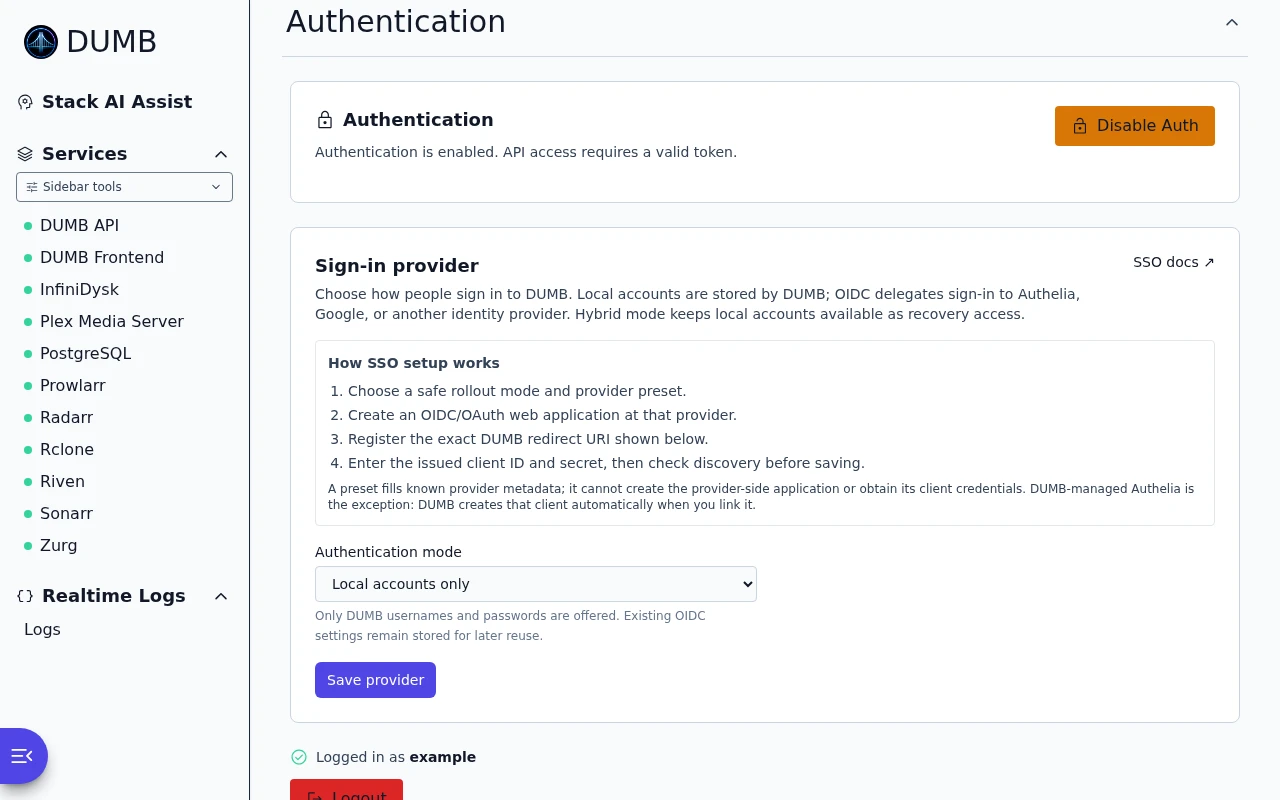
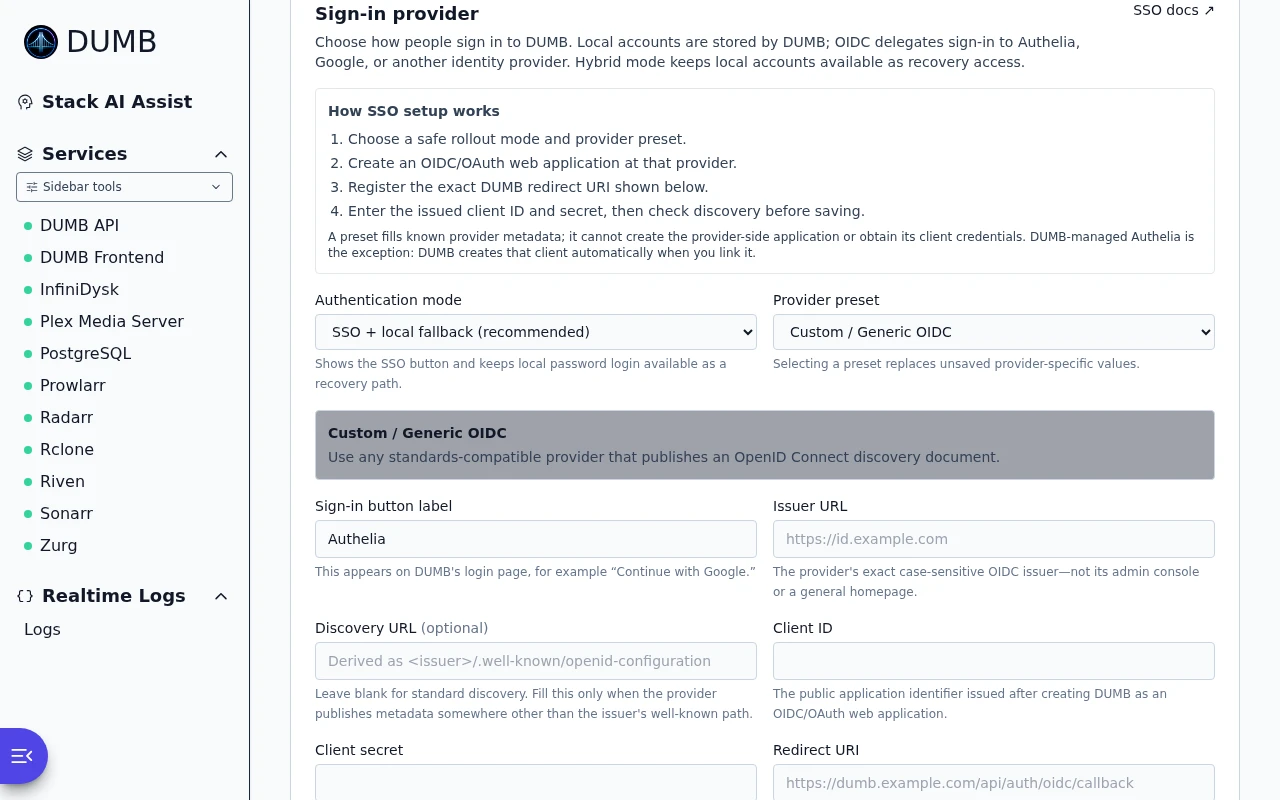
Sign-in provider
Read the guideChoose local sign-in, an identity provider, or both.
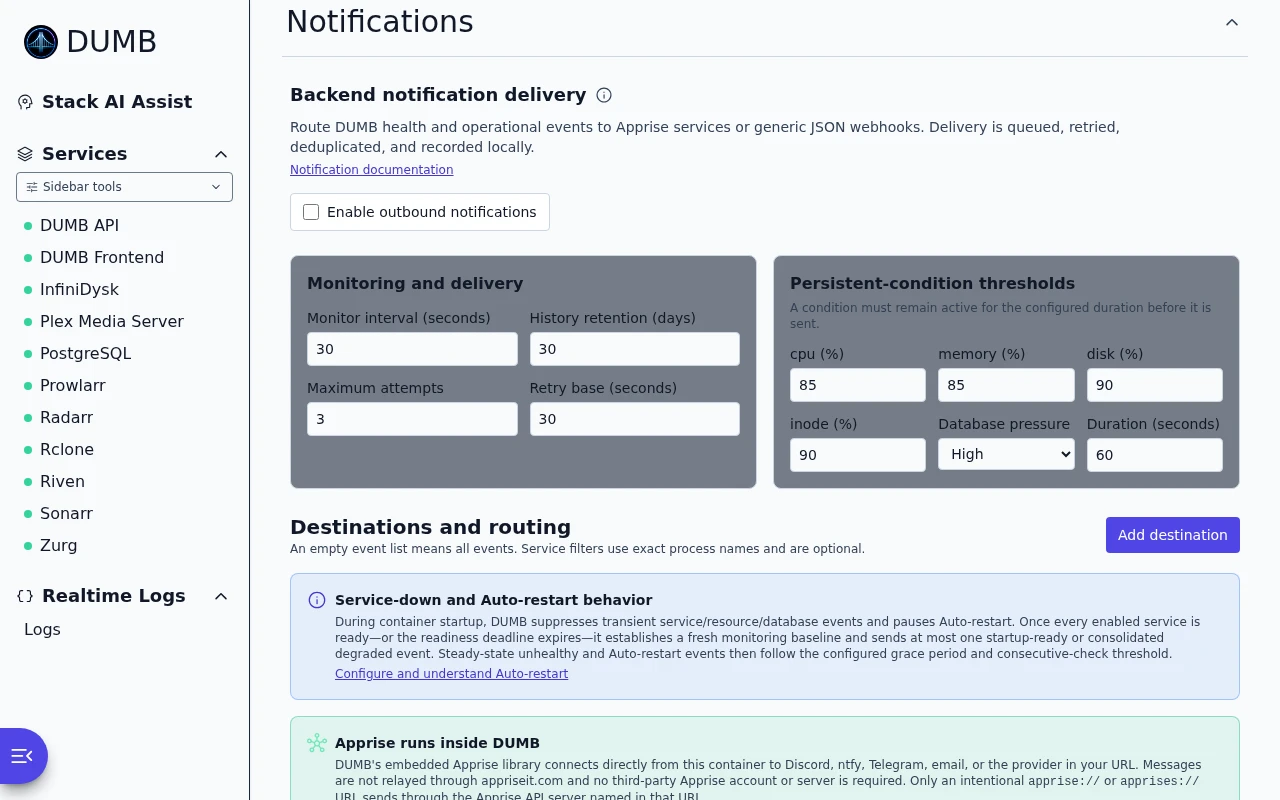
Notifications
Read the guideChoose where alerts go and which events you want to receive.
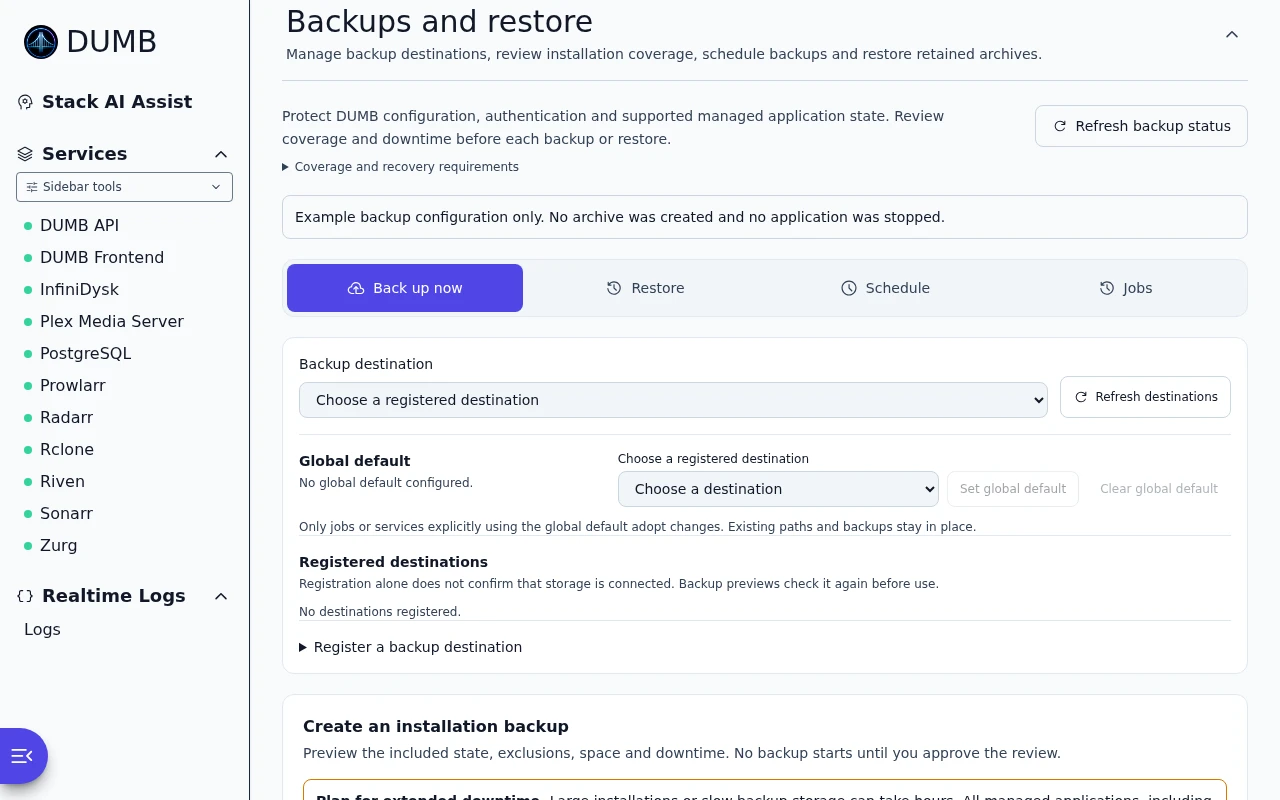
Backups and restore
Read the guideReview your backup and restore options.
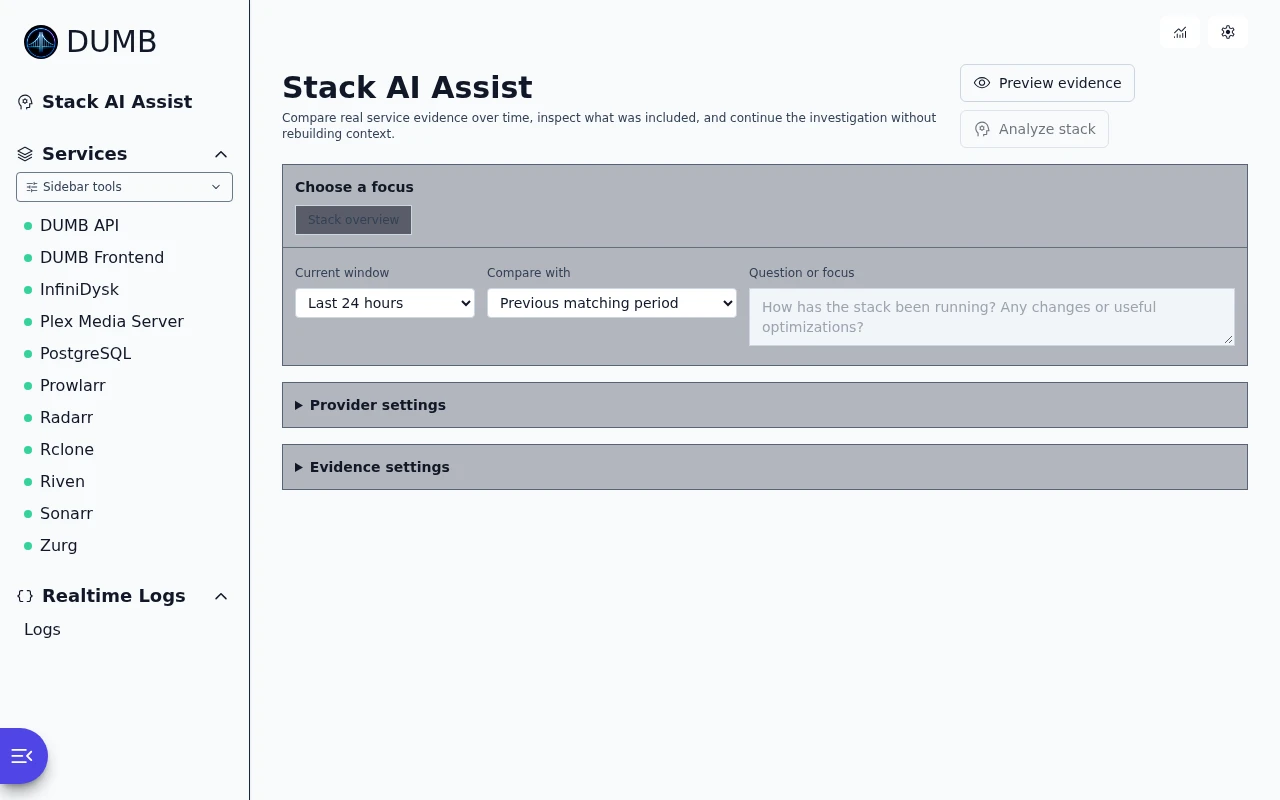
Stack AI Assist
Read the guideChoose the services, time period and question for AI Assist to investigate.
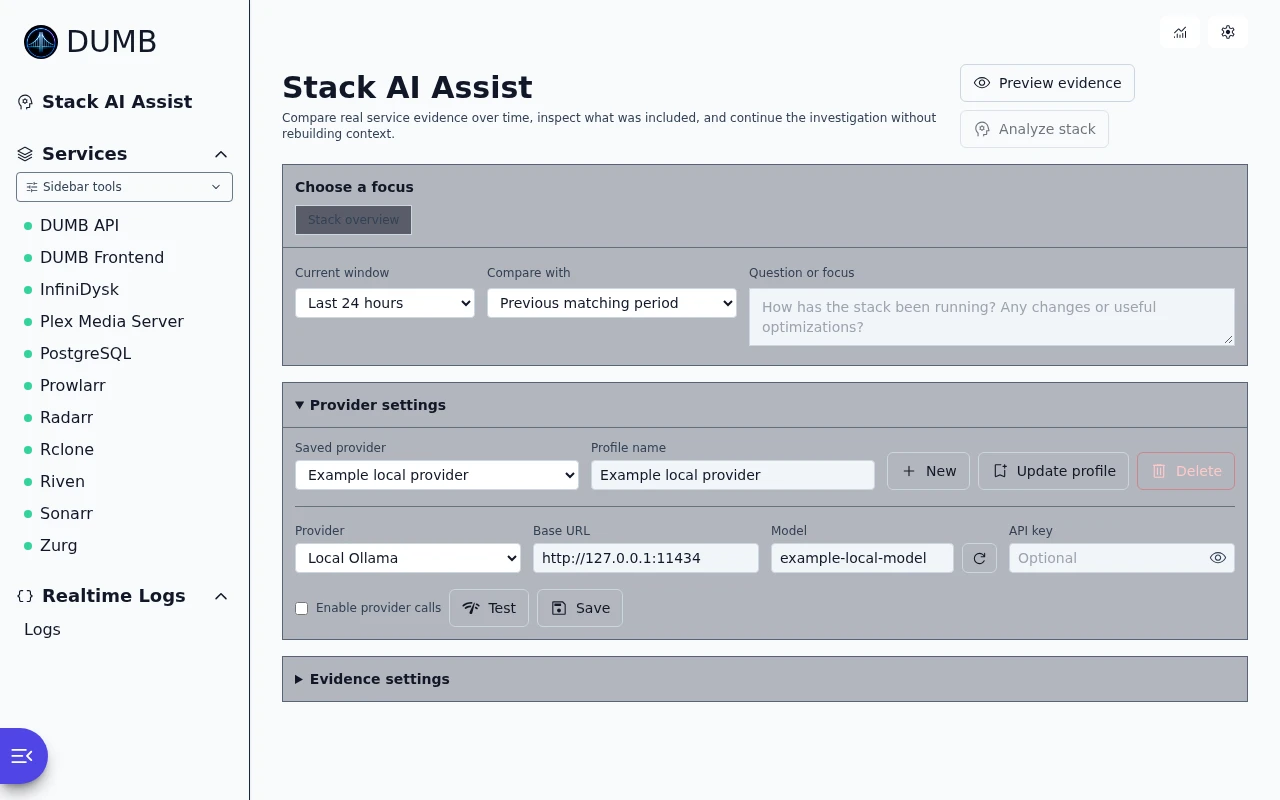
Local AI provider settings
Read the guideChoose a local model and its server address for AI Assist.
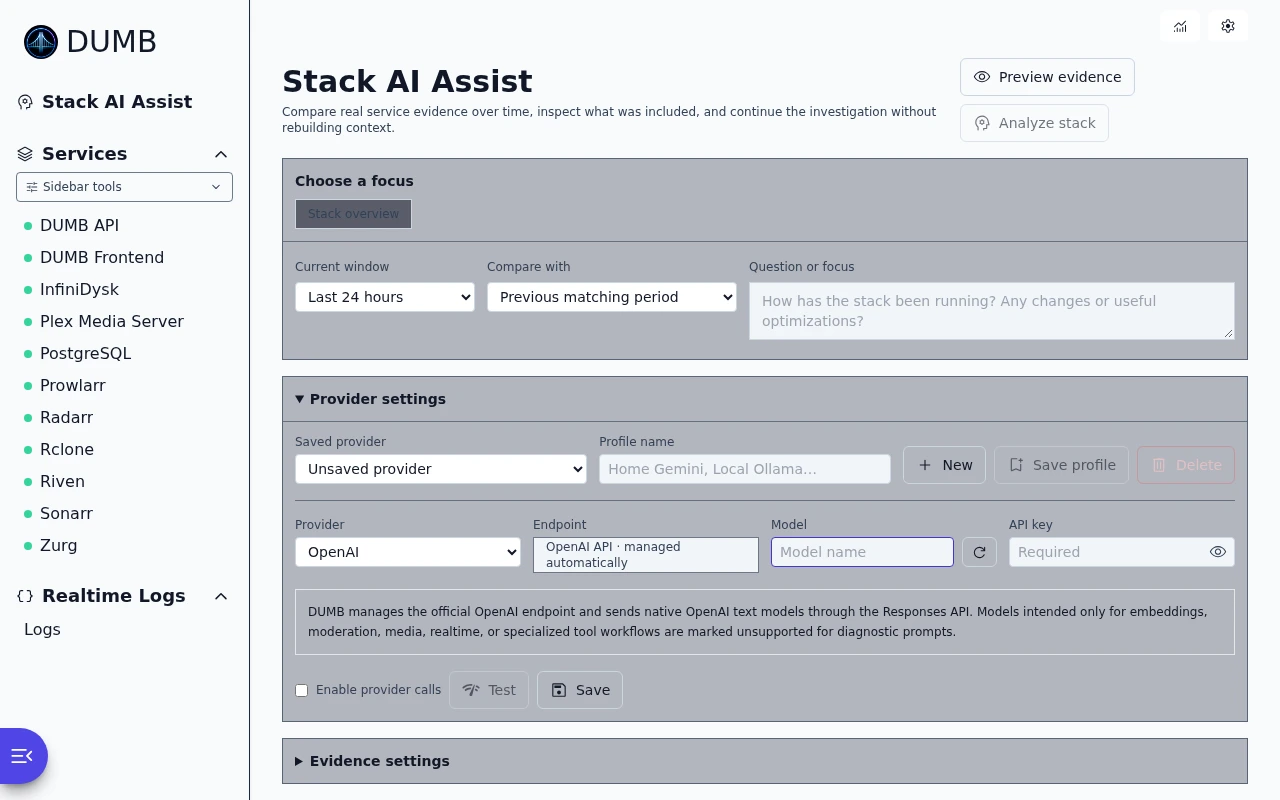
OpenAI provider settings
Read the guideChoose an OpenAI model and add its API key for AI Assist.
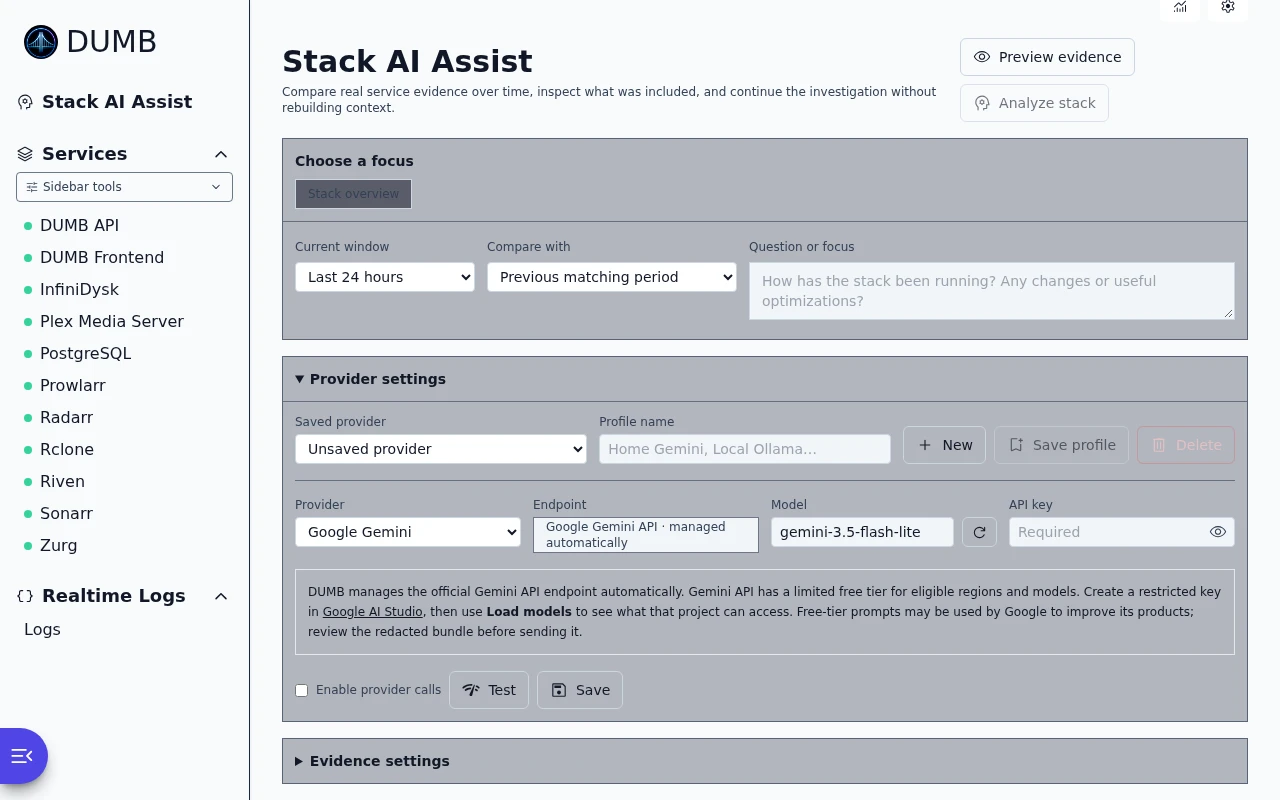
Gemini provider settings
Read the guideChoose a Gemini model and add its API key for AI Assist.
First-run setup
Choose services and review their options before completing the initial setup.
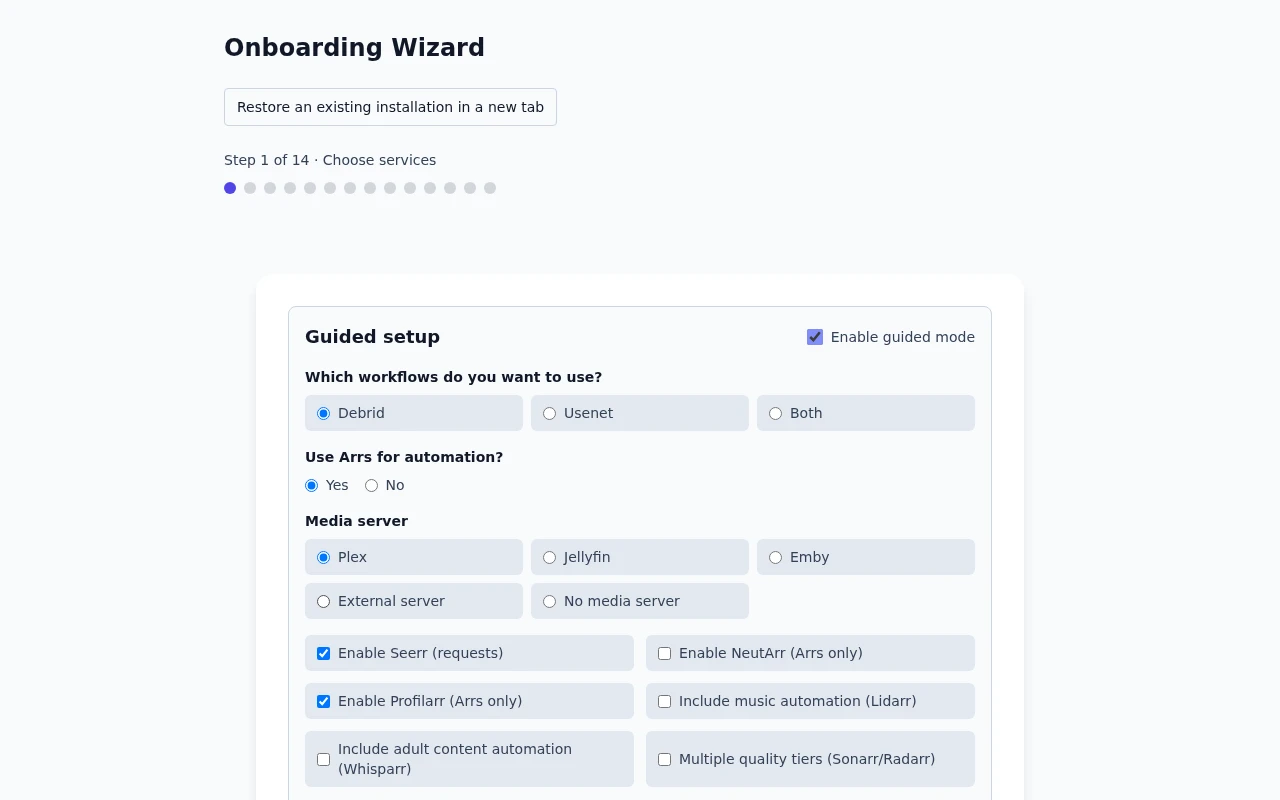
Choose services
Read the guideChoose the apps you want DUMB to set up.
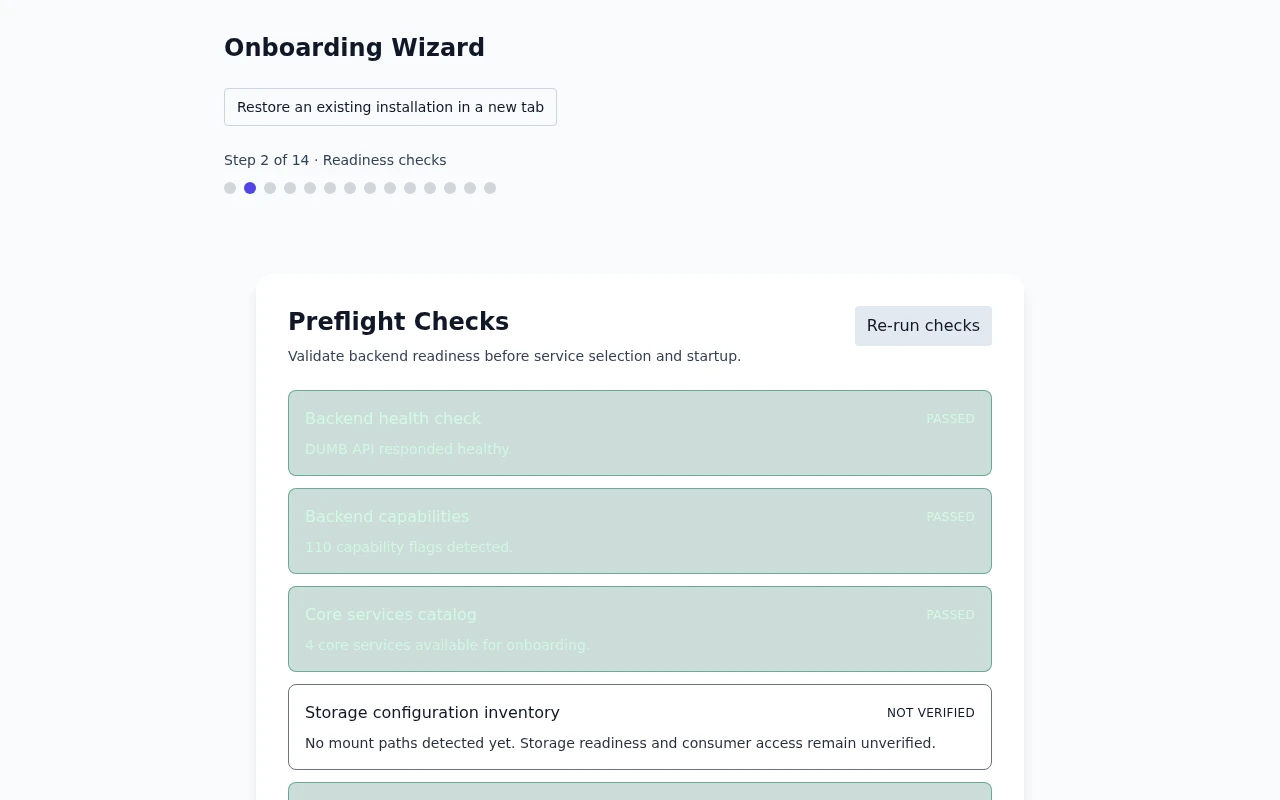
Readiness checks
Read the guideCheck that DUMB is ready before continuing with setup.
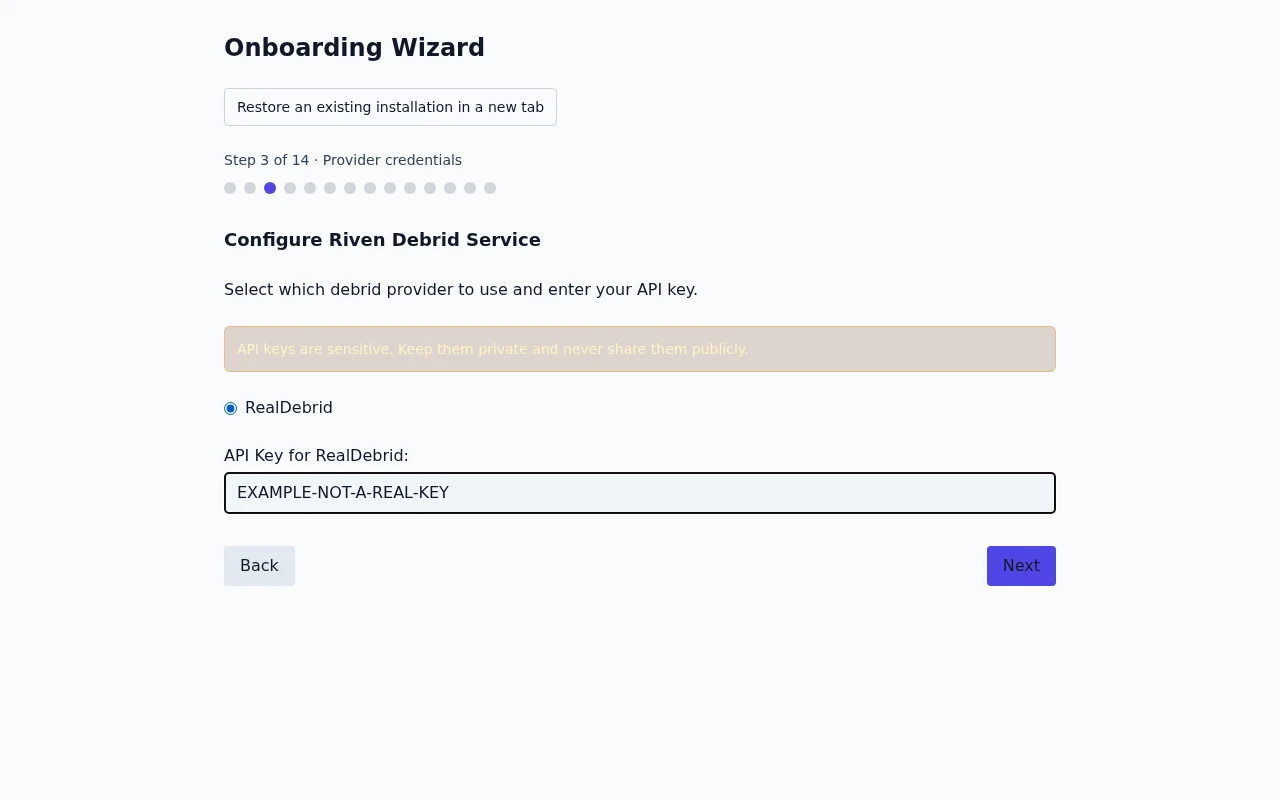
Provider credentials
Read the guideEnter the credentials for your chosen provider.
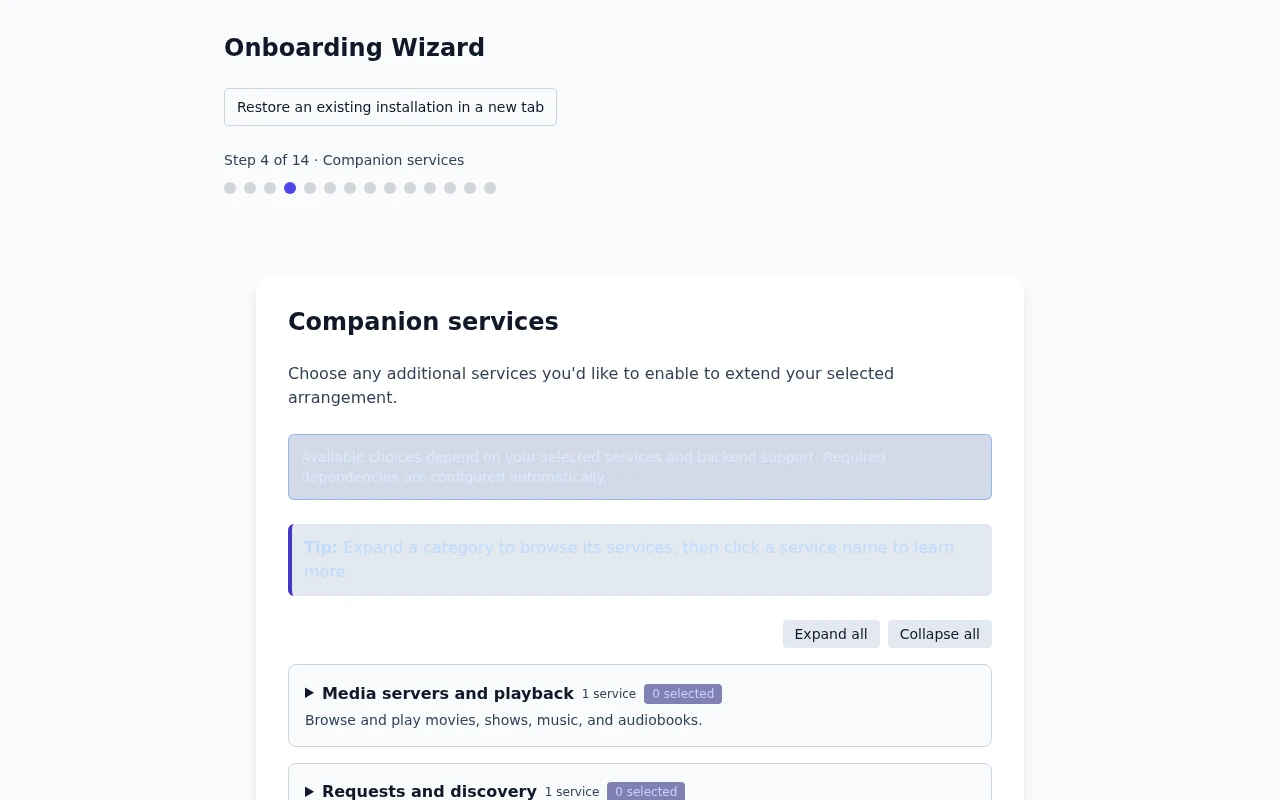
Companion services
Read the guideChoose optional apps to use alongside your main services.
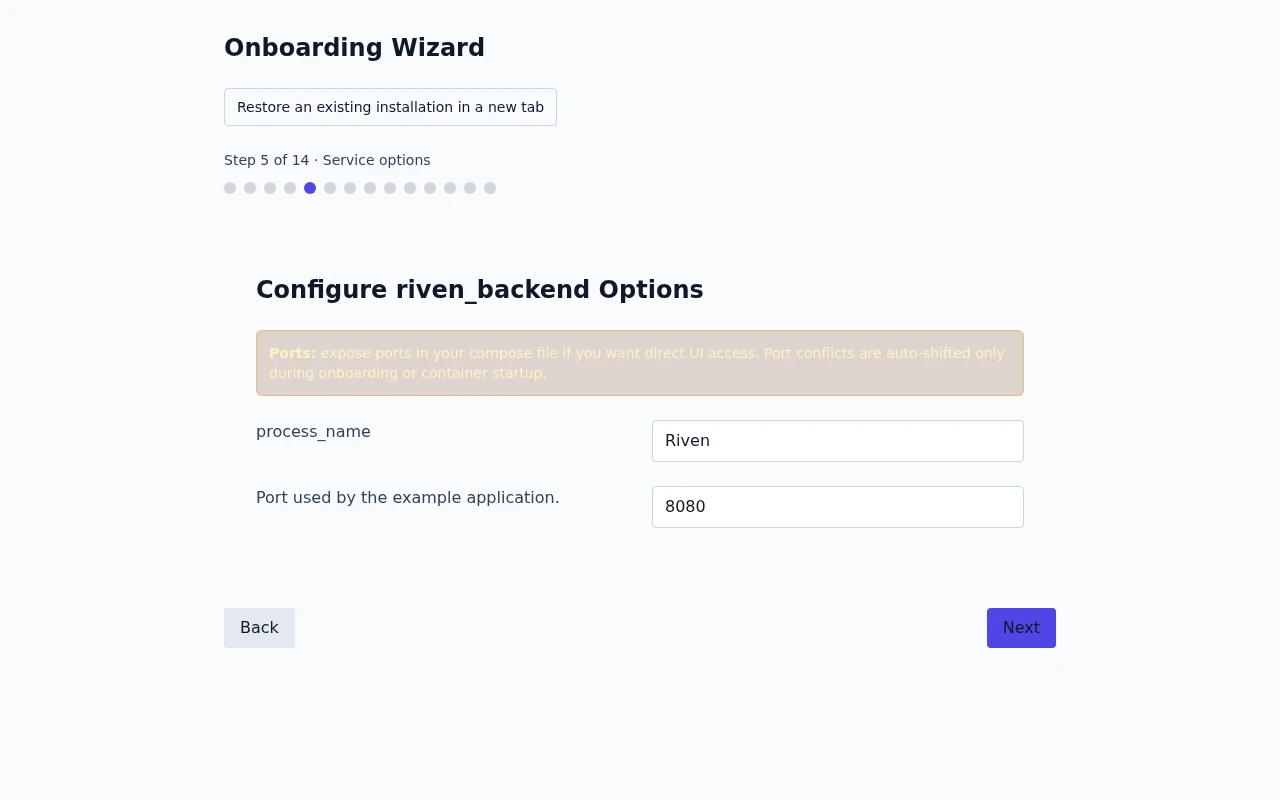
Service options
Read the guideReview the options for your selected services.
Embedded service access
Read the guideChoose whether supported service pages open inside DUMB.
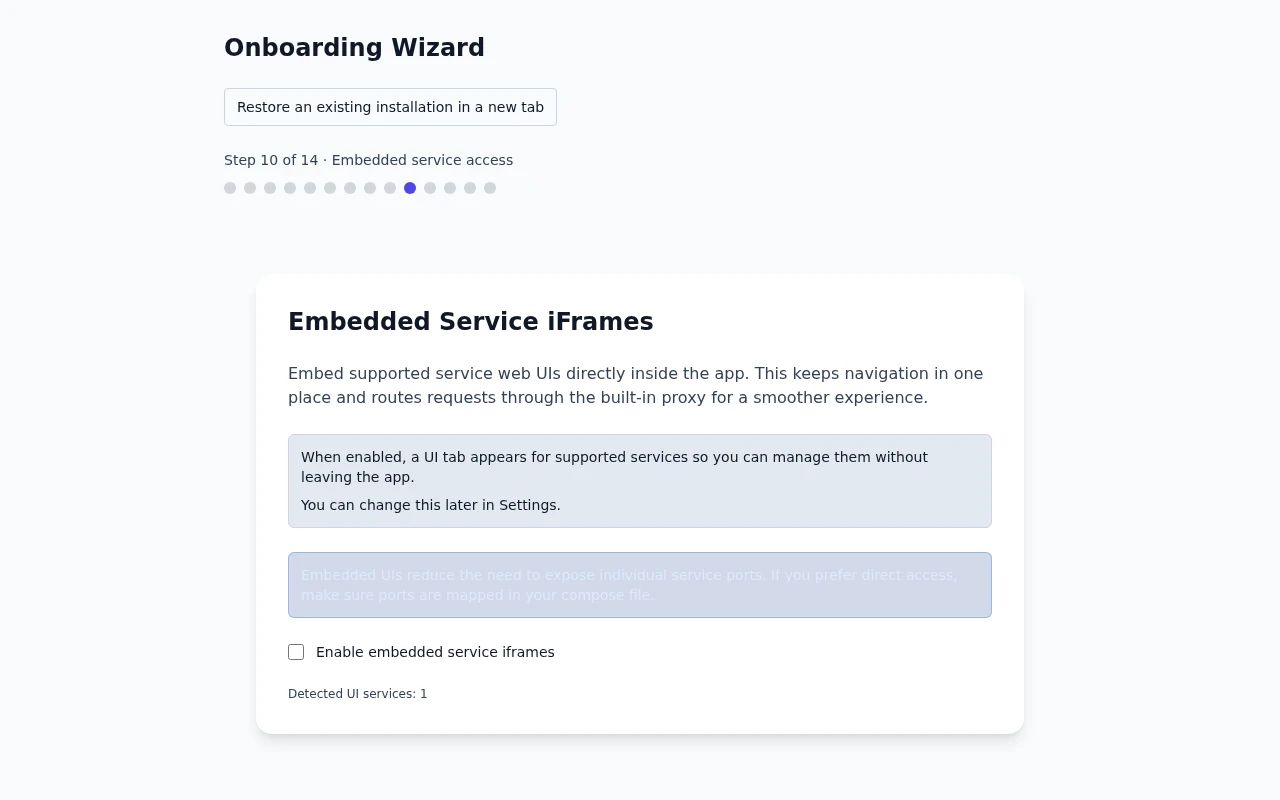
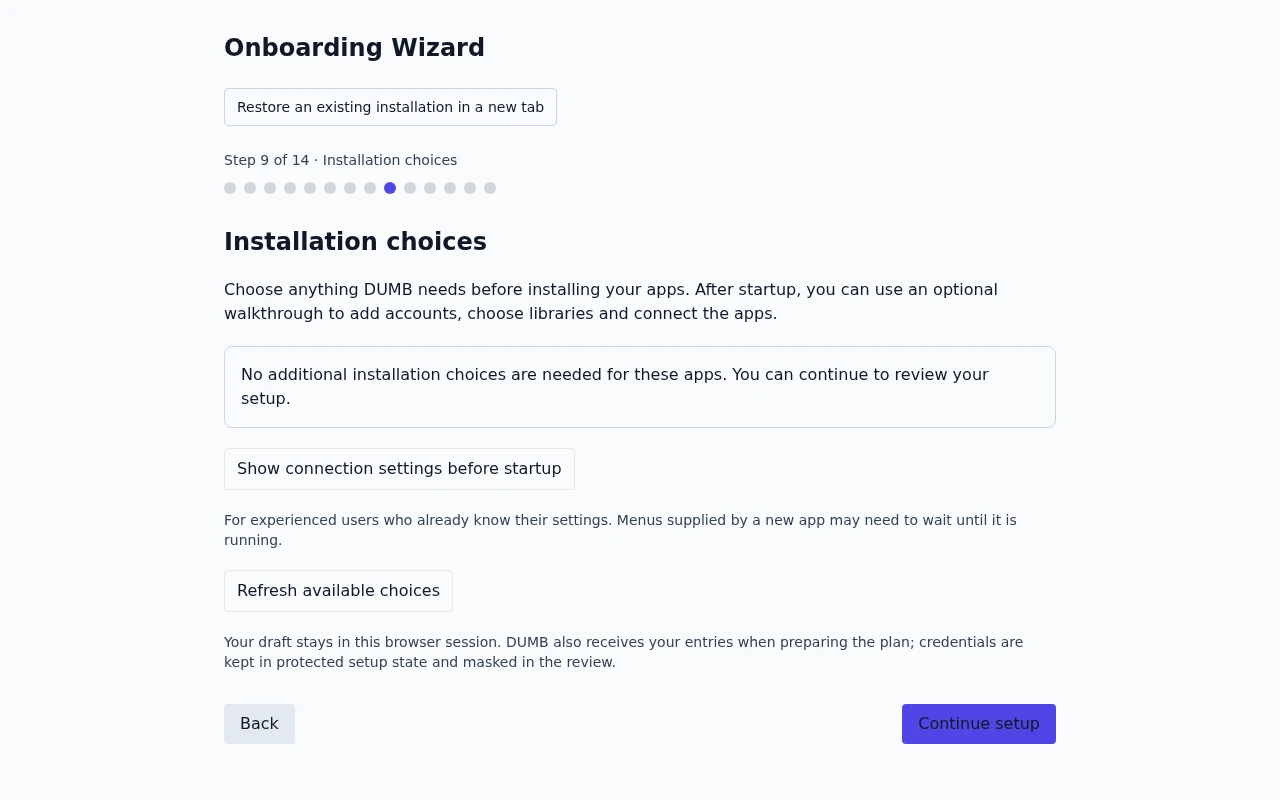
Installation choices
Read the guideReview the installation choices before starting your services.
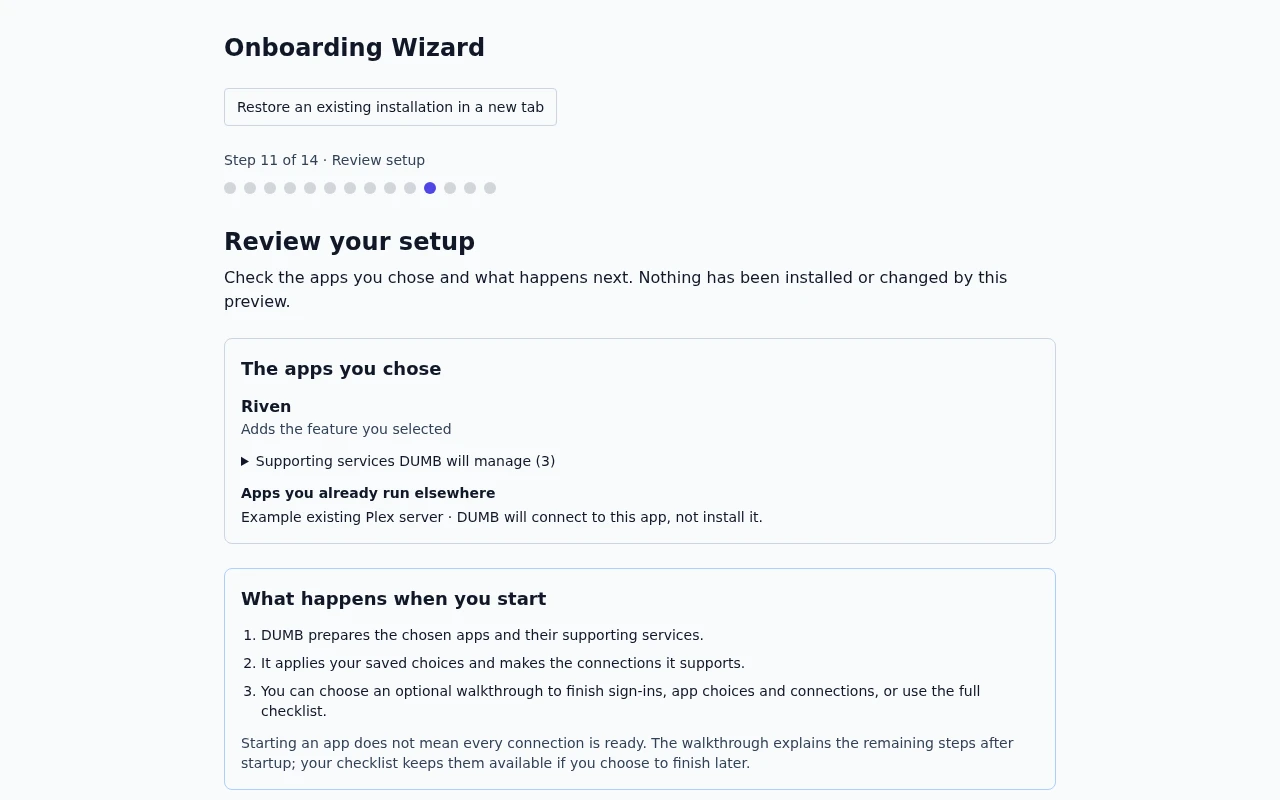
Review your setup
Read the guideCheck your selected services and settings before starting setup.
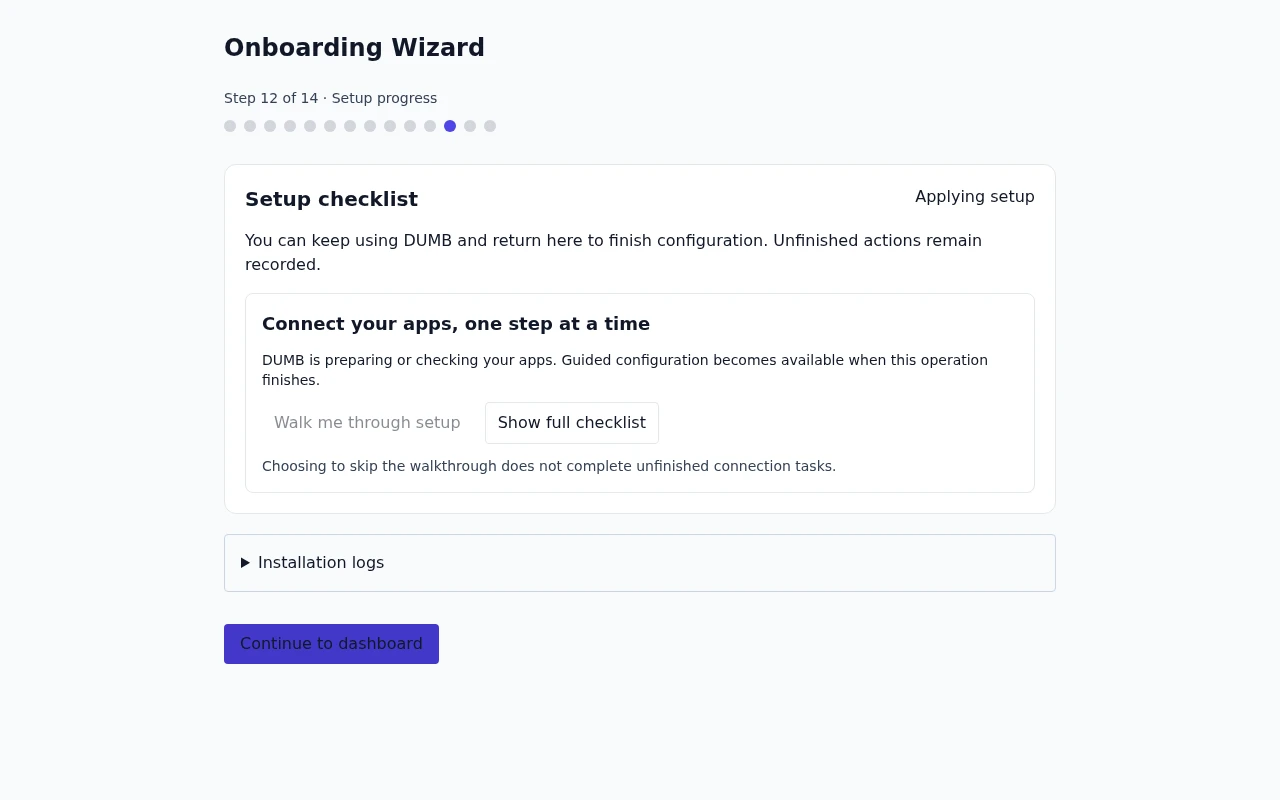
Setup progress
Read the guideFollow the progress messages while your selected services start.
Setup complete
Read the guideSee the confirmation shown when guided setup finishes.
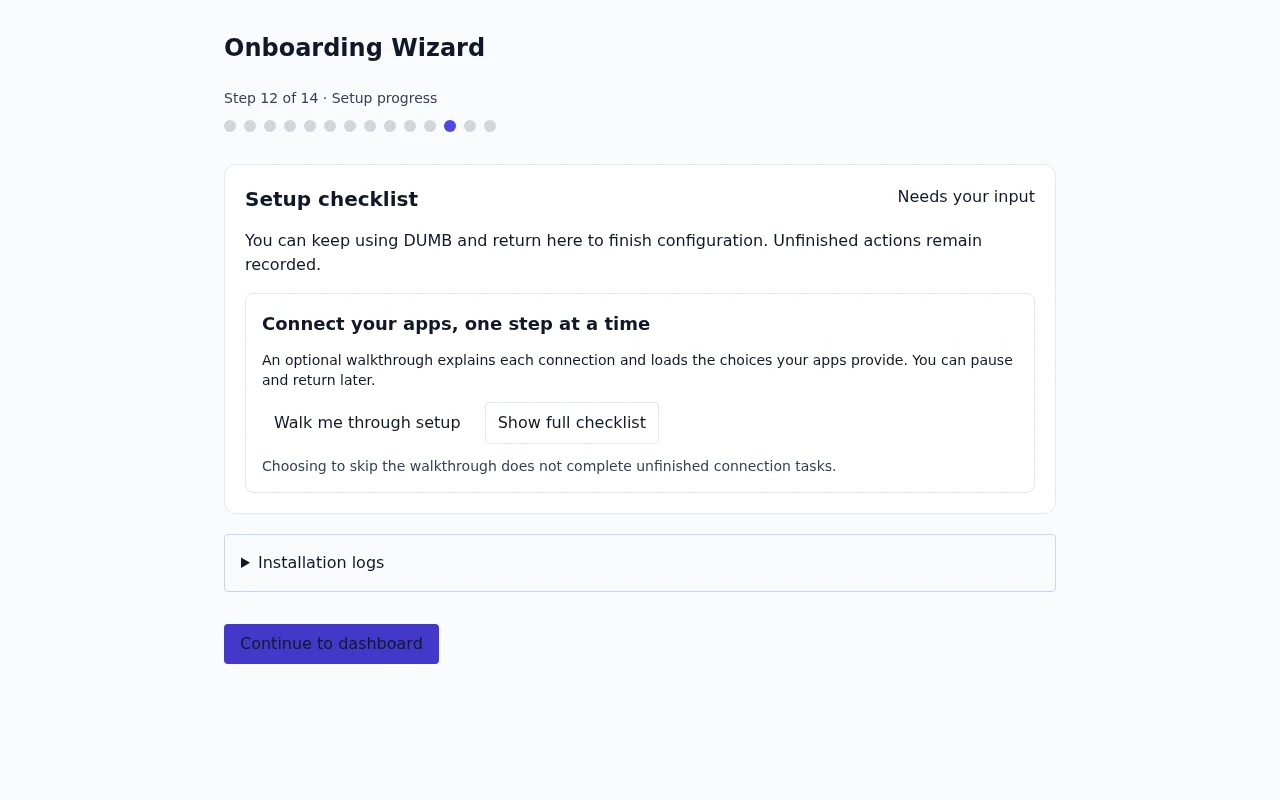
Setup needs attention
Read the guideRead the problem reported during setup before reviewing your settings.
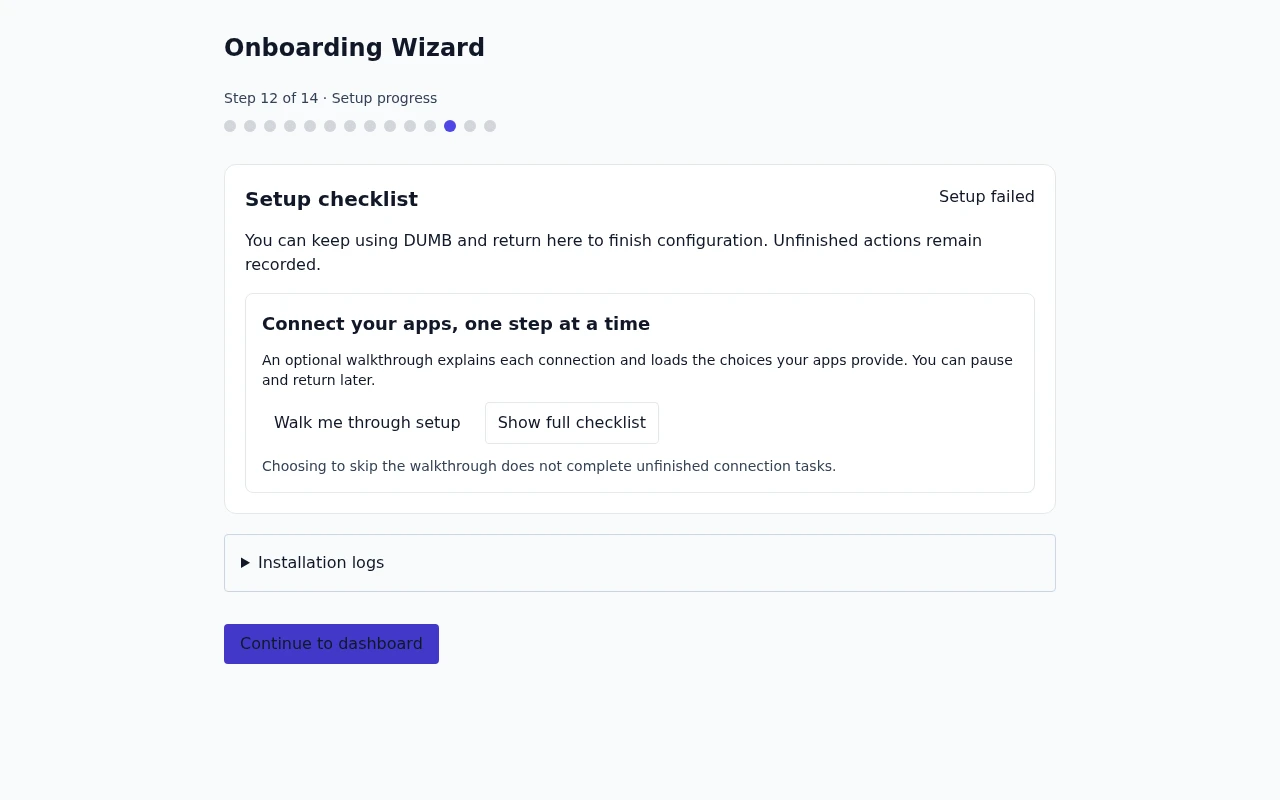
Finish setup connections
Read the guideComplete the remaining connections between your apps.
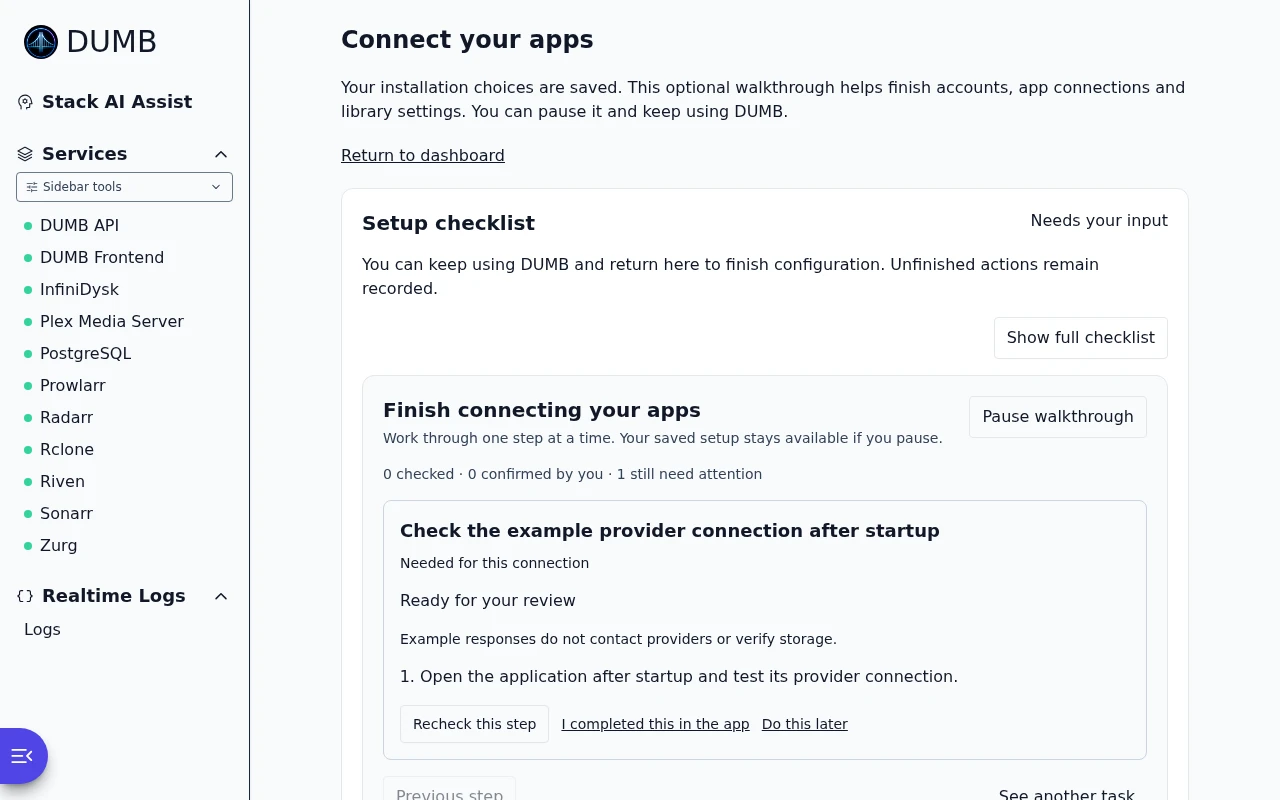
DUMB and application accounts are separate
A DUMB account gives operator access to its dashboard, including service and user management. Opening an app inside DUMB does not sign you into that app: Plex, Jellyfin, pgAdmin, and other services may ask for their own account.
See Authentication before sharing DUMB access with someone else.
If the instructions do not match your screen
Check the DUMB and frontend versions in Settings → About, then choose Latest release or Development documentation in this site's header. An older installation may not show a newer tool.
Use a current browser. If the dependency graph's Flow view cannot display, its Details view provides the connections as text.
What Geek mode adds
The normal guides use frontend tools. Geek sections explain the underlying processes and connections, or show alternatives such as API calls, command-line tools, environment variables, and manual configuration.
Geek mode changes these docs; it does not change DUMB's settings. How the documentation modes work.
Geek reference: how the dashboard connects and alternative deployment settings
Ports and live connections
The maintained Compose example publishes the frontend on 3005. Bundled Traefik uses 18080 for service UI routes; it does not replace the frontend listener.
The frontend proxies backend requests under /api and streams status, metrics, and logs over WebSockets. A reverse proxy in front of the dashboard must allow those WebSocket connections. If the connection indicator is disconnected, check proxy and network settings before relying on the displayed sample as current.
Frontend configuration
Managed installations receive these values from DUMB. A separately deployed frontend must use addresses reachable from its own container:
| Variable | Default | Purpose |
|---|---|---|
DUMB_API_URL |
http://127.0.0.1:8000 |
Backend API |
DUMB_TRAEFIK_URL |
API host on port 18080 |
Embedded HTTP and WebSocket proxy target |
NUXT_TELEMETRY_DISABLED |
1 |
Disable Nuxt telemetry |
DUMB injects the current Traefik listener into its managed frontend, including when port reservation moves Traefik away from 18080.
Browser support
Use a current Chrome/Chromium, Firefox, Safari, or Edge release. The dependency panel's Flow view uses Mermaid 12 and requires Safari 17.4+ or another ES2024-capable browser. If that view cannot render, use Details to inspect dependencies. See the Mermaid 12 release notes for its browser requirements.