Symlink Operations
A symlink stores another path; it does not contain the media bytes. If a mount moves, the link can remain present while its target becomes unavailable.
Choose an operation
| Need | Tool |
|---|---|
| Keep links in place but change target prefixes | Prefix or preset rewrite |
| Move/copy the link files to another library tree | Root migration |
| Record or restore link paths and targets | Snapshot backup / restore |
| Keep recurring link snapshots | Scheduled backups |
| Follow a known workflow transition | Migration playbooks |
Start with a dry run, inspect its scope, and keep a snapshot before applying changes. A symlink snapshot does not back up referenced media or application databases.
Repair links in the dashboard
- Open the service whose library needs repair and select Tools → Symlinks.
- Choose a repair Playbook for the change you intend. Use a prefix rewrite when only the target path changed; use root migration when the link files themselves must move or be copied.
- Review the selected roots and old/new paths. Use paths visible inside DUMB, and limit the first run to the affected library.
- Select Dry run. Review the proposed changes, skipped links, conflicts, and errors before applying anything.
- Keep automatic backup enabled. Accept the acknowledgement and select Apply repair only for the reviewed change. Wait for the job's final result.
- Check a few repaired files in the relevant application's library and test playback. If results are wrong, stop and use the recorded backup manifest to restore before making another change.
Symlink repair and snapshots
Read the guideRepair library links, take snapshots and set backup schedules.
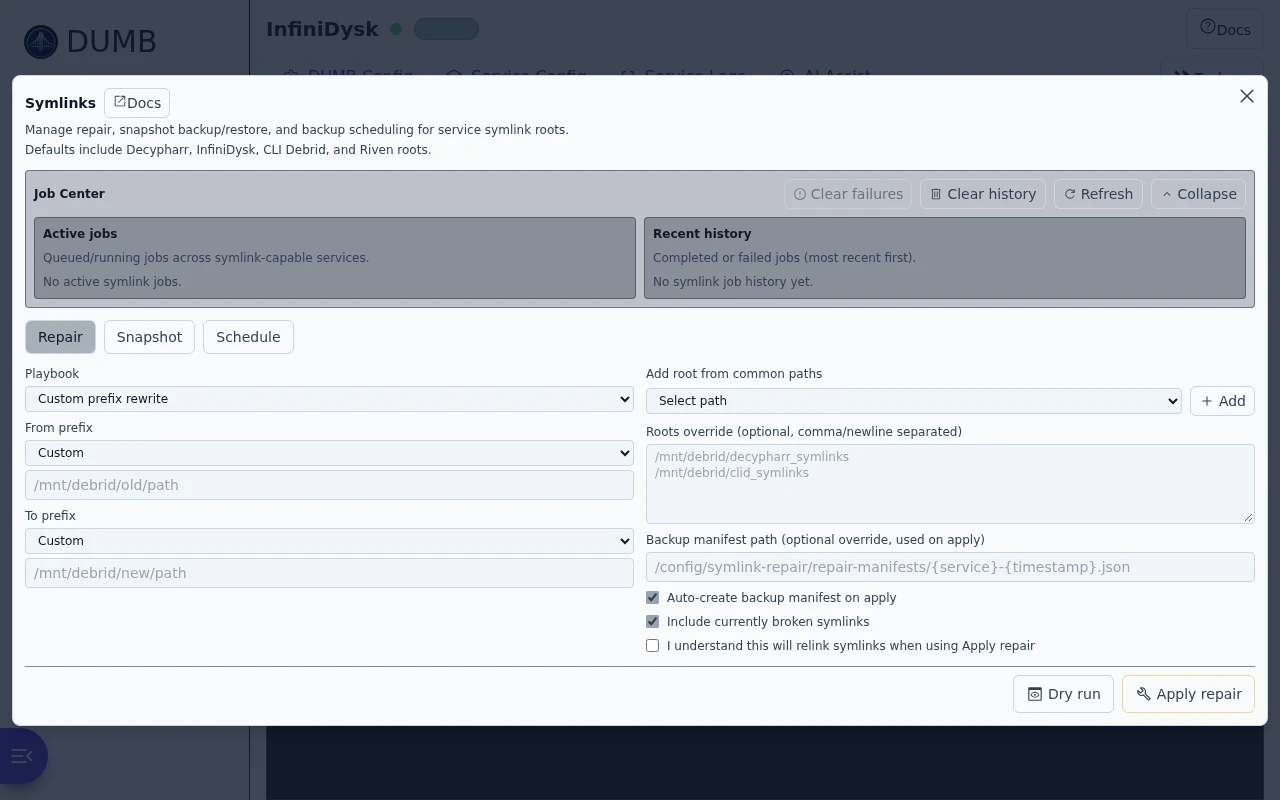
Frontend 1.92.0 · DUMB 2.24.0 · Example data.
flowchart LR
    Open[Open service Symlinks] --> Choose[Choose playbook and affected roots]
    Choose --> Preview[Run dry run and review changes]
    Preview --> Apply[Keep backup and confirm apply]
    Apply --> Verify[Check sample links and playback]
A successful link repair does not automatically change Sonarr/Radarr root folders or download-client settings. Review Arr paths when the library location changes.
Why symlinks matter in DUMB
In DUMB workflows, services like Decypharr, InfiniDysk, CLI Debrid, and Riven create curated symlink libraries that point to mounted content (for example rclone/DFS paths under /mnt/debrid).
This gives you:
- Clean, curated libraries for media servers
- Separation between raw mount trees and user-facing libraries
- Faster migration paths when providers or mount layouts change
Common failure mode:
- A symlink exists, but its target path no longer exists after mount/path changes.
Keep existing library paths
Existing NzbDAV paths remain active unless you deliberately complete the guarded namespace migration. Do not change a working mount or library path just to match an example below.
Technical details: container path model and retained legacy paths
Path model (high level)
Typical roots inside the container:
- Raw/mount content roots:
/mnt/debrid/decypharr/mnt/debrid/clid/mnt/debrid/infinidysk/mnt/debrid/riven
- Curated symlink library roots:
/mnt/debrid/decypharr_symlinks/mnt/debrid/infinidysk-symlinks/mnt/debrid/clid_symlinks/mnt/debrid/combined_symlinks/mnt/debrid/riven_symlinks
Existing NzbDAV paths are retained
The paths above show the defaults for new InfiniDysk installations. The
opt-in compatibility cutover does not move an existing /mnt/debrid/nzbdav
mount or /mnt/debrid/nzbdav-symlinks library. Those paths remain active
unless you explicitly select and complete the guarded full namespace migration.
Important:
- Symlink targets are path-sensitive. If the target path changes, links may break until repaired/migrated.
Technical details: how each service produces its library
Supported service workflows
Decypharr
- Arr requests route to Decypharr.
- Decypharr resolves content in debrid-backed mount paths.
- Arr rename/import behavior produces curated symlink results for library paths.
- Common migration: provider-layout path rewrite (for example
realdebrid/__all__->__all__).
InfiniDysk
- Arr workflow uses InfiniDysk download-client flow.
- Final libraries are curated symlink paths under InfiniDysk roots or combined roots.
CLI Debrid
- CLI Debrid can create symlinks from mounted content into
/mnt/debrid/clid_symlinks. - A frequent use case is cloning/migrating these entries into another symlink tree for downstream import workflows.
Riven
- Uses configured
symlink_library_path. - Included in backend defaults when configured.
Technical details: symlink API routes
flowchart LR
    Preview[Read-only repair plan] --> Review[Review proposed path changes]
    Review --> Apply[Submit async repair with backup]
    Apply --> Manifest[Record original links and targets]
    Manifest --> Rewrite[Rewrite or relocate selected links]
    Rewrite --> Status[Poll job status and verify result]
    Manifest --> Recovery[Restore manifest if recovery is needed]
DUMB symlink tools
DUMB provides three categories of symlink operations:
- Repair/migration (
POST /api/process/symlink-repair)- Async apply mode:
POST /api/process/symlink-repair-asyncGET /api/process/symlink-job-statusGET /api/process/symlink-job-latest
- Async apply mode:
- Standalone snapshot backup/restore (
POST /api/process/symlink-manifest/backup,POST /api/process/symlink-manifest/restore)- Compare/preview mode:
GET /api/process/symlink-manifest/compare
- Async backup/restore modes:
POST /api/process/symlink-manifest/backup-asyncPOST /api/process/symlink-manifest/restore-asyncGET /api/process/symlink-job-status
- Compare/preview mode:
- Scheduled snapshot backup and restore selection (
/api/process/symlink-backup-*)
See API details: Process Management API.
Repair modes (what each one does)
1) Prefix rewrite mode
Use when link targets changed path prefix but links should stay in-place.
Example:
- From:
/mnt/debrid/decypharr/realdebrid/__all__/... - To:
/mnt/debrid/decypharr/__all__/...
Behavior:
- Scans symlink entries in selected roots
- Rewrites target strings that match
from_prefix - Leaves symlink file location unchanged
2) Preset rewrite mode
Use for known migrations with built-in rules.
Current preset:
decypharr_beta_consolidated
Behavior:
- Same as prefix rewrite, but rule set is predefined.
3) Root migration mode
Use when symlink files themselves must move between library trees.
Example:
- From:
/mnt/debrid/decypharr_symlinks/... - To:
/mnt/debrid/combined_symlinks/...
Behavior:
- Preserves relative path under the destination root
- Supports:
- move (default)
- copy (
copy_instead_of_move: true) for staged transition/import
Frontend option behavior (important details)
Roots behavior
Roots overridereplaces defaults for that run (it does not append).Add root from common pathsis a UI helper that appends selected paths into theRoots overridetextbox.- In current Symlink Repair UI:
- choose a Playbook for common migrations, or custom modes
- root override controls are shown for prefix-rewrite playbooks
- preset rewrite playbook uses service-scoped defaults for the current service page
- root migration playbooks use explicit
from_rootandto_root
Service-scoped defaults (repair UI)
On each service page, default repair scope is narrowed to that service root unless overridden:
- Decypharr page ->
/mnt/debrid/decypharr_symlinks - InfiniDysk page ->
/mnt/debrid/infinidysk-symlinks - CLI Debrid page ->
/mnt/debrid/clid_symlinks - Riven page ->
symlink_library_path(or/mnt/debrid/riven_symlinksfallback)
Backup manifest on apply
Repair UI supports automatic backup manifest creation on apply runs:
- Auto-backup enabled by default
- If no explicit path is provided, a timestamped path is generated
This gives you rollback/audit artifacts without manual setup each run.
Snapshot backup / restore
Snapshot tab behavior:
Manifest pathnow includes a dropdown picker of existing snapshot files (same directory scan behavior as scheduled restore), plus aCustom pathoption.Manifest pathremains fully editable whenCustom pathis selected.- Restore flow includes Preview changes to compare the selected manifest against current symlinks using current restore options (
overwrite_existing,restore_broken). - Backup root scope defaults to
Current service rooton the active service page. - Managed default manifest path now follows snapshot root selection:
- current/specific root =>
/config/symlink-repair/snapshots/{service}.json - all default roots =>
/config/symlink-repair/snapshots/latest.json
- current/specific root =>
- Backup root scope supports:
- Current service root
- All default roots
- A specific known root
- Custom roots (textarea)
Development update · not in the released 2.23.0 docs
Registered backup destinations
Use the Backup destination selection in Snapshot backup or the schedule section to choose registered local/NAS archive storage. The legacy/local choice preserves your existing manifest path. A manual selection applies only to that backup; Save backup schedule explicitly saves its destination for future scheduled runs. Registering a profile or saving the global preference does not silently move existing custom paths.
Registered snapshots appear in the picker as managed artifacts. Their references are opaque identifiers, not paths or website URLs. Restore/compare verifies the recorded checksum and, when a service context is supplied, its process identity. Select an older registered destination explicitly when restoring one of its retained snapshots after changing the schedule's destination. A missing or changed mount reports an error instead of writing a local fallback.
Standalone backup
- Open Tools → Symlinks → Snapshot on the affected service page.
- Under Snapshot roots, keep Current service root or choose the exact roots you want to record. Review Manifest path for the saved snapshot.
- Choose whether to include currently broken symlinks, then select Backup snapshot now.
- Wait for completion, review the recorded-entry/error counts, and check that the snapshot is available in the Manifest path picker.
Restore from snapshot
- Select the intended snapshot under Manifest path. Use Refresh if a newly created snapshot is missing.
- Leave Restore dry run enabled. Review the overwrite and missing-target options, then select Preview changes when available, or Restore dry run.
- Check the projected restores, skipped entries, errors, and sample changes. Stop if the paths or counts are unexpected.
- Clear Restore dry run, accept the relink acknowledgement, and select Apply restore only after reviewing the preview.
- Wait for the result and test a few restored items in your application and media player. A restored link still needs its target storage to be available.
Technical alternative: snapshot backup and restore payloads
Standalone backup
Create snapshot manifest:
{
  "backup_path": "/config/symlink-repair/snapshots/latest.json",
  "roots": ["/mnt/debrid/decypharr_symlinks"],
  "include_broken": true
}
Restore from snapshot
{
  "manifest_path": "/config/symlink-repair/snapshots/latest.json",
  "dry_run": true,
  "overwrite_existing": false,
  "restore_broken": true
}
Recommended flow:
- Run restore in dry-run mode
- Review output
- Apply with confirmation when expected
Which button should I use?
Use Repair for target-prefix changes or moving/copying link entries. Use Snapshot backup before a change and Restore to review a retained manifest. Use Schedule for recurring snapshots.
Copy mode keeps the original link tree for a staged transition. Move mode removes entries from the source tree. Dry-run either choice and inspect the source, destination, target prefixes, and expected count before applying.
Scheduled backup behavior
- Open Tools → Symlinks → Schedule for the service.
- Turn on Enable scheduled symlink backup. Set Start time, Interval (hours), and Retention (count); zero retention keeps all matching snapshots.
- Review the saved path template and root scope, then select Save backup schedule.
- Check Next run. After that time, check Last run, status, and the available manifest list.
Technical alternative: scheduled symlink backup configuration fields
Enabled with service config keys:
symlink_backup_enabledsymlink_backup_intervalsymlink_backup_start_timesymlink_backup_pathsymlink_backup_include_brokensymlink_backup_roots(optional override)-
symlink_backup_retention_count -
Dev
backup_destination_id(explicit registered destination; empty keeps the existing path)
Retention
symlink_backup_retention_count = 1is the default when unset0disables pruning (keep all matching manifests)-
Values
> 0keep newestN, pruning older files matching the service template -
Dev With registered storage, pruning applies only to that process's scheduled snapshots. Manual managed snapshots remain retained.
Default cadence
- Default
symlink_backup_intervalis168hours (weekly) unless overridden.
Restore from scheduled backups
Use the Schedule tab dropdown to pick an available manifest discovered from the configured template.
Technical details: migration playbook payloads and steps
Migration playbooks
Playbook A: Decypharr provider path consolidation
Use preset rewrite:
Then apply:
{
  "dry_run": false,
  "presets": ["decypharr_beta_consolidated"],
  "backup_path": "/config/symlink-repair/decypharr-rewrite.json"
}
Playbook B: Individual -> combined symlink roots
{
  "dry_run": false,
  "root_migrations": [
    {
      "from_root": "/mnt/debrid/decypharr_symlinks",
      "to_root": "/mnt/debrid/combined_symlinks"
    }
  ]
}
Playbook C: Clone CLI Debrid symlinks into Decypharr tree
{
  "dry_run": false,
  "root_migrations": [
    {
      "from_root": "/mnt/debrid/clid_symlinks",
      "to_root": "/mnt/debrid/decypharr_symlinks"
    }
  ],
  "copy_instead_of_move": true
}
Use this when you want to seed/import existing curated content into another service’s expected symlink root without deleting originals.
Playbook D: Move CLI Debrid symlinks into Decypharr tree (cutover)
{
  "dry_run": false,
  "root_migrations": [
    {
      "from_root": "/mnt/debrid/clid_symlinks",
      "to_root": "/mnt/debrid/decypharr_symlinks"
    }
  ],
  "copy_instead_of_move": false
}
Use this when you are done with the old tree and want a true move.
Playbook E: Retarget CLI Debrid symlink targets from clid mount to Decypharr mount
Use custom prefix rewrite on CLI Debrid root:
{
  "dry_run": false,
  "roots": ["/mnt/debrid/clid_symlinks"],
  "rewrite_rules": [
    {
      "from_prefix": "/mnt/debrid/clid/",
      "to_prefix": "/mnt/debrid/decypharr/__all__/"
    }
  ]
}
Notes:
- This rewrites existing link targets in-place.
- Exact
to_prefixshould match your active Decypharr mount layout. - Dry-run first to confirm expected match count.
Playbook F: Cross-service import seeding for Arrs
Goal: make existing non-Arr symlink libraries importable by Arr workflows.
Suggested sequence:
- Snapshot backup source + destination roots.
- Run root migration in copy mode (
copy_instead_of_move: true) from source root to Arr-consumed root. - Validate imports in Arr.
- Optionally run cleanup move/remove after stable import.
Playbook G: Combined root adoption without losing existing libraries
When switching to /mnt/debrid/combined_symlinks:
- Copy individual roots into combined root first.
- Update consumers/importers to combined root.
- Monitor and validate.
- Move or archive old roots after confirmation.
Playbook H: Recovery from bad apply
If an apply run produced unwanted results:
- Use the apply-time backup manifest (or latest snapshot manifest).
- Run restore with
dry_run: true. - If output looks correct, run apply restore.
- Re-run targeted repair only if needed.
Safe operating checklist
Before apply runs:
- Verify service and root scope (avoid broad accidental rewrites)
- Run dry-run first
- Confirm backup manifest path/auto-backup
- Apply with confirmation
- Validate sampled symlinks + Arr/media-server visibility
For large migrations:
- Snapshot backup first
- Prefer copy mode for staged cutovers
- Validate import behavior
- Switch consumers to new root
- Cleanup old root once stable
Do Arr apps need updates after symlink changes?
Short answer: sometimes.
Use this quick map:
-
Prefix rewrite only (targets changed, symlink root stayed the same):
- Arr changes usually: No
- Why: Arr still sees the same symlink path; only the underlying target changed.
-
Root migration/copy to a new symlink tree that Arr will now use:
- Arr changes usually: Yes
- Why: Arr import/root assumptions may still point at old paths.
-
Clone CLI Debrid symlinks into Decypharr tree for import seeding:
- Arr changes usually: Yes (at least one-time import/discovery)
- Why: Arr did not create these symlinks, so they are usually unknown to Arr until Manual Import (or equivalent discovery/import action).
-
Move from individual roots to
combined_symlinksas primary workflow:- Arr changes usually: Yes
- Why: completed import source path and/or related path mappings often need to align with combined layout.
-
Snapshot backup/restore only:
- Arr changes usually: No
- Why: this restores symlink state, not Arr configuration.
What to update in Arr when required
When you switch Arr-facing paths, review these in each Arr instance:
-
Download/import source path assumptions
- Ensure the path Arr receives from the download workflow is still valid after migration.
-
Remote Path Mappings (when Arr sees different paths than DUMB)
- If Arr runs in a different container/host namespace, update mappings so Arr can translate source paths.
-
Root folders (managed library destination)
- If your managed destination path changed, update Arr Root Folders for future imports.
-
Manual Import source path (for seeding workflows)
- For one-time seeding, point Manual Import at the copied destination tree (for example
/mnt/debrid/decypharr_symlinks).
- For one-time seeding, point Manual Import at the copied destination tree (for example
-
Validation
- Run one test import after migration.
- Confirm no path mismatch warnings in Arr logs.
- Confirm media server paths still resolve.
Practical examples
-
Example A:
retarget_clid_mount_to_decypharr- Arr update: Yes (usually one-time Manual Import/discovery for existing items)
- Reason: even if symlink paths are valid, Arr often has no item records for symlinks it did not create.
-
Example B:
copy_clid_to_decypharr- Arr update: Yes (one-time Manual Import/discovery)
- Arr update: Yes for ongoing workflow switches if path assumptions/mappings also change.
-
Example C:
move_individual_to_combined- Arr update: usually Yes
- Update source-path assumptions and any remote path mappings.
Troubleshooting
Symptom: Restore/repair shows no changes
Check:
- Selected roots actually contain symlinks
- Prefix/preset matches existing target strings exactly
- You are not accidentally scoped to the wrong service root
Symptom: CLI -> Decypharr migration succeeds but Arr import still misses items
Check:
- Arr download/import root actually points at the destination symlink tree.
- Relative directory depth expected by Arr matches copied/moved tree.
- Source links were copied (not moved) if you still depend on CLI tree.
Symptom: Prefix rewrite changed fewer links than expected
Check:
from_prefixincludes trailing slash behavior exactly as stored in symlinks.- Some links may point to mixed provider layouts; run additional rewrite passes if needed.
- Include-broken setting may be excluding currently broken links.
Symptom: Media server sees broken links
Check:
- Target paths exist in the same namespace the media server uses
- Host/container bind mounts preserve expected absolute paths
- Symlink targets resolve from the media server runtime context
Symptom: Scheduled backups not appearing
Check:
symlink_backup_enabledis true- Path template includes writable destination
- Schedule status endpoint reports next/last run
- Manifest list endpoint pattern matches your template
Symptom: Snapshot restore says manifest missing even though file exists
Check:
- Snapshot
Manifest pathdropdown currently selected a real file and notCustom pathwith stale text. - Path exists inside the container namespace (not host-only path).
- File permissions allow DUMB process user to read manifest.
Technical reference: symlink API routes
API references
- Process Management API
/process/symlink-repair/process/symlink-manifest/backup/process/symlink-manifest/backup-async/process/symlink-job-status/process/symlink-job-latest/process/symlink-manifest/restore/process/symlink-manifest/restore-async/process/symlink-manifest-files/process/symlink-backup-status/process/symlink-backup-manifests/process/symlink-backup/reschedule
Related service pages: