Settings#
The Settings page provides access to configuration options, user management, and system preferences for the DUMB Frontend and backend services.
Overview#
The Settings page is organized into sections:
- Appearance - Frontend color theme
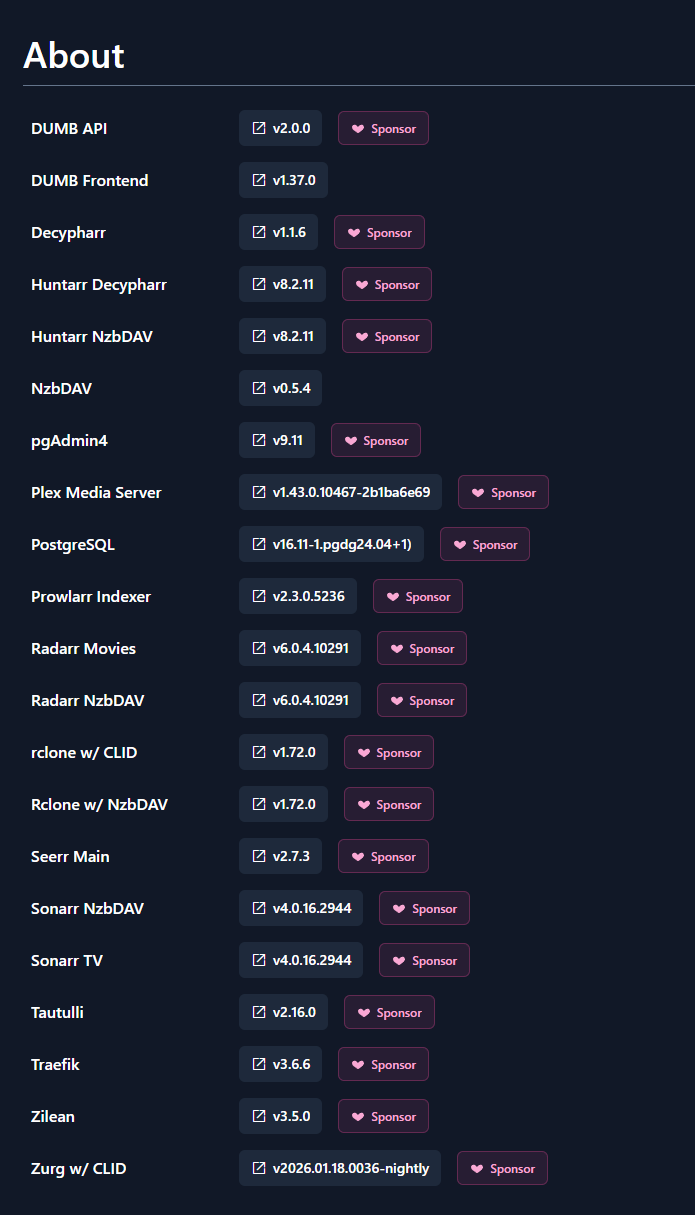
- About - Installed service and frontend versions
- Onboarding - Restart the guided setup wizard
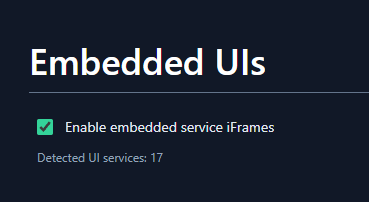
- Embedded UIs - Service UI toggle
- Notifications - Outbound destinations, event routing, thresholds, tests, and delivery history
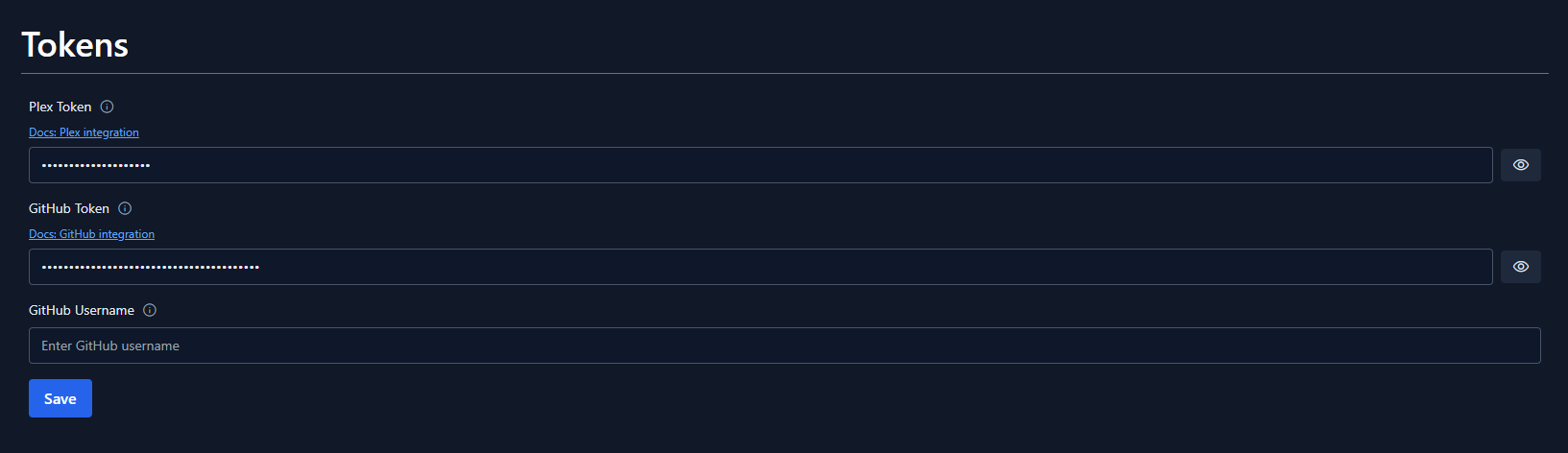
- Tokens - API keys and service tokens
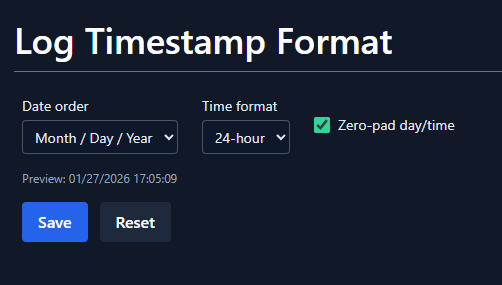
- Log Timestamp Format - Date order, clock format, and zero-padding preferences
- Advanced - Geek Mode and debug-level UI options
- Authentication - Enable or disable auth and manage users when supported
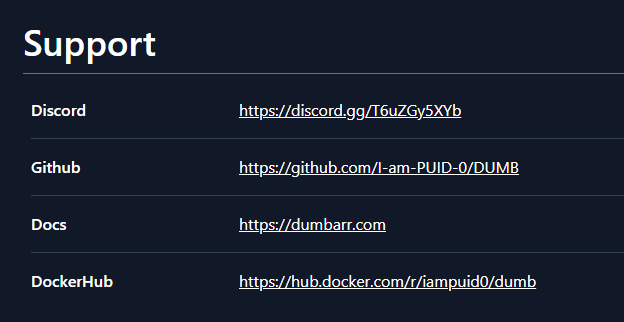
- Support - Project community, source, documentation, and image links
- Contributors - Project contributor links
Every top-level section can be expanded or collapsed from its heading. Sections start expanded for existing and first-time users, and each browser remembers the open/closed state independently for the next visit. Collapsing a section changes only the page layout; it does not disable, reset, or stop the feature inside it.
Settings menu#
The settings menu also includes quick links for:
- Rerunning onboarding
- Viewing installed versions
- Visiting service maintainer sites
- Jumping to Discord, GitHub, docs, and Docker Hub
- Viewing contributors
Appearance#
Choose System Default to follow the browser/operating-system light or dark preference, or select one of the explicit light/dark palettes shown in the theme grid. The choice is stored in browser local storage as dmbdb.appearance.theme; it is a per-browser preference and does not modify backend configuration.
About section#
Version information#
Displays current versions:
- DUMB API version
- DUMB Frontend version
- Individual service versions
The DUMB API and DUMB Frontend rows also summarize retained project update state. Published releases show an Update available badge and, when the installed tag is present in the bounded GitHub release history, how many releases the component is behind. Select the badge to open the shared DUMB Updates dialog. Development versions show a Dev build badge; DUMB does not invent a releases-behind count for a moving development build.
These About-page indicators remain visible after a browser-local banner dismissal because the update result is retained by the backend. The review dialog marks a dismissed entry as Hidden in this browser and lets the operator show its banner again.
Launch Onboarding#
Return to the onboarding wizard to reconfigure your setup:
- Click Launch Onboarding
- Confirm the action
- Navigate to
/onboardingto restart the wizard
Existing configuration
Resetting onboarding does not delete existing service configurations. The wizard will apply new settings on top of current ones.
Re-enabling previously enabled services
If you want onboarding to reselect a non-instance service that is already enabled, set that
service's enabled flag to false in DUMB Config, Save to File, and stop the service first. The
onboarding flow only re-offers non-instance services when they are disabled in the saved config.
Skip to optional services#
If onboarding was previously completed, you can re-run it to add optional services without reconfiguring core services.
Embedded service UIs#
Toggle the embedded service UI feature:
| Setting | Effect |
|---|---|
| Enabled | Access service UIs through the frontend proxy and Traefik routes |
| Disabled | Service UIs only accessible on their native ports |
When enabled, the Settings page shows how many UI-capable services are detected. Service pages include an embedded UI tab, a direct link button, and a full-window toggle for iframes.
Notifications#
The Notifications section appears when the connected backend reports the notifications capability. It manages backend-owned outbound notifications independently from browser-local Metrics alert banners.
From this section you can:
- Enable or disable outbound delivery globally
- Configure monitoring, history retention, retry, and persistent-condition thresholds
- Add multiple Apprise or generic webhook destinations
- Route destinations by severity, event type, and one or more currently enabled services selected from a dropdown; disabled template services and unknown names are excluded, and saving pauses if enabled-service discovery is unavailable
- Configure cooldown and recovery behavior
- Save and test an individual destination
- Send a manual operator message
- Review or clear completed delivery history
Saved destination URLs and webhook headers are not returned to the browser. The UI displays whether a secret is configured; leave a blank secret field unchanged to preserve it.
Each event-routing choice shows its runtime severity, trigger, and prerequisites. The section warns when the selected minimum severity filters otherwise-selected events; the default Warning minimum excludes normal Success events such as a successful Auto-restart. A service-down guidance callout distinguishes unexpected exits from the dashboard's ordinary Stopped display and links directly to Auto-restart configuration. Setup/build helper subprocesses are not treated as managed-service exits. Update-available notices are emitted only when a service first enters that state or its available version changes. Save & test explains that its one-time test bypasses enable switches and routing filters, while normal manual messages still skip disabled destinations.
On lifecycle-capable backends, the app displays the current startup phase until the stack is ready. Transient automatic health/database/resource events and Auto-restart are paused during startup; monitoring establishes a fresh baseline afterward, and a degraded startup is reported once as a consolidated result.
The setup screen also explains that Apprise is an embedded DUMB library, not a third-party relay: normal provider URLs are delivered directly from the DUMB container. It identifies apprise:// and apprises:// as the explicit Apprise API-server exception and links the official Apprise URL Builder beside the destination controls.
See Notifications for provider setup, event behavior, payloads, security guidance, and troubleshooting.
Token settings#
Plex token#
Your Plex authentication token, used for:
- Library access
- Plex API integration
- Riven watchlist/library-scan integration when Riven is selected
GitHub token#
Optional GitHub personal access token for:
- Higher API rate limits
- Access to private repositories
- Private/sponsored release sources used by update/install workflows
Creating a GitHub token
- Go to GitHub Settings Developer Settings Personal Access Tokens
- Grant only the read access required by the private/sponsored repository. Public release checks normally need no token.
- Paste it in the GitHub Token field
UI preferences#
Log timestamp format#
Customize how timestamps appear in the log viewer:
| Option | Description |
|---|---|
| Date Order | MDY (US) or DMY (International) |
| Hour Format | 12-hour or 24-hour |
| Zero Padding | Include leading zeros |
Advanced#
Geek Mode#
Enable Geek Mode to reveal additional power-user information across the UI. When enabled:
Service page header:
- Displays the internal config key and process name in monospace (e.g.
sonarr:Sonarr)
Dependency graph panel:
- Copy JSON button copies the full dependency graph response to clipboard
- Latency badge shows the API fetch time in milliseconds
- The Flow view shows raw Mermaid graph source text for troubleshooting
Process Metrics panel (DUMB Config tab):
- PID, thread count, and process uptime
- CPU usage and memory RSS with color-coded gauges (green < 50%, amber < 80%, red >= 80%)
- Disk I/O read/write totals
- Listening ports and active connection count
- Disk path health: existence check (green/red dot), usage bar with percent
- Container summary: CPU cores, total RAM, used RAM
- Restart history: total count, last exit reason, last restart timestamp
- Refresh button to re-fetch metrics on demand
- A compact Database Health subsection for supported services, including provider, pressure score, collection mode, store/WAL size, observed signal count, recommendation, documentation, and a link to the full per-service panel
Geek Mode exposes the Database Health summary but does not automatically enable collection. Database Health remains read-only and opt-in per service.
Dashboard ServiceCard badges:
- CPU% badge per service, color-coded by usage level
- Memory RSS badge per service
- Database Health pressure and score badge for services explicitly opted into monitoring, with provider, mode, score, and recommendation in its tooltip
- Metrics polled every 5 seconds while Geek Mode is active
Geek Mode is disabled by default. Toggle it from the Advanced section on the Settings page.
Authentication settings#
Authentication provider#
Local authentication settings remain available on older DUMB backends. The
provider editor is mounted only when the backend advertises auth_oidc, so
dmbdb does not probe unsupported /api/auth/provider endpoints. When
available, choose Local or OIDC only; Hybrid is offered only when
the backend also advertises auth_hybrid. The provider editor supports an
external Authelia deployment or another OIDC provider, discovery testing,
claim mapping, optional allowed groups, and explicit connection-safety
overrides.
Hybrid mode is recommended because it retains local password login for recovery. OIDC-only mode requires an explicit lockout-risk confirmation.
The provider dropdown includes DUMB-managed Authelia, external Authelia, Google, Authentik, Keycloak, Microsoft Entra ID, Auth0, Okta, ZITADEL, Dex, and a custom OIDC choice. Google has fixed issuer/discovery values; providers with a deployment-specific tenant, realm, or domain receive a matching URL example instead. Every external provider still requires an OIDC/OAuth web application, client ID, client secret, and exact DUMB redirect URI.
The redirect URI must use DUMB's browser-facing HTTPS FQDN and exact
/api/auth/oidc/callback path. If Settings is opened through localhost or an
IP address, dmbdb leaves the field blank and asks for the real FQDN instead of
silently registering the local origin.
When the backend reports a bootstrapped managed Authelia instance, that choice appears automatically and is preselected when no provider has already been saved. Its issuer and client ID are read-only; Link managed Authelia creates or reuses the dedicated client and stores the generated secret without showing it in the browser. The Authelia service-page wizard remains the place to bootstrap Authelia or configure TPA and ForwardAuth integrations.
The connection-safety checkboxes affect outbound requests from DUMB to the identity provider:
| Option | Meaning |
|---|---|
| Verify provider TLS | Verify the HTTPS certificate and hostname; keep enabled |
| Allow private endpoint IPs | Permit loopback/private/reserved targets for a trusted self-hosted provider |
| Allow HTTP | Permit an unencrypted provider endpoint on a trusted isolated network |
Selecting another preset resets these exceptions to their secure defaults. Check discovery validates the issuer metadata and endpoint policy without saving or changing the current login.
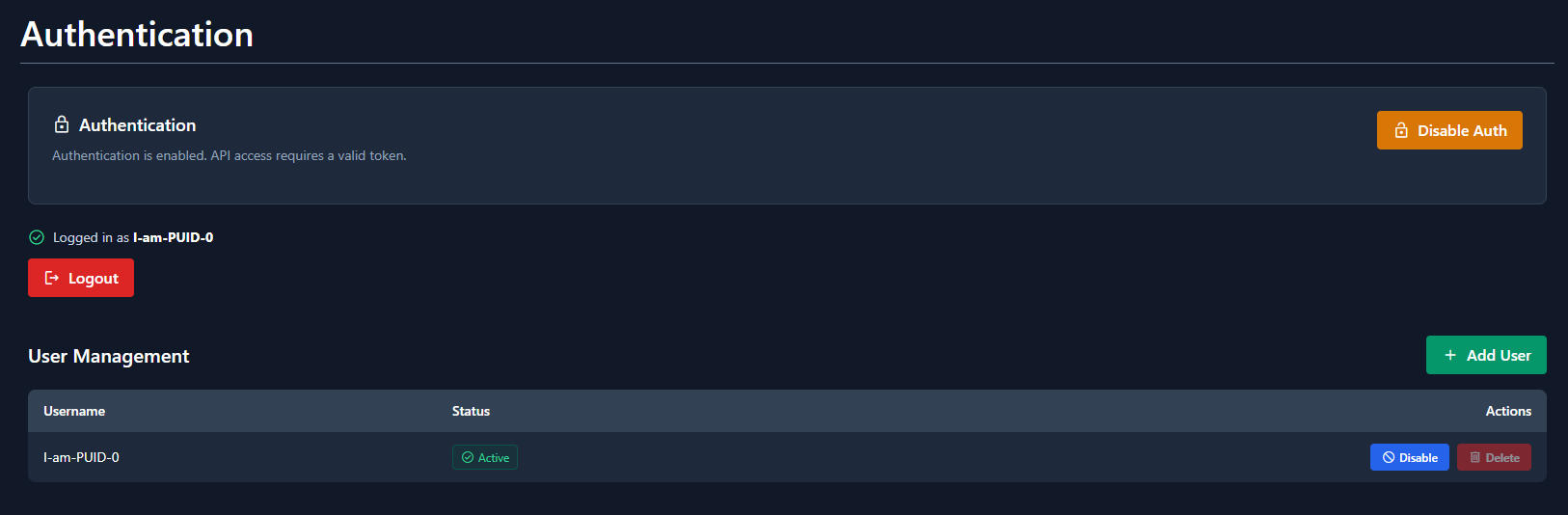
Enable/disable authentication#
Toggle the authentication requirement for accessing DUMB:
| Setting | Description |
|---|---|
| Enable Auth | Require login for all access |
| Disable Auth | Allow unauthenticated access |
Security warning
Only disable authentication in trusted, isolated environments.
User management#
Manage user accounts when authentication is enabled:
| Action | Description |
|---|---|
| Add User | Create a new user account |
| Disable User | Temporarily block a user |
| Enable User | Re-activate a disabled user |
| Delete User | Permanently remove a user |
Last user protection
The last active user cannot be disabled or deleted to prevent lockout.
Links#
Quick access to:
Contributors#
Acknowledgment of project contributors and integrated services.

Related pages#
- Authentication - Detailed auth guide
- Dashboard - Main service view
- Onboarding - Setup wizard